Roger Dunham
Published May 02, 2025
Updated August 11, 2026


Creating a PDF Editor Electron App using Electron Forge
Roger Dunham

Summary: Unlock the potential of your Electron application by adding Apryse WebViewer. Create a versatile PDF editor with just a few lines of code and enhance document functionality.
Introduction
If you are a software developer, then you have probably used Visual Studio Code. In fact, the 2024 Stack Overflow Developer Survey revealed that almost 75% of all respondents used it, almost three times the number that used IntelliJ IDEA.
One of the things that makes it so popular is that it is available on Windows, macOS and Linux – and that’s because it is using the Electron Framework.
Electron, with its built in Chromium browser, is clearly a popular solution to cross-platform application development using JavaScript, HTML, and CSS.
In this article we will look at how we can add Apryse WebViewer to an Electron application, allowing you to write just a few lines of code to create a PDF viewer with the ability to edit the text content of the PDF (think “Xodo” or “Adobe Acrobat clone”).
In fact, WebViewer, which is a JavaScript based library, does much more than just view or edit PDFs – it also provides easy access to a wealth of document viewing and editing functionality.
We will use Electron-Forge to scaffold the app, and we will work through all of the steps needed to get your PDF editor working.
A note on versions
This article was written using Windows 11, Node v. 22.13.1 and npm v.10.9.2.
The app was created by Electron Forge v. 7.7.0 and uses Electron v. 35.0.2.
Step 1. Initialize a new project
Forge has four first-party templates available.
- webpack
- webpack-typescript
- vite
- vite-typescript
For this article, we will use the vite template with JavaScript.
npx create-electron-app@latest my-app --template=vite After a few moments, npx will scaffold the project for you.

Figure 1 - The result of scaffolding a new project.
Step 2. Check that the default app runs.
Navigate to the new folder.
While you could start the app directly from the command line, I like working with VSCode (it’s Electron after all!), so I’ll open the project using that.

Figure 2 - The default scaffolded app shown in VSCode.
You can now run the sample using:
npm run start After a few moments the default app will appear in the Electron viewer.
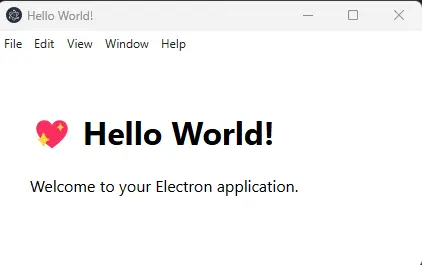
Figure 3 - The default Electron app.
Step 3. Install WebViewer
Next, we need to install WebViewer. I’m using npm, but you can use an alternative package manager (such as Yarn) if you prefer, or even just integrate WebViewer manually.
npm install @pdtfron/webviewer Check out this video that shows how to add Apryse WebViewer to your app.
Installing WebViewer adds it to node_modules, but we also need to copy the static assets into a location where they can be found and used within the Electron viewer. That’s easy to do, just copy the files that are in node_modules/@pdftron/webviewer/public into a new folder in the root of your directory. I’m calling that folder public/lib/webviewer. You could use a different name, but if so then you will need to update the path when instantiating WebViewer in a few moments.

Figure 4 - After copying the static WebViewer assets, your project should look like this.
Note: You could write a script to do this that is triggered “postinstall”, but for now we will copy it manually.
There’s a GitHub repo that goes with this project, and that has the script included.
Step 4. Add a div element where WebViewer will be mounted.
Forge creates a default index.html. That contains a lot of things that we don’t need, so most of it can be deleted. We do need to add a div where WebViewer will be mounted. We will include a class name since we are likely to want to style it later, and we will also specify an id (we will use the id “viewer”) so that the div can be identified as the place where WebViewer should be mounted when it is instantiated.
The entire index.html file should look like:
Step 5. Initialize WebViewer
The default Forge app contains a renderer.js file that is used to populate the main page.
Once again, there is very little in the default file that we need to keep, so you can replace all the contents of that file with this block:
The main things to note are:
The path should point to the location where you copied the static assets (but without the “public” folder name).
- You will need to replace [Your license key] with a real one, but it is free to get a trial Apryse license key.
- You can see that the constructor returns a promise. When that resolves you can access the instance object which relates to the WebViewer instance.
We are using that to interact with the WebViewer API. In this case we are using it to enable the “ContentEdit” feature, but there are many other options available too.
We’re almost ready to roll!
Step 6. Update the default CSS
While the code will already run, and display WebViewer, the default CSS that Forge creates isn’t ideal. The fix is easy - just remove the max-width and padding styles so that the index.cs file looks like:
Step 7. Run the App and be dazzled by WebViewer
Run the app again using:
npm run start The app will start again, and because we specified an initial document in the WebViewer constructor that will automatically load. You now have access to a wealth of default functionality in a WCAG 2.1 AA compliant UI!
As a first example of the functionality let’s add a couple of annotations to the PDF.

Figure 5 - The final app, showing a default PDF with annotations.
Now click on the Edit Text menu item, then on the Edit Content button.

Figure 6 - The Edit Content button. When this is clicked the text is surrounded by dashed lines.
You can now change the text directly within the PDF.

Figure 7 - Without leaving WebViewer you can edit the text!
When you are done you can save the file, and the changes will be included.
That’s awesome, and we have only looked at a tiny part of the functionality!
Where Next?
So far, we have just got a very simple app running using WebViewer and Electron. And we did that with about 25 lines of code.
WebViewer offers much more than just viewing and editing PDFs, and adding annotations though. You can customize the UI extensively, work with redactions, edit PDFs and DOCX files and a host of other functionality.
There’s a wealth of documentation available to help you get started and get to market quickly. Don’t forget, you can also reach out to us on Discord if you have any questions.