Kevin Herschbach
Technical Content Writer
Published February 13, 2026
Updated May 18, 2026

4 min


How to Build a Browser-Based PDF Viewer With Blazor
Kevin Herschbach
Technical Content Writer

Modern web applications frequently need to display PDF documents without forcing users to download files or rely on browser-specific PDF plugins. The challenge is building a PDF viewer that works consistently across all browsers, provides a smooth user experience, and integrates seamlessly with your existing web framework. With the right SDK, you can display PDFs with built-in annotation tools, search functionality, and responsive layouts, all within your application's UI.
In this tutorial, you'll learn how to create a web app for viewing PDFs in your browser using Blazor, Microsoft’s framework for building client-side UIs with C# and HTML, and the Apryse WebViewer SDK. You'll set up a web app in Blazor, integrate the WebViewer component, and display PDFs directly in the browser, without writing complex rendering logic or worrying about cross-browser compatibility.
To build your Blazor app, you'll follow these steps:
- Step 1: Prepare the project
- Step 2: Integrate the PDF viewer
- Step 3: Render the PDF viewer in your UI
The result will look like this:
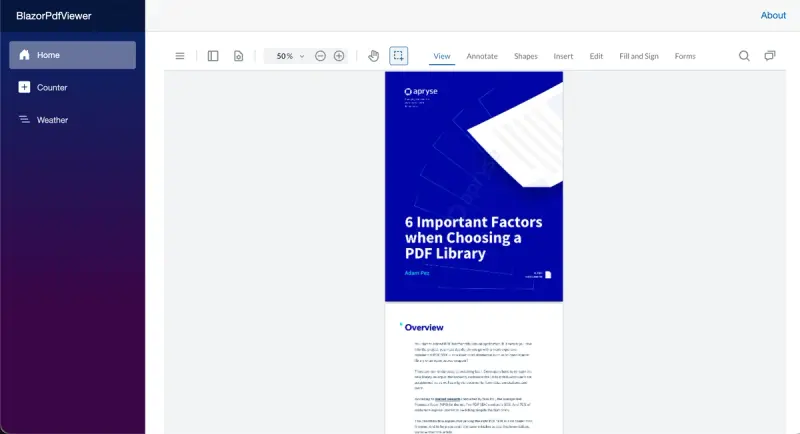
WebViewer running in a Blazor web app
Prerequisites
- VS Code – however, you can also follow along using another IDE (e.g., JetBrains Rider), since the process will be similar
- .NET SDK
- C# Dev Kit extension for VS Code
Step 1: Prepare the Project
Start by creating a new Blazor project.
In VS Code, you can use the command palette: Select “.NET: New Project…“, then “Blazor Web App“. Name your project (e.g., “BlazorPdfViewer”), confirm the project directory, and select “Create project“.
Change into the project directory ...
cd BlazorPdfViewer... and initialize npm.
npm init -yThen install WebViewer.
npm i @pdftron/webviewerNext, you'll have to copy some static WebViewer assets.
Create a new directory wwwroot/lib/webviewer/public.
mkdir -p wwwroot/lib/webviewer/publicThen copy the directories core and ui, as well as the file webviewer.min.js from node_modules/@pdftron/webviewer/public into the new directory you just created.
cp -R node_modules/@pdftron/webviewer/public/core node_modules/@pdftron/webviewer/public/ui node_modules/@pdftron/webviewer/webviewer.min.js wwwroot/lib/webviewer/publicYour directory wwwroot/lib/webviewer should now look like this:
webviewer
└── public
	├── core
			└── ...
	├── ui
			└── ...
	└── webviewer.min.js
In the next step, you'll create a PDF viewer component that you can use anywhere in your app.
Step 2: Integrate the PDF Viewer
Open Components/App.razor and add a script tag for loading WebViewer in the HTML's head, below <HeadOutlet /> .
The placement inside <head> ensures WebViewer is processed early in the render pipeline.
Next, in the directory Components, create a new file WebViewer.razor. This will be your PDF viewer component.
Paste the following code:
Replace 'YOUR_LICENSE_KEY' with your WebViewer trial key, which you can generate in the WebViewer documentation.
Step 3: Render the PDF Viewer in Your UI
In the final step, you'll include the WebViewer component in one of your Blazor app's pages. In this example, let's go with Home.razor.
Open Home.razor and replace the H1 and welcome text with a reference to the WebViewer component.
@page "/"

<PageTitle>Home</PageTitle>

<WebViewer />
Your web app for viewing PDFs is ready! Go ahead and test it in your browser.
dotnet runWebViewer running in a Blazor web app
Conclusion
Feel free to explore WebViewer in your Blazor app. In addition to viewing PDFs, you can annotate them, sign them, and add form fields. Furthermore, you can use the WebViewer SDK's document templates to generate PDFs from raw data.
To learn more, check out the WebViewer documentation and the various samples. Begin your free trial or contact our sales team to get started.