Garry Klooesterman
Senior Technical Content Creator
Published February 19, 2026
Updated May 18, 2026

4 min


How to Generate a PDF from a CSV File
Garry Klooesterman
Senior Technical Content Creator
Summary: CSVs are the workhorses of the data world because they are reliable, lightweight, and everywhere. But they are also the junk drawers of data and look terrible in a board meeting or a client’s inbox. This tutorial shows you how to bridge the gap by taking raw CSV data, restructuring it into JSON, and using the Apryse Server SDK to use that data in an Office template to generate high-quality PDFs.
Introduction
So, you’ve just been asked, told rather, to convert a CSV file to PDF. Now what?
When we talk about documents, like a financial summary or a state-by-state health report, we expect hierarchy. We want headers, grouped tables, and logical pagination. The challenge for developers is that most PDF libraries require you to create the document using x, y coordinates, which is a maintenance nightmare.
With a robust SDK, like the Apryse Server SDK, you can handle this document generation task to design the layout in a DOCX file (using tags), merge the data, and create a PDF as a final product.
This blog will look at how to do this using the Apryse Server SDK in Python for most of the task. We’ll also look at some commonly asked questions.
How to Convert CSV to PDF
Step 1: Convert Your CSV to JSON
First things first, the Apryse Server SDK doesn’t deal with CSV directly; it uses JSON.
Why? Because JSON allows for the nested structure that modern documents need. While a CSV is a flat table, a document might need to group data. For our example, we took a flat list of daily weather stats and restructured it so that all data for a specific date is grouped by State.
With a quick search, you can find a number of CSV to JSON converters or even ask your favorite AI to create a script for you.
Pro Tip: Don’t overcomplicate this. You don't need a heavy library to convert CSV to JSON. A simple script can parse the lines, wrap the values in quotes, and nest the rows under a key term. This is what allows your PDF template to know when to start a new table or a new page.
For this example, I’ve used a CSV file of weather data for US cities. Here’s an example of what this file looks like when opened in Excel.
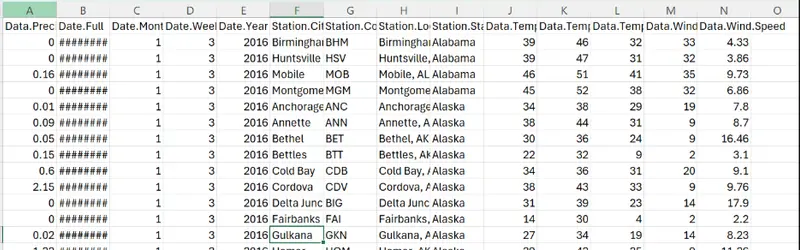
Figure 1: Raw data in CSV file opened in Excel.
Here’s how our data for Alabama converted to JSON looks. We've restructured it, removed unwanted data, and created exactly what we needed. With your data, you will need to restructure it to give you what you need.
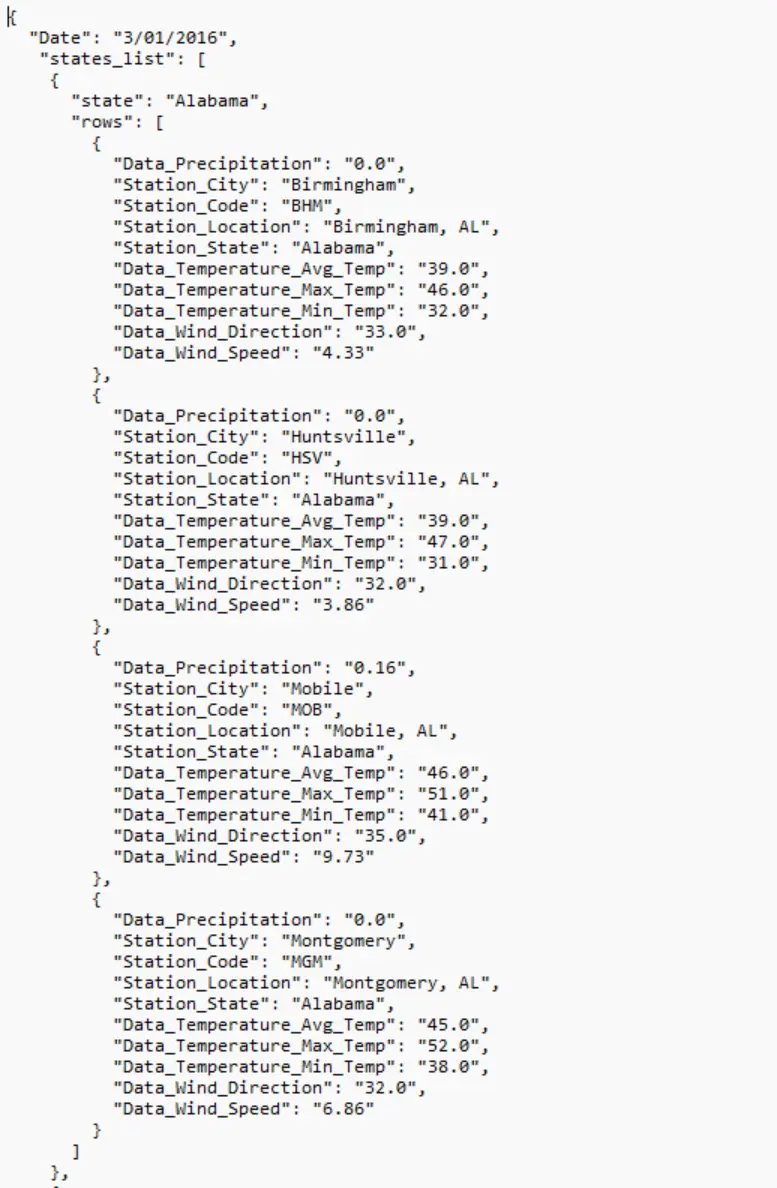
Figure 2: The same data converted to JSON.
Step 2: Map the Template
Once your data is in JSON format, you map it to an Office document (.docx). Instead of coding a table pixel-by-pixel, you can create a table in your DOCX template and use double curly braces {{ }} for your tags.
Loops: Use a tag like {{rows}} to tell the SDK to repeat a table row for every entry in your JSON array. Don’t forget to mark the end of the loop with {{endloop}}. Loops can also be nested.
Conditionals: You can hide or show sections based on the data.
Styling: You can format the tag when you create the DOCX file, and the SDK will keep that styling when it generates the PDF.
Here’s my DOCX file set up with the proper tags.
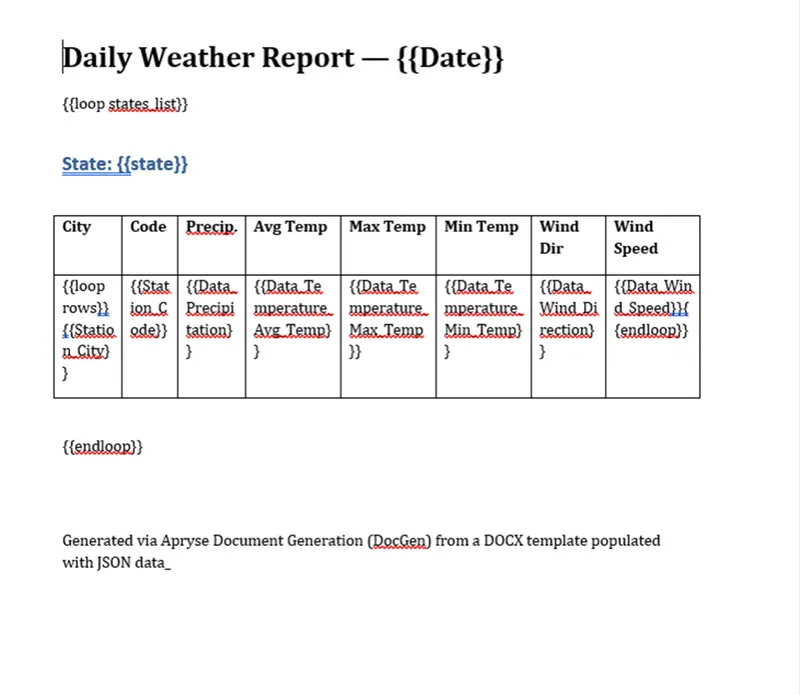
Figure 3: The DOCX template file we'll load the JSON data into.
Step 3: Merge Your Data into a PDF
Once your template and JSON are ready, the code to generate the PDF is surprisingly lean. You don't need Word installed on the server, and there are no external dependencies.
Note: In this example, we’re using Python to handle the task, but this can be done in other languages as well such as C#, C++, Java, and more.
The following code creates a template from your DOCX file, then loads the JSON data file (day-3-01-2016-stringified_by-state.json), and fills in the template. Lastly, it saves the file as a PDF.
And here’s an example of what our final PDF looks like with some data for Alabama and Alaska. As you can see, it’s quite different from what we started with.
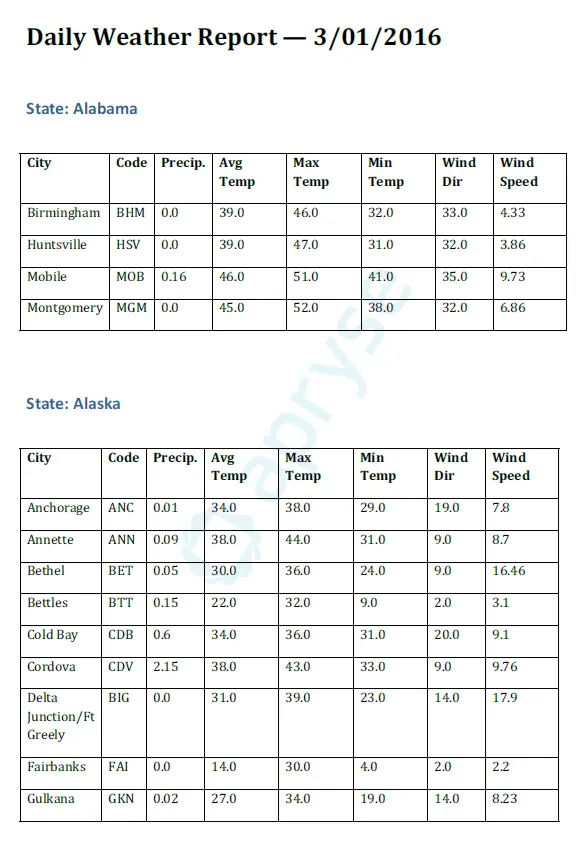
Figure 4: The end result saved as a PDF file.
An Alternative Method
If you’re looking for a way to avoid all the coding, you can try Fluent, a document automation platform that simplifies report creation with minimal coding. It allows users to design and manage data-driven Microsoft Office templates at scale, and it supports CSV files to generate dynamic documents such as PDFs or Word files.
FAQ
Why can't I just use the CSV directly?
CSVs are flat, and documents are hierarchical. By converting to JSON first, you can group your data (for example, “All sales under this Manager”) which allows the template engine to create nested tables and logical sections that a flat CSV can't support.
Do I need Microsoft Office installed on my server?
No. The Apryse Server SDK has a built-in office engine. It parses the DOCX file and renders the PDF directly, which is a much faster and more stable way of converting the file.
How does it handle large datasets that span multiple pages?
The SDK automatically handles pagination. If your JSON contains 500 rows and your template has a table, the SDK will flow that table across as many PDF pages as necessary, reprinting the table headers on every page if you’ve set that up in your DOCX template.
Can my CSV have special characters or symbols?
When you write your conversion script, ensure your JSON is UTF-8 encoded. The Apryse Server SDK easily handles international characters and symbols, as long as the font you chose in your DOCX template supports them.
Can I include images in the PDF from the CSV data?
Yes. If your CSV contains a URL or a base64 string for an image, you can map that to an image tag in your Office template. The SDK will fetch the image and place it into the document at the correct size.
Conclusion
Transforming CSV data into a PDF may seem like a daunting task, but it doesn’t have to be. With a professional SDK like the Apryse Server SDK, you can move the layout design into an Office template and use JSON as the bridge between your raw data and your document. This allows you to build a reporting engine that is both powerful and easy to maintain.
The Apryse Server SDK has many other benefits and features, such as digital signatures, redaction, and annotation that you can then use with your PDFs.
Try the Apryse Server SDK with a free trial or check out the documentation.
Contact our sales team for any questions.
Suggested Reads