Isaac Maw
Technical Content Creator
Published January 06, 2026
Updated September 30, 2026

4 min


How to Search Document Annotations in WebViewer SDK
Isaac Maw
Technical Content Creator
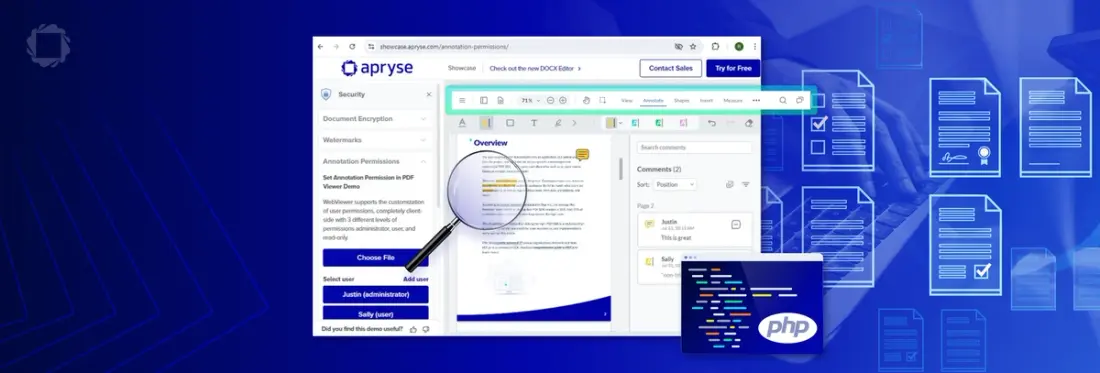
Summary: Searching comments and annotations in PDFs makes document review faster, more accurate, and easier to automate. Using Apryse WebViewer’s AnnotationManager, you can store annotations as XFDF, parse comment data, search by content or metadata, and instantly jump to results in large documents. This enables powerful workflows like automated redactions, compliance auditing, progress tracking, notifications, and search-first review experiences across Web, Server, and Mobile SDKs.
Annotations are a powerful review and collaboration feature in PDF document experiences. Apryse supports annotations in the Server, WebViewer and Mobile SDKs, including special types of annotations such as redaction annotations, which mark specific content to be permanently removed.
The ability to search through comments on documents in WebViewer, not just document content can help speed review processes, enable workflows, and reduce compliance errors.
Here’s how to search and review annotations using the AnnotationManager class.
Why Searching Comments Matters
While the ability to add annotations is a powerful tool for collaboration and review, with many annotations across a large document, it can become challenging for users to navigate.
The capability to search and extract content from comments and annotations can help add automation and traceability to redaction workflows, get progress updates from document workflows, and log comment data. In addition, getting data from annotations can help developers build features like notifications and reports.

Turn static text into actionable links inside PDFs with ease. Check out our Text Link Annotations post for practical examples.
How Annotation Search Works
Store annotations as searchable XFDF files, which can include metadata like date, name, approval status, and more. Instantly jump to annotations in documents with thousands of annotations.
Searching Annotations using the Server SDK
The AnnotationManager class described below is used in WebViewer. For the Server SDK, you can use the Annot object and GetContents.
Step 1: Load Document & Initialize WebViewer
WebViewer delivers high-fidelity viewing, editing, annotation, conversion, and more across PDF, DOCX, spreadsheets, CAD with a single component. Using our Quick Start Guide, initialize WebViewer. You can also refer to the video below for integration instructions. The process is simple. You’ll start by downloading the required packages, pasting in the code for the WebViewer constuctor, and adding your trial license key. Before long, you’ll have WebViewer up and running in your browser. You can visit our API guide for class: Annotation to learn more about the features of annotations.
Step 2: Store Annotations as XFDF
WebViewer provides methods to import annotations into the viewer from their XFDF data as well as export all currently loaded annotations as XFDF using AnnotationManager.
You can visit this documentation page for XFDF Annotations to find sample code and more details.
Step 3: Parse the Annotation Content
Because XFDF is XML, you can now use any XML parsing library to parse the annotations and extract data.
Step 4: Jump to Annotations
Now, you can use jumpToAnnotation(annotation [, options]) to jump to the page of the annotation and if it isn't visible then center it in the window.
Common Technical Use Cases
- Automated Redaction Workflows: Identify and process Redaction annotations programmatically to enforce compliance and remove sensitive content before distribution.
- Compliance & Audit Logging: Extract annotation metadata (author, date, status) to build audit trails and generate reports for regulatory reviews.
- Search-First Review UX: Implement comment search and instant navigation (jumpToAnnotation) for faster document reviews across large files.
- Notifications & Workflow Automation: Trigger alerts or route documents based on annotation changes, mentions, or approval states.
- Progress Tracking & Reporting: Aggregate annotation data by type and status to visualize review completeness and workflow bottlenecks.
FAQ
- Can I search inside note contents and replies?
Yes. You can inspect Annotation contents and thread relationships (InReplyTo) via AnnotationManager. - How do I filter by author or status (open/resolved)?
You can use array filters to filter by annotation properties, including author and status flags your workflow uses. - Can I include custom annotations in search?
Yes, you can extend annotation types and include custom fields in your filtering logic. - How does this relate to text search or redaction?
You can integrate the existing text search pipeline and, if needed, create redactions programmatically. - How do I share results?
You can share results using Export/import XFDF to retain annotations and their metadata across sessions and users.
Next Steps
To learn more about annotations in WebViewer, visit the annotations capabilities page or try the annotations demo. If you have any questions or when you’re ready for production, please contact sales.