Garry Klooesterman
Senior Technical Content Creator
Published March 12, 2026
Updated September 14, 2026

7 min


How to Build a High-Performance C# PDF Viewer in .NET (WinForms & WPF)
Garry Klooesterman
Senior Technical Content Creator

Summary: Native Windows applications require native performance. This tutorial explores how to integrate a robust PDF viewer into WPF or WinForms projects using the Apryse PDFViewCtrl. We cover setup, essential features like text search and form filling, and the critical distinction between .NET Framework and modern .NET versions for desktop UI components.
WinForms vs. WPF: Which PDF Viewer Approach Fits Your Project?
Choosing a UI framework is the first hurdle in desktop development.
- WinForms: If your project prioritizes rapid development, uses standard Windows controls, or is a legacy enterprise tool, the WinForms PDFViewCtrl is the path of least resistance. It’s perfect for internal tools and data-heavy applications.
- WPF (Windows Presentation Foundation): If you need a modern, resolution-independent UI with complex styling, data binding, or custom animations, PDFViewWPF is the better choice. It offers more granular control over the user experience.
Note: The native Apryse PDF viewer controls are built for the .NET Framework, which remains a significant part of global software systems. Many businesses still maintain these systems because of the high cost of migration and the “If it ain't broke, don’t fix it” mindset.
If your project targets modern .NET (.NET Core or .NET 5 or higher), these specific UI controls are not supported. For modern .NET desktop projects, Apryse recommends using WebViewer within a browser wrapper for the best stability and feature parity.
Key Viewer Features: Zoom, Search, and Annotations
A professional viewer needs to be more than a static image. The Apryse SDK provides built-in tools for interactivity:
- Navigation & Dynamic Zoom: Built-in methods like SetPageViewMode() and SetZoom(), and the ability to handle complex layouts (single page, continuous, etc.).
- Text Search: The TextSearch class allows you to highlight keywords and automatically scroll the viewer to the first instance.
- Annotations & Form Filling: PDFViewCtrl supports interactive AcroForms out of the box. Users can click into text fields, check boxes, and sign documents without additional code.
Handling Large Documents
Loading very large files such as a 10,000-page document shouldn't crash your app. The Apryse viewer uses Asynchronous Rendering to keep the UI responsive. It prioritizes the pages the user is currently looking at and renders the rest in the background.
- Linearization: The viewer can display the first page of a "Linearized" PDF while the rest of the file is still loading in the background.
- Progressive Rendering: Pages are rendered in tiles, prioritizing the visible area to ensure zero lag during fast scrolling.
Enterprise Security: Encryption, Signatures, and Redaction
If you're building for legal, healthcare, or financial sectors, security is a hard requirement:
- Digital Signatures: The viewer can visually represent signature fields and integrate with certificate authorities.
- True Redaction: Unlike simple black boxes, Apryse can physically strip the binary data from a document, ensuring sensitive info is unrecoverable.
- Encryption: Passwords can be passed into the PDFDoc constructor to open AES-256 encrypted files seamlessly.
How to Set Up Your Project Using NuGet
To get started, make sure you are in a Visual Studio project targeting .NET Framework 4.5.1+.
1. Open Visual Studio and create a new Windows Forms App (.NET Framework).
2. From the Tools menu, select NuGet Package Manager. Then select Manage NuGet Packages for Solution.
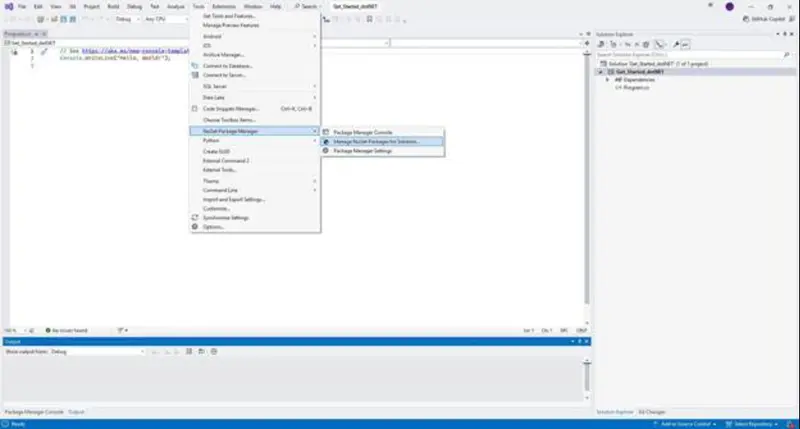
Figure 1: Access the NuGet Package Manager.
3. In the NuGet Package Manager, select the Browse tab.
4. In the Search field, type Apryse, then press Enter. This will show you the various libraries that Apryse has published.
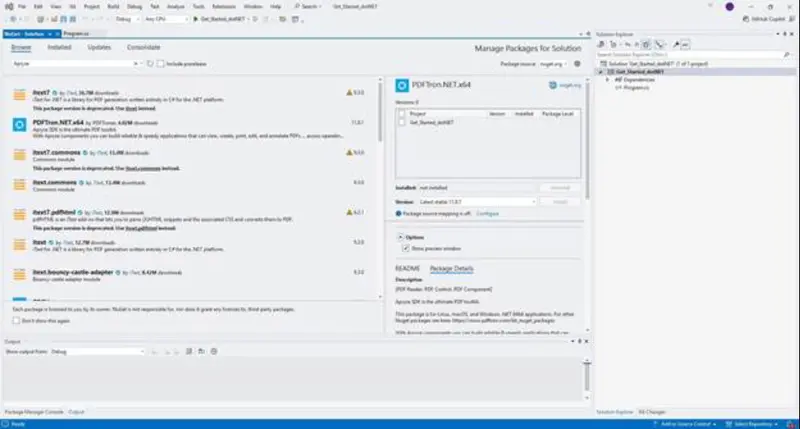
Figure 2: Search for the libraries that Apryse has published.
5. In the search results, select PDFTron.NetFramework.x64.
6. In the right-hand pane, check the box next to your project name (the one you created in Step 1) and make sure the latest version is selected, and click Install.
7. In the Preview Changes dialog, click Apply to add it to your project.
After it’s been added, in the Output pane, you will see that it’s Finished:

Figure 3: When you see Finished in the Output pane, the solution has been updated.
Configure Your Project Architecture
Because we installed the x64 version of the Apryse library, you must tell Visual Studio to build a 64-bit application.
- In the top menu, go to Build > Configuration Manager.
- Under Activesolution platform , click the dropdown and select <New...>.
- Choose x64 and click OK.
- Ensure the platform for your project is now set to x64.
Now that the SDK is installed and your architecture is set to x64, we can add the viewer to your application's main form.
How to Set Up a PDF Viewer Using Apryse PDFViewCtrl
The engine for this viewer is the PDFViewCtrl class. It wraps the complex rendering logic into a manageable C# control that handles all the low-level rendering, scrolling, and input handling.
Note for WPF Users: The code below is designed for our WinForms example. If you want to create a WPF App, you cannot add the PDFViewCtrl directly to the window. Instead, you must use a WindowsFormsHost and add a reference to WindowsFormsIntegration in your project.
Wrap the viewer like this:
Once the host is added to your XAML grid, you can follow the same initialization and document loading steps shown in the WinForms example below.
Now back to our example.
In a WinForms environment, you can add the viewer to a panel from the toolbox, programmatically, or to the form itself.
After you have your base project file set up, we need to add some coding to view the PDF.
1. Open Form1.cs by right-clicking it in the Solution Explorer and selecting View Code. Replace the existing code with the following snippet:
Note: In the code below, replace YourProjectNamespace with the actual name you gave your project in Step 1. You can find this name at the top of your original Form1.cs file.
Loading a document is a two-step process. First, you create a PDFDoc object (the data) and then you pass it to the PDFViewCtrl (the UI). This separation allows you to manipulate the document data independently of the display.
Note:
- Don’t forget to add your license key and the path for your document before running the project.
- The @ symbol before the file path (for example, @"C:\YourDoc.pdf") tells C# to treat the backslashes as part of the path rather than special command characters.
2. Click Start (labeled with your project name) on the Visual Studio toolbar to run the code. Your project will open and you should see your document in the PDF viewer.
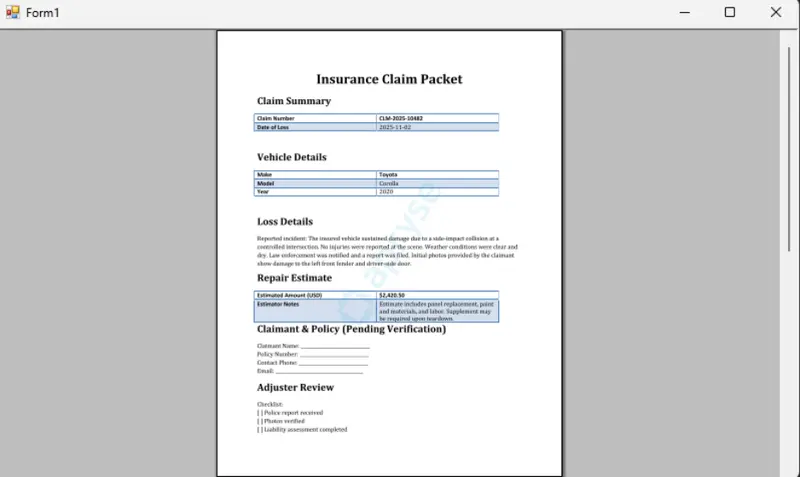
Figure 4: The PDF viewer in action.
We’ve just created a simple PDF viewer and loaded our sample document.
See our Simple PDF Viewer Control - PDFViewSimple sample project for more details any many options that can be added to this project.
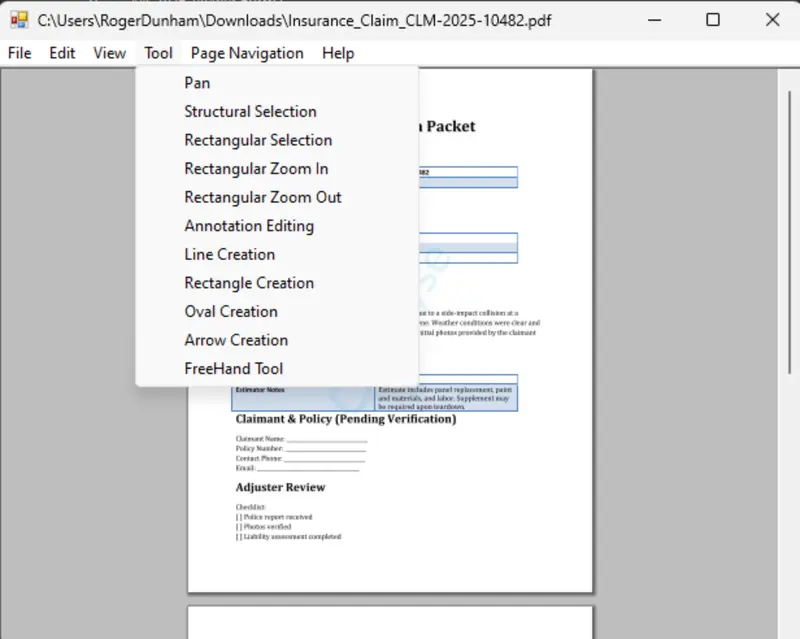
Figure 5: The PDF viewer with all the options from our Simple PDF Viewer Control PDFViewSimple sample.
FAQ
Does this viewer work with .NET 6, 7, or 8?
No. The native PDFViewCtrl and PDFViewWPF controls are built for the .NET Framework. For modern .NET projects, you should use Apryse WebViewer, which provides a consistent experience across web and desktop.
Do I need Microsoft Word installed for the viewer to work?
No. The Apryse SDK is completely self-contained and does not require Office or any third-party PDF software.
Do I need a separate license for WPF and WinForms?
The license is generally tied to the SDK itself, not the specific UI framework you choose to wrap it in.
Can I customize the toolbar and menus?
Yes. You can build your own UI for the viewer, giving you 100% control over the user experience and branding. This sample code provides a lot of customizable elements.
Does it support dark mode?
Yes. You can programmatically set the background color of the viewer and use "Night Mode" rendering to invert colors for a better user experience in low light.
Conclusion
Building a native C# PDF viewer in .NET Framework gives you the best possible performance on Windows desktops. By using the Apryse Server SDK, in just a few lines of code, you’re able to bypass months of development and can focus on building the features your users actually need.
Try the Apryse Server SDK with a free trial or check out the documentation.
You can also contact our sales team for any questions and support.
Suggested Reads