Isaac Maw
Technical Content Creator
Published July 30, 2025
Updated July 27, 2026

4 min


How to Convert DOCX Files to PDF with Node.js
Isaac Maw
Technical Content Creator
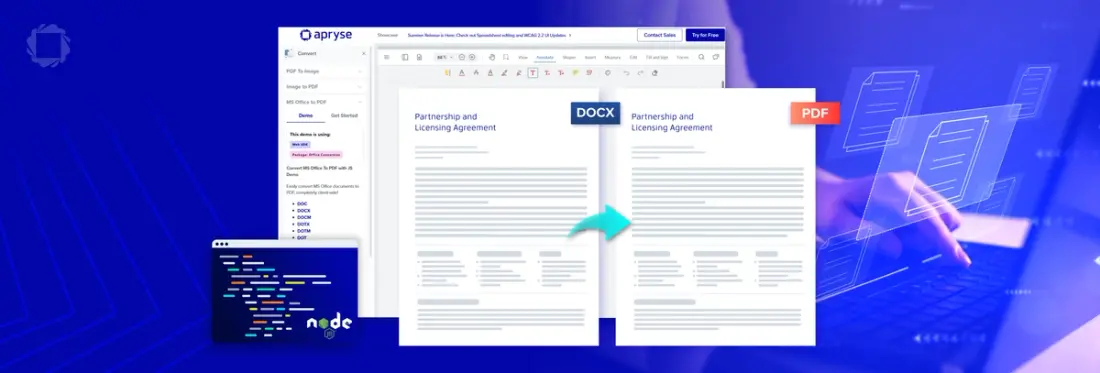
Summary: Convert DOCX files to PDF using Apryse’s Server SDK in Node.js without third-party dependencies. This guide walks through setup, licensing, and sample execution.
Applications with DOCX to PDF conversion for documents like invoices are in high demand. With the Apryse Server SDK for Node.js, developers can develop an app with this feature to convert DOCX files, no matter the size, without any external third party dependencies. That's right - there is no need for Office (or LibreOffice or another tool) to be installed.
Get Started with Server SDK on Node.js
To convert documents from DOCX to PDF in Node.js, we’ll use our Server SDK. You can do that using a trial key which includes unlimited trial usage and support from solution engineers.
Versions and Platforms
The Apryse SDK can be used on Windows, macOS and Linux.
This article was written using Apryse SDK version 12.0, Windows 11 and Node 24.
You can get more details about supported versions of Node and how to get started in our documentation for getting started with the Apryse Server SDK for Node.js.
Install the NPM Package
Install the npm package (pdftron was the former name of Apryse):
npm i @pdftron/pdfnet-node Please note that all Apryse NodeJS libraries install native binaries and installing the package will install a system specific distribution.
Integrate into your project
You can now import the Apryse SDK by using the following in your Node.js code:
const { PDFNet } = require('@pdftron/pdfnet-node');You will need to specify the license key either when you Initialize the SDK
PDFNet.initialize('APRYSE_LICENSE_KEY')or within one of functions that help manage memory.
PDFNet.runWithCleanup(main, 'APRYSE_LICENSE_KEY');You should also call PDFNet.Shudown() when you have finished with the library to avoid your application hanging.
Converting DOCX to PDF for Node.js with No External Third Party Dependencies
Now that you’re all set with the Server SDK, you can run the below sample to convert your DOCX to PDF with this code:
For a full sample on PDF conversion, check out https://docs.apryse.com/core/samples/officetopdftest
Next Steps
In addition to document conversion, the Apryse Server SDK is your solution for providing PDF viewer, annotations, text extraction, search, form filling, and more.
You can download a complete set of samples using
npm i @pdftron/pdfnet-node-samplesCheck out our Server SDK information page to learn more. When you’re ready to get started, contact sales.