Roger Dunham

Joshua Lore
Web Developer
Published June 05, 2026
Updated June 09, 2026

5 min


Optimizing the WebViewer Files
Roger Dunham
Joshua Lore
Web Developer

Summary: Apryse WebViewer offers extensive functionality but has a large default file size that can be significantly reduced using a built-in, automated "Optimize" script. This article details how to use the script to remove unused components, decreasing the deployment size and optimizing the library for specific project needs.
Introduction
Apryse WebViewer (also known as the Apryse Web SDK) is an enormously powerful toolkit built on top of the Apryse SDK, and with a configurable open-source UI, it provides a way for users to work with many different document types such as PDFs, DOCX files, Spreadsheets, or even CAD files and images. You certainly view all of those file types using just a single tool, but for some you can do much more like add annotations, edit the content, add or remove pages, or even generate entirely new documents based on dynamic data. Wow!
But access to all of that functionality has a downside; there is a lot of code.
As a result, once extracted from the downloaded archive, the WebViewer folder is 265MB in size.
That does include samples and documentation (which help you to get started quickly), but the lib folder itself is 175MB.
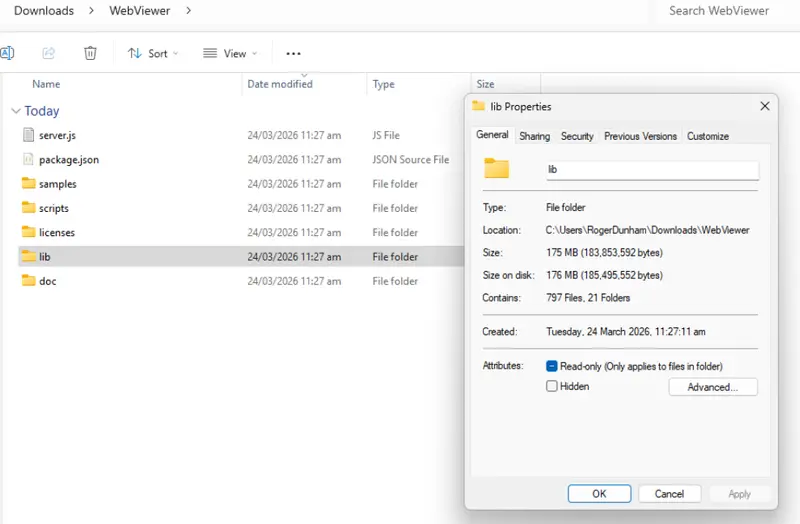
Figure 1: The lib folder is 175MB on a Windows machine.
So, is there a way to reduce the files that need to be deployed if you don’t need specific functionality?
Absolutely! In this article, we will see how you can optimize the WebViewer files.
Optimizing WebViewer
While you could manually remove files, the clever Devs at Apryse have created an “Optimize” script that will do that for you.
That script is included when you download WebViewer (it’s a tiny part of the 265MB download).
WebViewer itself has no external dependencies. But the script does, and they need to be installed before it can be run.
npm iYou may see some warnings related to the package “glob” which is used by one of the dependencies of the script. It’s not used by WebViewer itself, so you can safely ignore that.
Optimizing the Web. SDK is essential if you want to use WebViewer within Salesforce. Salesforce limits the size of individual resource files that can be uploaded. Read more about how you can break up the SDK into chunks smaller that 5MB so support deploying WebViewer to Salesforce.
There are two ways to run the optimize script: interactively or using command line parameters.
Interactive Use of the Optimize Script
Start the script using npm.
npm run optimizeThis will then lead you through a series of questions, such as whether you want to edit PDF content, or have the Spreadsheet editor enabled.
The answers that you enter will depend on exactly what functionality you are using.
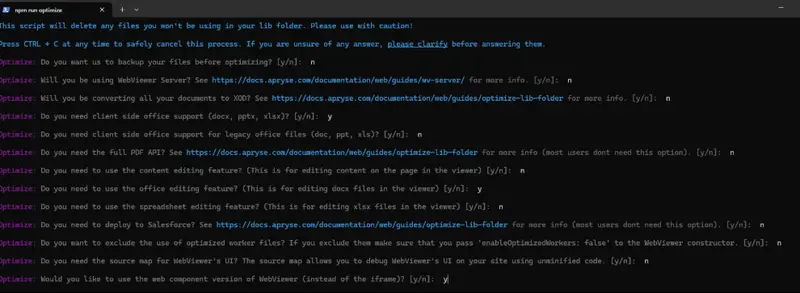
Figure 2: An example of the questions that you will need to answer.
Since some of the options mean that other questions are moot, the exact questions that you see will depend on the choices that you make.
Eventually, you will be shown the files that will be deleted. Assuming that you are happy to proceed. click on y.
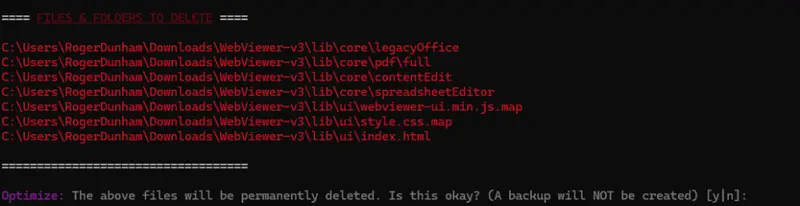
Figure 3: The script tells you the files and folders that will be deleted. You can still cancel if you wish.
Once you choose to proceed, the list of files that will be deleted will flash before your eyes.
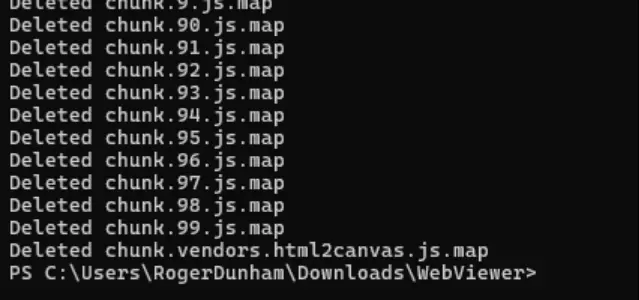
Figure 4: Part of the logging that indicates the actual files that were deleted.
When the process concludes, the lib folder will contain only those files that are needed for the functionality that you specified.
For example, with the selections that I made, the lib folder reduced from 176 to 87MB.
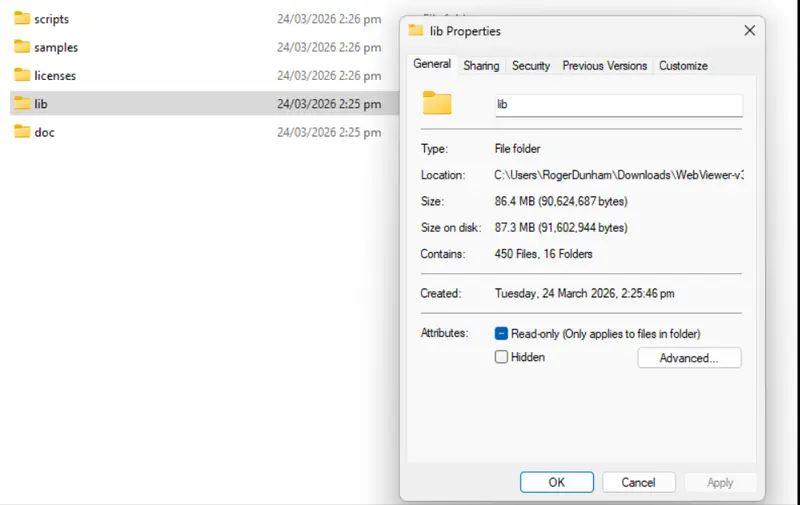
Figure 5: Once the script completes the lib folder will contain only the files that support the functionality that you specified.
You will, of course, need to ensure that you don’t try to use functionality that you excluded. For example, if you choose to use the iFrame version, rather than the WebComponent version of WebViewer, then you will get an error if your code doesn’t match. That’s because the file index-wc.html is needed to support WebComponent but will have been deleted if, when using the Optimize script, you chose to not include it.
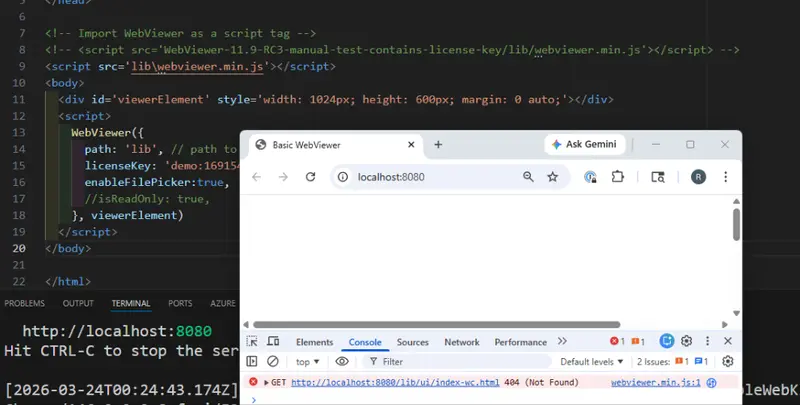
Figure 6: If you select to use the iFrame version of WebViewer in the Optimize script, then try to use the WebComponent version in your code (which is the default) then you will get a 404 error.
Command Line (CLI) Use of Optimize Script
While it is easy to run the Optimize script interactively, it would get frustrating if you had to do that (and remember the correct choices) every time that you want to update to the latest version of WebViewer.
To simplify that, we created a way to call this from the command line using the command “-- auto”. Note that there is two dashes and a space.
You can then pass in a list of arguments, proceeded with two dashes, but no space, which specify the functionality that you require. There is no need to specify “=true”.
If you don’t specify an option, then it will be assumed that you do not want that option.
For example, if we want to optimize WebViewer so that it can be used as a Spreadsheet Editor (and we want to use the WebComponent version of WebViewer) then we can use:
npm run optimize -- auto --useSpreadsheetEditor --useWebComponentQuick as a flash, the script will run to completion. You can check what happened in the console window.
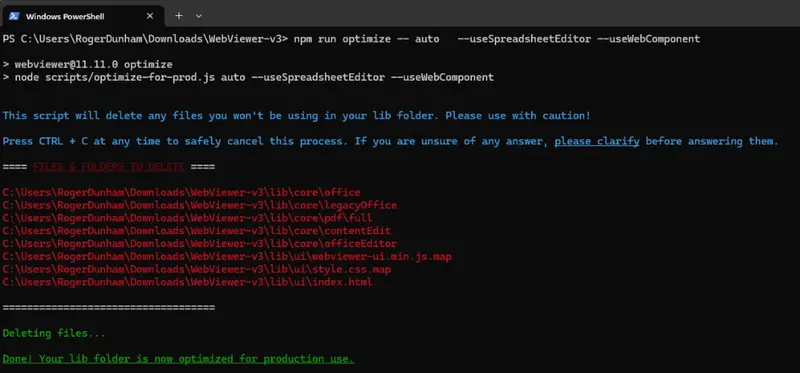
Figure 7: An example of the output from the CLI version of the optimize script.
You can now copy the files in the updated lib folder to wherever you need them.
The arguments that are supported in v11.12 are:
- 'backupFiles'
- 'usingWebViewerServer'
- 'willConvertToXod'
- 'needClientSideOfficeSupport'
- 'useLegacyOffice'
- 'useFullAPI'
- 'useContentEdit'
- 'useOfficeEditor'
- 'salesforceSupport'
- 'useSourceMap'
- 'excludeOptimizedWorkers'
- 'useWebComponent'
- 'useSpreadsheetEditor'
- 'deleteUnused' – ALWAYS TRUE
Now when Apryse releases an updated version of WebViewer (which typically happens every six weeks or so) you can run the script again and automatically deploy the optimized files.
Conclusion
Apryse WebViewer offers a wealth of functionality.
If you don’t need all of it, or even if don’t need it just yet, then you can optimize the downloaded files to minimize the size of the files that you need to host.
That can be done manually, but it is also possible to automate the process via the command line, passing the names of the functionality that you require as arguments, saving you time and increasing consistency.
If you have any questions about using WebViewer or Optimizing files, you can reach out to us on our Support channel.
If you have any questions about this blog, or there are other blogs that you would like us to write, then please contact us on blog-feedback@apryse.com.