Isaac Maw
Technical Content Creator
Published July 01, 2026
Updated July 24, 2026

5 min


Customizable React PDF Viewer UI for Enterprise Apps
Isaac Maw
Technical Content Creator
Summary: Learn how to customize the Apryse React PDF Viewer UI for enterprise applications. This guide covers theming, hiding toolbar elements, and building fully bespoke interfaces using the WebViewer Core library. You'll discover how client-side processing, WCAG 2.2 accessibility, and open-source React customization help you build secure, branded, workflow-specific document viewers that keep sensitive data inside your own infrastructure.
Free, lightweight PDF viewers rarely match the branding, workflow, and security demands of an enterprise React application. You need a viewer that fits your design system, exposes only approved actions, and keeps sensitive documents inside your own infrastructure. We'll show you how to use the Apryse Web SDK to build a fully customized React PDF viewer that handles all three.
Why UI Customization Matters for Enterprise Apps
For an enterprise, a PDF viewer is part of a mission-critical workflow. The interface that surrounds the document shapes how quickly a claims adjuster processes a file, how reliably a legal team redacts privileged content, and how confidently a compliance officer signs off on an audit trail. When toolbars are generic, layout doesn’t match workflow and theme is off brand; results suffer.
Here are a few reasons customization is worth the engineering investment:
- Brand consistency. Internal and external applications should share one look and feel. A viewer that respects your typography, colors, and spacing keeps the experience coherent for end users.
- Workflow integration. Different tasks call for different tools. A legal review screen needs annotation and commenting controls; a compliance screen needs redaction; an engineering markup screen needs measurement tools. An internal app may remove the print button. Tailoring the UI means removing buttons that don't apply and adding custom controls that do.
- User experience. Presenting only the relevant tools reduces cognitive load and the chance of user error. A simpler interface moves people through complex processes faster, which matters when document volume is high.
- Security and compliance. In regulated industries, the UI itself becomes a control surface. If an action isn't approved, it shouldn't be in the toolbar. With a customizable, self-hosted toolkit like Apryse WebViewer, document processing can run entirely client-side, so data never has to leave your infrastructure to be viewed, annotated, or redacted.
That last point separates an enterprise-grade viewer from the many React PDF libraries built around server round-trips or third-party rendering services such as Google or Microsoft.
The Foundation: Apryse WebViewer for React
ApryseWebViewer is our client-side JavaScript SDK for rendering, viewing, annotating, and editing documents directly in the browser. It's a strong foundation for a custom React PDF viewer because it gives you a production-grade rendering engine and a UI you can shape to fit your application. While you might just be building PDF viewing today, the WebViewer base package sets you up for the next 5 features you’ll want.
A few differentiators matter most for enterprise builds:
- Client-side processing. WebViewer can run entirely in the browser with zero server dependencies for processing. For air-gapped networks, regulated environments, and strict data-residency requirements, that means documents stay on the client and never transit a third-party cloud.
- Open-source UI built in React. The WebViewer UI source code is built in React and is open-source. You can configure it through APIs, modify modular components, or fork the project outright for complete control over the viewing and annotation interface.
- Performance and fidelity. Apryse uses a proprietary rendering engine that produces high-fidelity output across more than 100 file formats, including PDF, Office documents, and images, while staying responsive on large and complex files. You can explore the full range on our PDF Viewer SDK page.
- Accessibility. The WebViewer UI is WCAG 2.2 AA compliant, with keyboard navigation and screen reader support. For enterprise and government applications with accessibility mandates, that compliance is built in rather than bolted on. Today, most accessibility requirements call for WCAG 2.1 compliance at minimum, but Apryse goes beyond the minimum with WCAG 2.2 compliance.
WebViewer works in any JavaScript framework you use, so the same engine and APIs carry across your front-end stack.
If you want broader background on what an SDK provides versus a hosted API, check out our article Local SDKs vs. Cloud APIs: What Developers Need to Know Before Building the Next Application.
Getting Started: Integrating WebViewer into a React App
Follow the instructions in our documentation or check out the video walkthrough below to get WebViewer up and running in your React app:
Basic Customization: Modifying the Default UI
WebViewer is an open source UI which offers extensive configurability and provides a comprehensive set of APIs enabling developers to customize and manipulate documents in various ways.
Changing the Theme
You can change the color theme by either using an API or providing a path to a custom CSS file in the constructor.
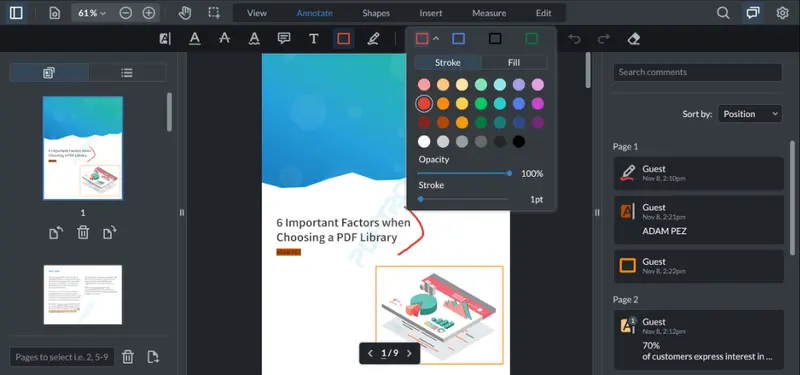
The CSS option allows you to set a css file path while instantiating WebViewer. It's great if you have an external stylesheet file, for example.
Another option is to override CSS color variables. Just like changing the theme, this can be done on the fly (without re-instantiating WebViewer).
You can find the default css variables for both light theme and dark theme in the github repository.
Hiding Elements in the Modular UI
You can use the Modular UI APIs to replace entire groups of items in one go, giving you far more flexibility.
You can find more customization documentation in our UI customization documentation.
Advanced Customization: Building a Custom UI from the Core
Built in React, the WebViewer UI provides a great developer experience for anyone interested in the source code. You can make adjustments of your own, run it to test, and build it to deploy.
Folder Structure
Working with the public repo in Github
For a better developer experience, we have open sourced the project in Github. It allows you to keep track of your changes better or sync with future versions easier.
Forking and linking
A fork is a copy of a repository. Forking a repository allows you to freely experiment with changes without affecting the original project. To fork and sync with Apryse's webviewer-ui repo, follow these steps:
- Go to https://github.com/ApryseSDK/webviewer-ui.
- In the top-right corner of the page, click Fork.
- Open terminal and navigate to your destination folder.
- Run the following:
git clone https://github.com/YOUR-USERNAME/webviewer-ui
cd webviewer-ui
git remote add upstream https://github.com/ApryseSDK/webviewer-ui
Switching branches
The default branch of the repo is the latest stable WebViewer version. For example, if the default branch is 7.1, then it means the latest official WebViewer version is 7.1.
You should switch the branch to be the WebViewer version you are currently using for your application. For example, if you are using WebViewer 7.0 then you should switch to the 7.0 branch and modify the code there. If you are using the legacy UI, then you need to switch to legacy/7.0 instead.
Code in the master branch is considered to be experimental and is not safe to be used in production. Generally we don't recommend that you modify the code in the master branch.
Running
To run the project,
- Go to your forked
webviewer-uirepo - Run
npm install - Run
npm run download-webviewer - Run
npm start
Building
To build the source files into webviewer-ui.min.js,
- Run
npm run build
Syncing the fork
When you want to merge any changes from the original Apryse's webviewer-ui repo, follow these steps:
- Open terminal and navigate to the forked
webviewer-ui - Run the following:
git fetch upstream master
git checkout master
git merge upstream/master
Apply changes in your app
After npm run build, copy all the files in the webviewer-ui/build folder to the lib/ui folder in your app. Restart your app and you should see the new changes. You can write a script to automate this process.
Final Takeaways
UI customization is essential for enterprise React applications, where the viewer is part of a regulated, branded, mission-critical workflow rather than a generic reading pane. Apryse WebViewer gives developers a flexible and secure toolkit for the full range: configure the open-source default UI with the instance.UI API for fast wins, or build a completely bespoke interface on the Core library when you need total control. Because processing runs client-side, sensitive documents stay inside your own infrastructure throughout.
Ready to build a viewer that perfectly fits your enterprise application? Start your free trial and get started in minutes.