Roger Dunham
Published February 20, 2026
Updated May 18, 2026

6 min


“No regerts”. A guide to Search and Replace in WebViewer
Roger Dunham
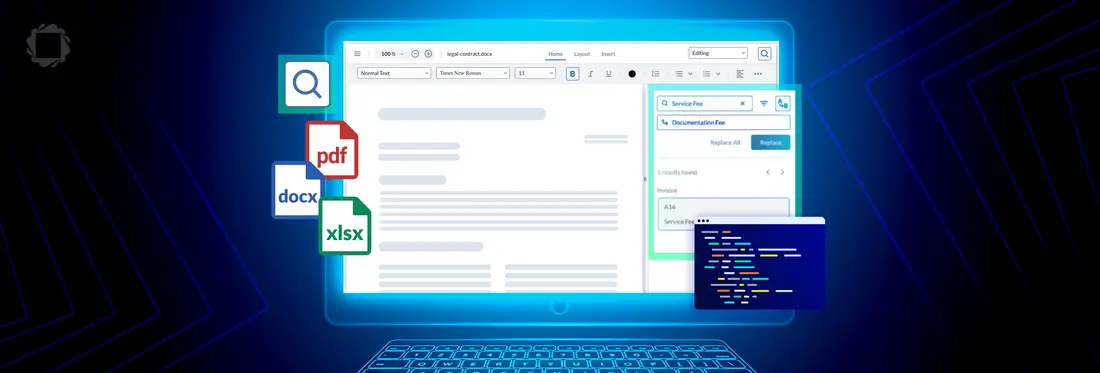
Summary: Search and Replace in Apryse WebViewer allows users to quickly find and update text across PDFs, DOCX files, and spreadsheets, eliminating repetitive manual edits and ensuring consistency. This feature extends powerful document editing capabilities beyond PDFs, enabling a unified and efficient workflow for updating content across multiple file formats.
“Search and replace” is one of those deceptively simple tools that saves hours of tedious editing. Instead of hunting through a document line by line, you can instantly find words, phrases, or patterns and swap them out in seconds. Whether it’s updating a company name across hundreds of pages, fixing a recurring typo, or standardizing terminology, search and replace ensures consistency while cutting down on manual effort. It’s a small feature with a big impact, turning what could be repetitive drudgery into a quick, reliable task.
The functionality has been available for PDFs for a while but is now also available when working with DOCX files and spreadsheets in the Apryse WebViewer.
In this article, we will look at how you to enable a consistent Search and Replace process with PDFs, DOCX files, and Spreadsheets.
Search and Replace in PDFs
The Apryse WebViewer and Web SDK is an awesome set of tools for working with PDFs; not only can you add comments, annotations, manipulate pages and even redact content, you can also edit the underlying content. Don’t take my word for it, try it out for yourself, right now, in the Apryse Showcase and see the wealth of functionality that WebViewer supports.
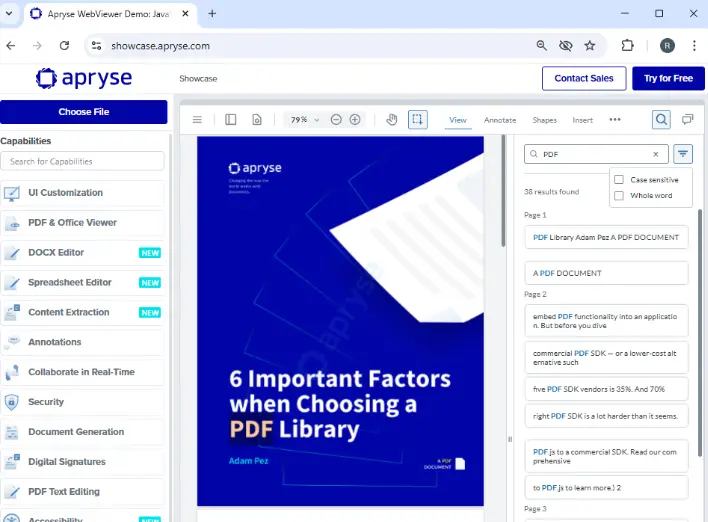
Figure 1: Apryse WebViewer within the Showcase - in this example demonstrating Search functionality.
For example, within Showcase, you can click on the Search button and use that to locate text in the document. You can even specify whether you want a “case sensitive” or “whole word” search. The UI will then highlight where the text was found in the document and create a list of the sentences where the text was.
That’s clever, but it’s not replacing the search term with a new one. How do you get that?
Before we go further, we need to realize that replacing text in a PDF involves editing the content – and by default that is not enabled.
Enabling content editing is easy though. The exact details of how to implement the code depend on whether you are using plain HTML or a framework such as React, but essentially you just need to specify instance.UI.enableFeatures([instance.UI.Feature.ContentEdit]); in the handler once the WebViewer constructor has resolved.
Typical code such as you could drop into the Get Started with React guide is:
If we serve that code, then within the WebViewer UI there is a new Ribbon Item available for “Edit Text” – which lets us add paragraphs, images or edit the existing text content.
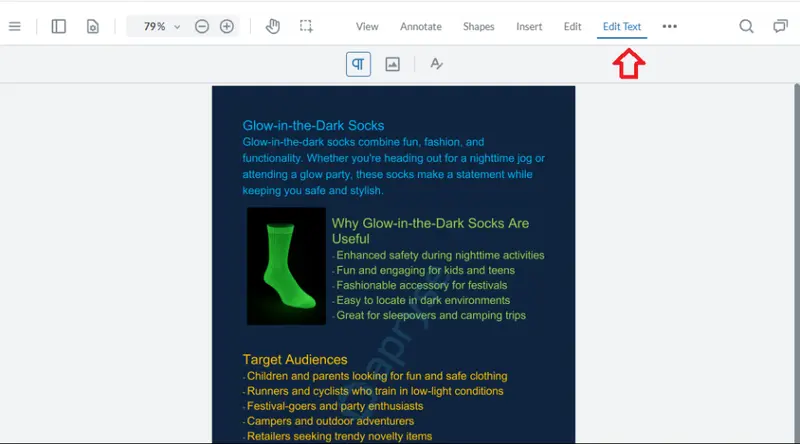
Figure 2: The Edit Text ribbon item that appears when Content Editing is enabled.
Better still, the “Search” functionality now includes “Replace”.
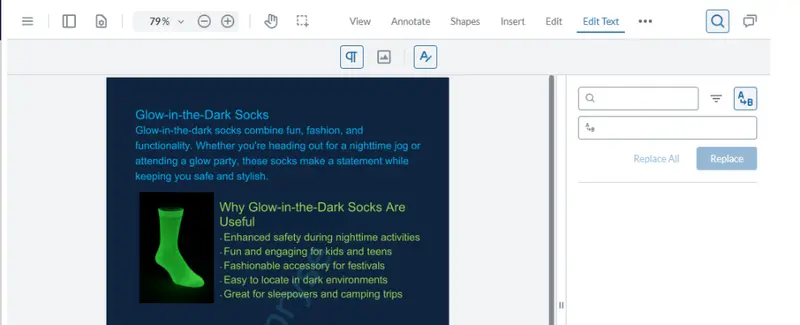
Figure 3: The Search button offers more functionality when Content Editing is enabled.
There’s a great ‘gotcha’. If you try running the code specifying license key as ‘Your license key’, then Content Editing (and “Replace”) doesn’t work – so head on over to the Apryse Website and get yourself a free trial license and drop that into the WebViewer constructor.
As an example, I’m using a sample PDF that I put together to demonstrate WebViewer in Salesforce. It’s a fun little document that contains information about a fictional business selling “Glow in the dark” socks.
Let’s add some extra impact to our PDF by replacing the word “Dark” with upper case “DARK”.
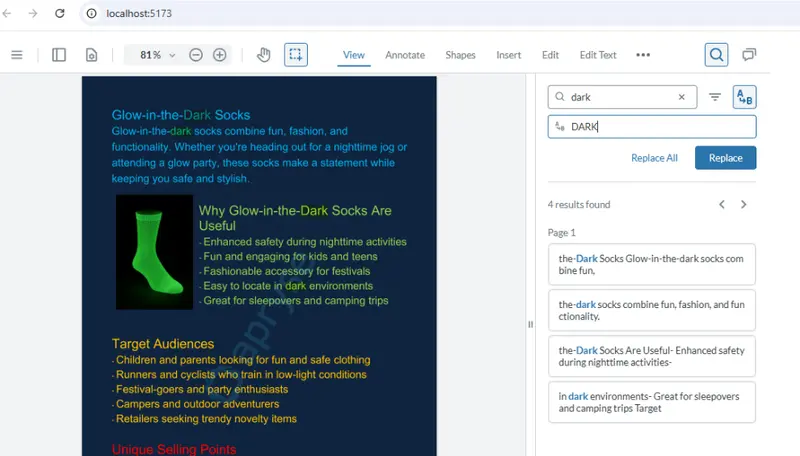
Figure 4: A sample PDF where we are going to search and replace text.
It’s found four locations where the word “dark” is used.
We could, if we want, restrict what we are searching for to be case sensitive (so we would find “dark” but not “Dark”) or only to find entire words (so that “darkened” wouldn’t be included). For now, though we are just including everything.
At this point, we can click on any of the found results and explicitly replace that, or we can select ReplaceAll, and process all of the results at the same time.

Figure 5: Our PDF after replacing the word 'dark" with upper case "DARK". Note that the style of the original text has been maintained.
Cool! That’s exactly what we were after!
Previously, this functionality was only available for PDFs. Since Apryse WebViewer 11.8, this functionality is now also available in the DOCX and Spreadsheet Editors.
Search and Replace in DOCX Editor
A couple of years ago, if you opened a DOCX file in WebViewer, it would be converted into a PDF on the fly and then opened as a PDF. While that functionality is still available, it is now possible to open and edit that file the DOCX editor built into WebViewer.
There are a few ways to get WebViewer to open a file in the DOCX Editor.
For this example, I’m using initialMode:”docxEditor”, but you could also use enableOfficeEditing:true within the constructor.
If we run the code now, we can select, view, and (potentially) edit the file.
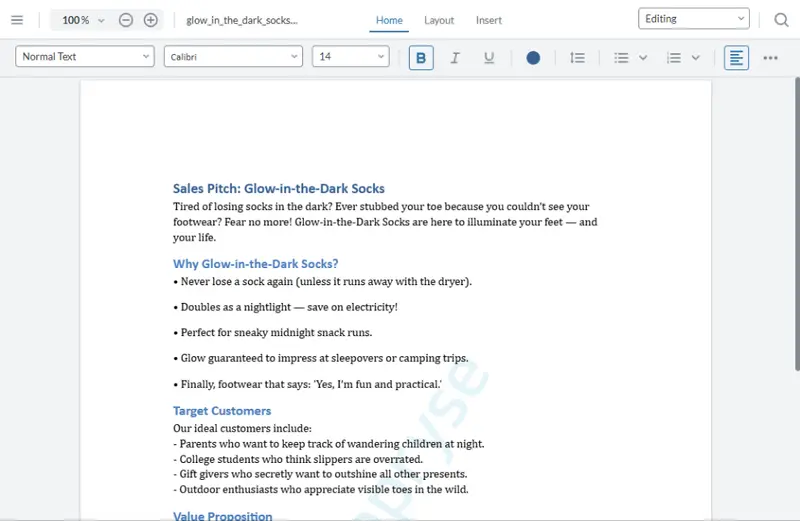
Figure 6: A DOCX file shown in the Apryse DOCX Editor, running in the browser.
Note that I said that you can “potentially” edit the DOCX file. That’s because the DOCX editor supports three Edit Modes, allowing us to specify whether the UI should allow editing, reviewing, or just provide view-only access to the document.
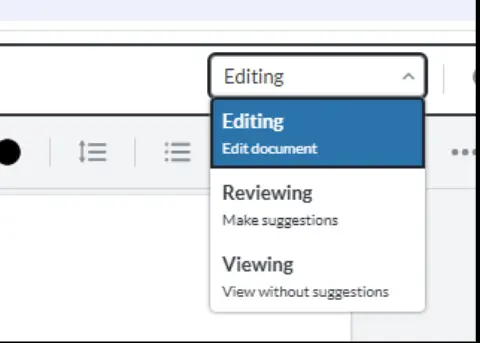
Figure 7: The three edit modes in DOCX editor.
Provided that you have selected either Editing or Reviewing, then the Search and Replace functionality will be available. In Viewing mode, though it is only possible to Search.
So now if we need to update a phone number in a DOCX file, for example, that is a cinch to do.
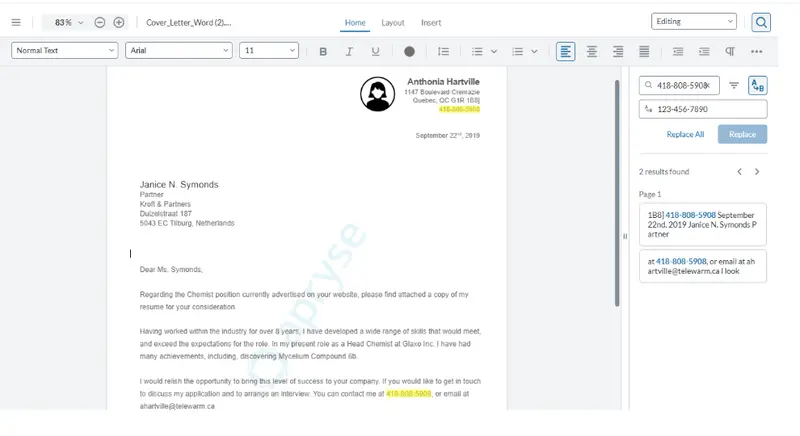
Figure 8: Search and Replace in DOCX - in this case updating a phone number.
Enable advanced PDF text search in C#, Java, JavaScript, Python, and C++ — start building now.
Spreadsheet Editor
Search and replace is now also available in the Apryse Spreadsheet Editor too, and as you would expect, the experience is very similar to when using it with PDFs or DOCX.
Just as with DOCX files, by default, if you open a spreadsheet in WebViewer, it will be converted into a PDF on the fly, and there are times when that may be exactly what you want.
However, if you want to see the file as a Spreadsheet, including formulas and each sheet in a separate tab then you will need specify initialMode:”spreadsheetEditor” as an option when constructing the WebViewer. In WebViewer versions 11.8 and 11.9, it was also necessary specify that you want to use the Iframe version of WebViewer (rather than instantiating as the default Web Component).
That is no longer needed since the release of WebViewer 11.10, and now the Spreadsheet Editor is available within the (default) WebComponent version of WebViewer.
Note that the default editing mode for Spreadsheet Editor is “Viewing”. As a result, while Search functionality is available, Replace isn’t.
However, if we select “Editing” mode (either manually or programmatically in the SPREADSHEET_EDITOR_READY event handler) then, just as before, the UI updates and we have access to the Replace functionality.
So now, when we have a spreadsheet where we want to replace the word “Revenue” with “Income” and specify that we are using US Dollars, not a generic “$” symbol – that is easy to do. Just specify the Selection and Replacement text.
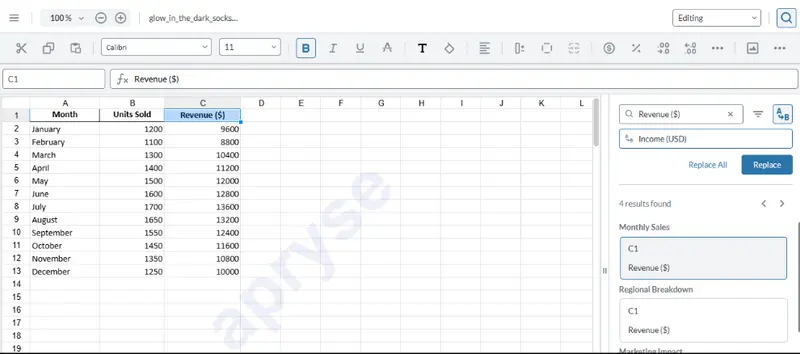
Figure 9: The original Spreadsheet in WebViewer.
Then click on Replace All.
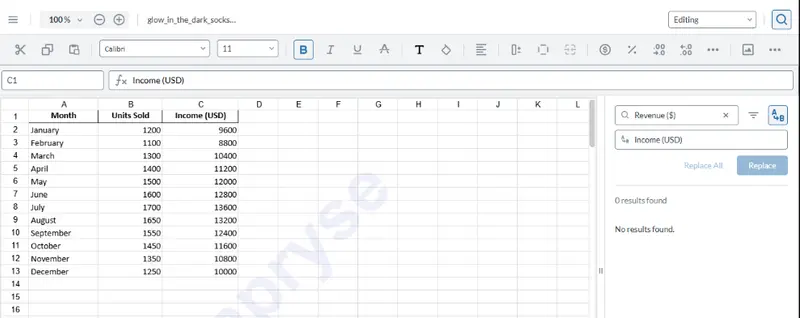
Figure 10: The same spreadsheet after replacing the title in Column C.
Awesome! We could, of course, have done this manually, but would we have remembered to search in each of the sheets? The Apryse Web SDK did!
Programmatic Search and Replace
It’s been possible to use the Apryse SDK to replace text in PDFs for years. What is new in 11.8 is the ability to also do this in DOCX and Spreadsheet files.
Once the document has been loaded into the documentViewer you can just call the search and replace functions.
You could even modify this code to search the document for text and replace it before the document is shown to the user. That could be really useful if, for example, a company name has changed, and you want the document to automatically show the new name.
Summing up
Apryse WebViewer keeps getting more and more sophisticated. There was already a wealth of functionality built into the Apryse Web SDK – editing, collaborative annotations, handling of complex files such as CAD and DICOM, and so much more.
With the migration of Search and Replace functionality from being PDF-specific to also working with DOCX and Spreadsheets, you now get a closer editing experience with all three document types.
Watch out though – if you can’t see the “Replace” option, then it may be that WebViewer is not configured to allow editing, or that your license does not support it. If you have questions, you can reach out to us on our support channel.
There’s nothing like trying things for yourself though, so grab yourself a license key, and check out the getting started documentation.
With Search and Replace, we can quickly help you to update documents, whether to change a phone number, or a name, or even just to fix a typo - so while you may start with “No regerts”, when you finish you will have “No regrets”.
Suggested Reads