Home
All Blogs
Read-Only Spreadsheet Viewer: Secure XLSX Viewing for Finance and Compliance Applications

Isaac Maw
Technical Content Creator
Published May 21, 2025
Updated October 05, 2026

4 min


Read-Only Spreadsheet Viewer: Secure XLSX Viewing for Finance and Compliance Applications
Isaac Maw
Technical Content Creator

Build a secure read-only spreadsheet viewer by embedding a document SDK that renders XLSX files client-side, right in the browser, instead of relying on Excel or converting files to PDF and back. This keeps sensitive financial and compliance data inside your app, since files don't need to be downloaded, opened in a separate program, and reuploaded. The viewer should preserve native formatting and formulas, let users navigate cells, rows, and sheets in a familiar grid interface, and show the formula bar, all without exposing any editing controls. Locking the interface to view-only prevents unauthorized or unintended changes to records used for auditing, risk management, or reporting, while still letting users inspect calculated values and the formulas behind them. For JavaScript apps, you can implement this with an add-on like Apryse's Spreadsheet Editor for WebViewer, which runs entirely client-side and drops into React, Angular, Vue, or similar frameworks through a single DOM element, opening in read-only view mode by default whenever a spreadsheet loads.
Spreadsheets are ubiquitous, but it’s not necessary to rely on Microsoft Excel for many workflows. Embedding a secure spreadsheet viewer into your application can boost efficiency and productivity in processes such as records management or project tracking.
Compliance and financial reporting software applications are an ideal use case for a Spreadsheet Editor SDK solution that provides read-only access. These products provide solutions for data governance, risk management, auditing, reporting and time tracking, and spreadsheets are an ideal tool for presenting and collaborating on these data.
Spreadsheet Workflows
We’ve heard from product managers, developers and users of compliance and financial reporting software, and heard about these workflow issues:
- Juggling PDF, DOCX and XLSX file types, and using seperate solutions for each
- Requiring users to navigate away from the application to handle and view Excel files
- Having to convert files from PDF to XLSX and back
One example comes from a technical services company, where an in-house software platform was used to view and manage records. Because the records were in spreadsheet format, users were required to download files from the platform, open them in Excel, view and reupload the files. By integrating the Spreadsheet Editor SDK into the platform, this step would be eliminated.
By providing a unified experience for entire workflows, your web platform simplifies fragmented workflows and adds even more value for users. In addition to helping consolidate tools and eliminating costly Saas subscriptions, a unified experience saves time and effort switching between apps and managing files.
Enable In-House XLSX Spreadsheet Capabilities: Apryse Spreadsheet Editor
Try the Demo in our Showcase
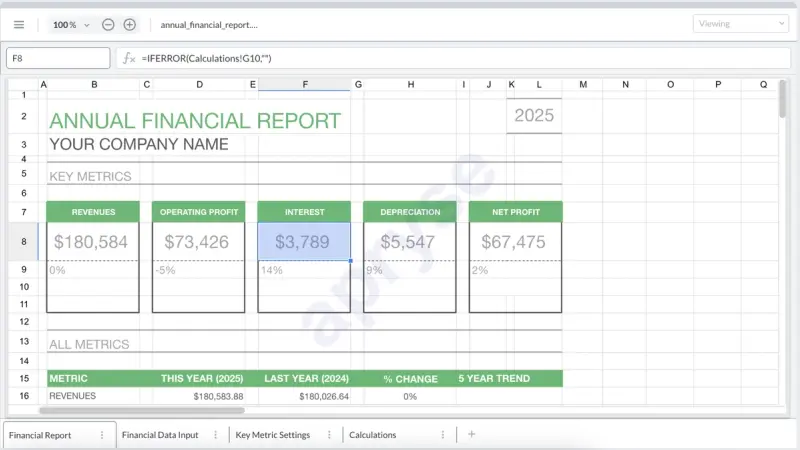
Apryse's Spreadsheet Editor for the Web SDK provides both a read-only View mode and a full Edit mode. View mode is the default: it opens automatically whenever a spreadsheet loads, and stays that way until your application explicitly switches it. For finance and compliance apps, that default is the point - you don't have to build a separate viewer-only component or strip capabilities out of an editor after the fact.
Without the Spreadsheet Editor, spreadsheet documents can be viewed, but lacking the ability to navigate cells, rows and view the formula bar can make reviewing spreadsheets a tedious and confusing experience.
With the Spreadsheet Editor add-on, users browse through multiple sheets, view formulas, and export in XLSX format without any risk of modifications. This capability protects sensitive financial, operational, and compliance records, ensuring that essential or template-based information remains accessible while preventing unauthorized or unintended content changes.
Providing a quality, read-only Spreadsheet Editor in your application can help simplify workflows, eliminating the need to download and upload files, loading into Excel and proliferating versions, or causing security compliance issues by loading sensitive files in online spreadsheet viewing tools.
In addition, the Spreadsheet Editor prevents unauthorized and unintended content changes and enables familiar spreadsheet navigation capabilities. Content is presented in a way that preserves formatting, formulas, and navigation tools, for seamless usability.
Features of the Spreadsheet Editor Add-on
- Load excel files and retain contents and formatting: formatting is essential for communication in excel files, such as clearly denoting headings, columns and information such as colored cells and chart borders. When formatting is lost or improperly presented, errors can occur.
- View / navigate between multiple sheets: an excel-like spreadsheet navigation experience preserves the familiar capability to navigate from cell to cell and sheet to sheet, enabling review and analysis of formulas and data.
- View formulas within a cell: some document viewing tools can display spreadsheet data, but don’t provide access to hidden data such as formulas. The formula bar in the Spreadsheet Editor mirrors the Excel experience.
- Integrate into existing JavaScript apps: As an add-on to the WebViewer SDK, the Spreadsheet Editor can be easily added to JavaScript apps. See below for details.
- Client-side, no server dependencies: WebViewer runs entirely client-side for security and scalability.
Using Spreadsheet Editor
Spreadsheet Editor integrates easily into any JavaScript framework like React, Angular, Vue, Nuxt.js, or Next.js using a simple DOM element to host the component.
To use Spreadsheet Editor, you’ll need WebViewer. Check out the quick start guide to set up WebViewer.
With WebViewer Constructor
To enable Spreadsheet Editor, you can pass the initialMode parameter in WebViewer’s constructor options. The following will load a new empty spreadsheet:
To load a existing document initially, you can pass the initialDoc :
Loading a spreadsheet with APIs
To load a spreadsheet programatically when already in Spreadsheet Editor, you can use UI.loadDocument :
WebViewer.getInstance().UI.loadDocument('...file path or blob');If you are switching to Spreadsheet Editor from PDF Editor, the initialMode parameter is needed in the options when calling UI.loadDocument:
WebViewer.getInstance().UI.loadDocument('...file path or blob', {
    initialMode: WebViewer.Modes.SPREADSHEET_EDITOR
});
Another option is to use Core.documentViewer.loadDocument. Make sure to pass enableOfficeEditing: true as the parameter in the options.The file URI requires the correct file extension .xlsx.
WebViewer.getInstance().Core.documentViewer.loadDocument('...file path', {
    enableOfficeEditing: true
});
If you are passing in a blob, make sure to pass the extension option as xlsx:
f you started the viewer in Spreadsheet Editor mode, and load a file an XLSX file using the UI's file picker, it will always load it in Spreadsheet Editor mode.
View Mode
By default, Spreadsheet Editor opens in view mode, which allows users to navigate spreadsheets using a familiar grid interface, view calculated cells and formulas, and change workbook sheets without making unexpected changes. You can check the Spreadsheet Editor mode with:
Events
When in view mode, you can use the following two events to access the information needed:
(1) SelectionChangedEvent: Triggered when selecting cells in a sheet.
(2) ActiveSheetChangedEvent: Triggered when switching to another sheet
Financial Reporting: View-Only XLSX in Investment Portals
Fund administrators, wealth management platforms, and FP&A teams deliver reports as XLSX files because the recipient expects the formulas and formatting to be inspectable, not flattened into a PDF. Embedding a view-only Spreadsheet Editor in the delivery portal gives investors and stakeholders that same Excel-like inspection experience - navigating sheets, checking a formula behind a number - without giving them an edit surface on a document that's meant to be final.
Compliance and Audit: Protected Spreadsheet Access for Regulatory Workflows
GRC platforms use view mode to preserve an audit trail: a regulatory filing or risk register loaded for review shouldn't be editable by the person reviewing it, even by accident. Locking the interface to view mode removes that risk at the UI level, rather than relying on process alone to keep reviewers from touching the source file.
View Mode → Edit Mode: Controlled Access Patterns
Some workflows need both: a compliance officer who inspects but doesn't modify, and an authorized editor who can. Gate the switch behind your application's own role check, and call setEditMode once you've verified the user's role:
To learn more about the Spreadsheet Editor add-on, visit our capabilities page. With any questions, please reach out to our team.
FAQs
Q: Does view mode block every way a user could change the file, including the API?
A: View mode disables the editing UI and blocks the standard editing methods while it's active. If your application also allows direct workbook manipulation through custom code, apply the same permission check before invoking those methods, too — don't rely on the UI mode alone as your only control.
Q: What happens if I load a CSV instead of an XLSX file?
A: CSV and XLS both convert to XLSX automatically in the browser on load. The file in your storage isn't modified, and the viewer behaves the same regardless of which of the three formats you loaded.
Q: Can I switch a spreadsheet from view mode to edit mode after it's already loaded?
A: Yes. Call setEditMode() on the SpreadsheetEditorManager at any point after the SPREADSHEET_EDITOR_READY event has fired — you don't need to reload the document to change modes.
Q: Does Spreadsheet Editor keep a record of who viewed or edited a file?
A: Not on its own. Spreadsheet Editor handles rendering and editing client-side; it doesn't include built-in access logging. If your compliance workflow needs an audit trail of who viewed or changed a record, build that at your application layer, around the same permission check that gates edit mode.