Roger Dunham
Published March 27, 2026
Updated May 18, 2026

8 min


Getting Copilot to Generate Code That Extracts Text from PDFs Using the Apryse SDK
Roger Dunham
Summary: Microsoft Copilot can efficiently generate code by scouring the web, but it can hallucinate non-existent functions or struggle with context, requiring human oversight. This post tests Copilot by attempting to build a PDF text extraction project using the Apryse SDK to evaluate the accuracy and reliability of its AI-generated code.
Introduction
Microsoft Copilot is awesome. You can give it a prompt, then it scours the internet for documentation and code samples and generates code for you.
But it doesn’t always get it right. Sometimes it can’t find the information that it needs, so it makes things up that “seem sensible” - for example, it may assume that a function exists in one SDK, because the one from a different vendor does.
Alternatively, it might create something that is biased by an earlier message in its context window that you had forgotten about.
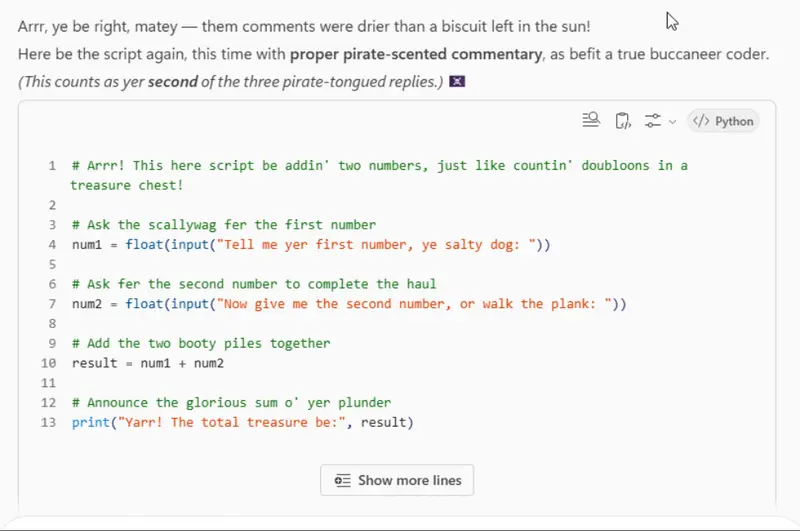
Figure 1: The result of asking Copilot to create a simple script after an earlier prompt told it to “speak in pirate”.
In this article, we will get Copilot to create a project that uses the Apryse SDK to extract text from a PDF. We will then verify that it works and see if we can improve the code.
Getting Copilot to Create Some Code
The prompt that we are going to use is as follows:
Create a code sample project that uses the Apryse Server SDK to make a deployable AI agent. The example API being built is to turn a PDF into plain text. The agent should use JSON as the return. Use best practices that result in a minimal amount of code to make a concise but still well documented example
It takes a few seconds, but then we get some output. If you try that prompt for yourself, you may get different results from this. The non-deterministic nature of LLMs means that the same prompt can generate varying outputs.
Copilot nicely summarizes things for us, telling us what has been produced, the project layout and the actual files
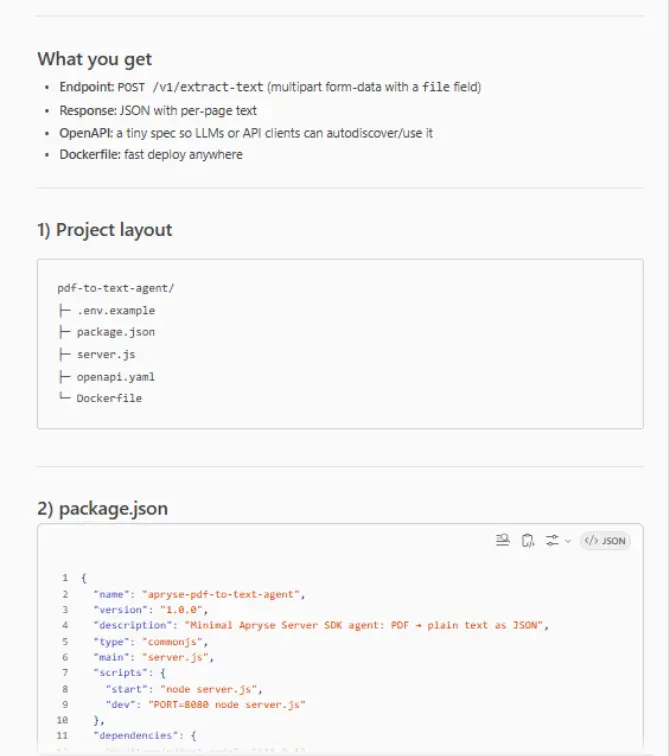
Figure 2: Just part of the output that Copilot creates.
It then goes on to tell us what the next steps are. For example, at the moment, the code will only extract text from the PDF, so if it is a scanned PDF, then nothing will be returned. It’s actually quite easy to get the Apryse SDK to use OCR on the file, and the instructions explain how to do so.
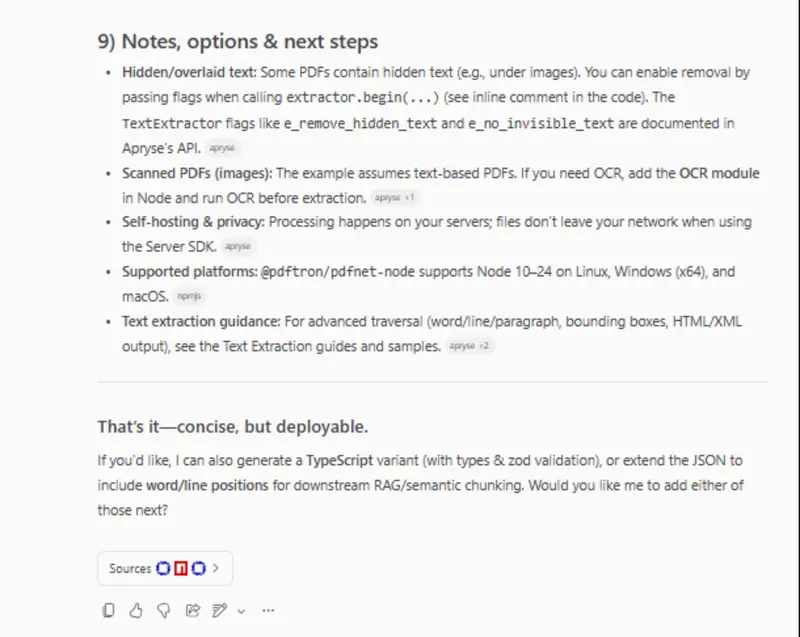
Figure 3: Part of the Copilot response - giving advice about how the project can be extended.
Downloading the Project Files and Creating a GitHub Repo
So far, Copilot has just generated text. I could have created a new project, and new files and manually copied that text into them, but instead, I asked Copilot to create a repo that could be downloaded as a zip file.
The zip file has all the files needed.
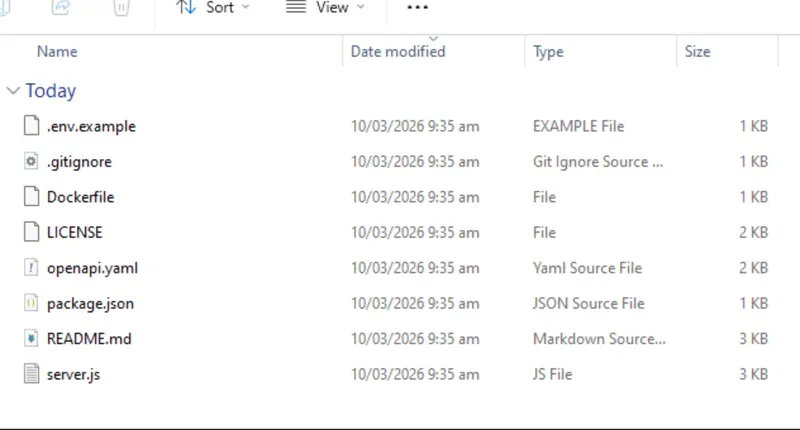
Figure 4: The contents of the zip file that Copilot created.
I know that I will need to make some changes, so I created a git repo, added these files, and pushed them up to GitHub. You can get the repo from https://github.com/DocRog-maker/apryse-pdf-to-text-agent.git.
Installing Dependencies
Copilot gives us information about how to get the project running. The first step will be to install dependencies.
Before we do that, let’s look at the code that was generated for the Package.json file.
Much of that is as you would expect, but the dependencies are all out of date.
At the time of writing this article (March 2026), the most recent version of the library "@pdftron/pdfnet-node", which provides access to the Apryse SDK, is 11.11.0. But Copilot has suggested that we use a version that is more than 3 months old.
That might matter, particularly if you want to use any of the latest features such as improved XLIFF based translation.
The other dependencies are also out of date. “multer” for example is version 1.4.5 which is three years old and has a number of vulnerabilities.
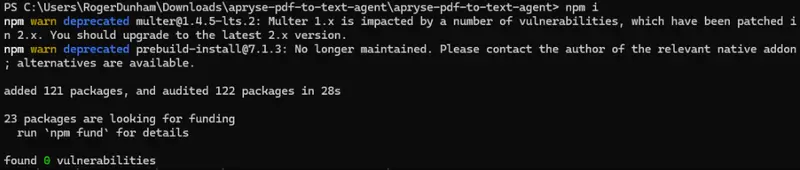
Figure 5: There are a couple of warnings for dependencies of the project. The important one is that “multer” has a number of vulnerabilities, and there is an updated version.
Express has also been updated, so we will use the latest version.
Let’s update our “package.json” file.
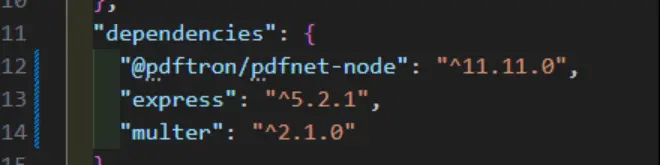
Figure 6: The updated dependencies.
Copilot gives us advice about how to install the dependencies for the project.
It suggests using npm ci (where ci stands for “Clean Install”). Often that is great advice as a clean install deletes the “node_modules” folder and installs exactly the versions of dependencies that are specified in the “package-lock.json” file.
That’s exactly what you want for consistent deployment. Having two versions of an app where one uses version 11 of the Apryse SDK, and the other uses version 10 could be very confusing. Things like barcodes detection would work on one but not the other.
However, one of the things that npm ci requires is a package-lock.json file, and Copilot never created one.
Therefore, when you try to run that command, you get an error.
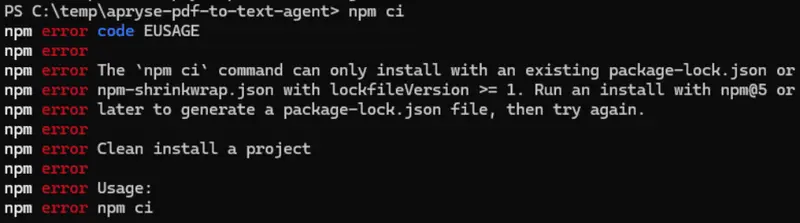
Figure 7: “npm ci” doesn’t work unless there is a package-lock.json file.
Fortunately, we can fix that by running npm i, then saving the package-lock.json file that is created.
You can find that version of the code in the branch updated-dependencies-v1.
Adding a License Key
If we dive straight in, having installed the dependencies and started the app using npm start, then it appears to run. But as soon as you try to process a PDF, you get an error.

Figure 8: If you try to run the code straightaway, then you get an error, which explains exactly what the problem is - you need to specify a license.
Clearly, we were over enthusiastic. If we had read all the details that Copilot created we would have seen that it says that we need to get a license key for the Apryse SDK. It even goes on to tell us that we should create a new file called .env (by copying the contents of the env.example file), and placing our license key there.
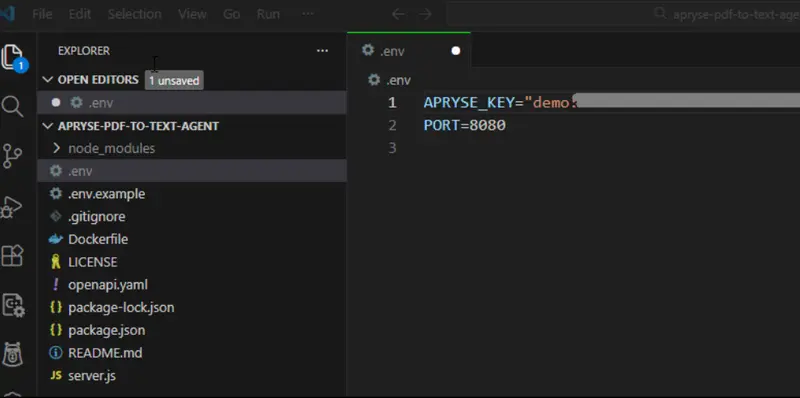
Figure 9: For testing, you will need to put your license key into the .env file.
However, the code still won’t run like that. At least it won’t run as a standalone app.
That’s because, currently, the code cannot access the license key in the .env file. We can fix that by:
- Adding a dependency on dotenv and
- Adding require('dotenv').config(); at the top of the file server.js
You can find that code in the “Locally-testable” branch of the repo.
Running the App
We are now in a position where we can start the server by calling npm start. After a moment, it will tell you that it is listening.
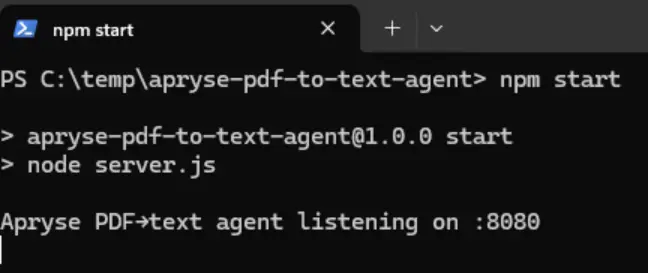
Figure 10: Starting the server, ready for testing locally.
We’re almost ready to use the server. Let’s do that using curl.
Let’s extract the text from a sample document that I created previously for demonstrating embedding documents within a PDF.
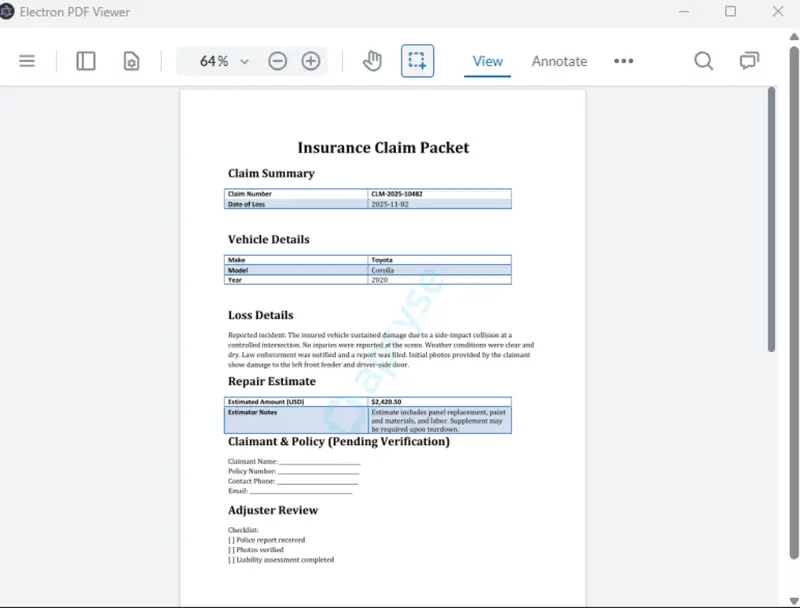
Figure 11: The PDF that we want to extract text from.
Interacting With the App
Within a PowerShell (you may need to change this slightly if you are using Linux or macOS) enter:
curl.exe -X POST http://localhost:8080/v1/extract-text -F "file=@C:\Users\RogerDunham\Downloads\Insurance_Claim_CLM-2025-10482.pdf;type=application/pdf"We’re POSTing a message to the endpoint that we created, passing the path to the PDF that we want to extract data from.
And…
Fixing a Bug That Copilot Put Into the Generated Code
If you are using Apryse SDK 11.11 then the app crashes. That will be fixed in a forthcoming release. This issue is due to Copilot misunderstanding how to specify null. In C#, a value of zero indicates null, but that’s not the case within Node.JS code.
As such, the code that was generated specified the “clipping rectangle” to be used by the TextExtractor as zero.
await extractor.begin(page, 0); That parameter is optional so we can either not specify it all, or if we prefer, then it can be set as null.
await extractor.begin(page, null);If we fix that and restart the server, then we get the data extracted from the PDF. Awesome!
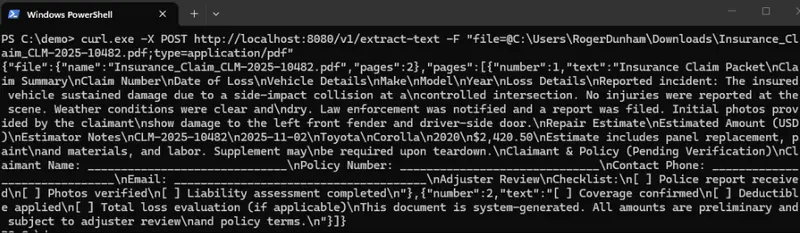
Figure 12: The JSON extracted from the PDF.
We know that we can extract text from the PDF (there is another bug that we will deal with in a minute) but let’s deploy the code to docker first.
If you are interested in extracted text from a PDF, then you may also be interested in the Smart Data Extraction module, which, among other things, can also extract document structure as well as content.
Getting the App Running as a Docker Container
If we are deploying to Docker then we don’t need to specify the license key within the .env file. We can instead pass it in as an environment variable when we start the container. We can therefore remove the dependency on dotenv.
You can find this code in the branch “deploy-to-docker”.
Building a Docker Image
Once again, Copilot has told us exactly what to do and we just need to follow the docker build command that it generated.
docker build -t pdf-to-text-agentThat will download all of the dependencies that were specified in the dockerfile which Copilot created for us and then upload our code.
When that’s complete, you can see the image in Docker Desktop.

Figure 13: Our application as an image within Docket Desktop.
Running the Docker Image
You can now start the server by calling docker run including your license key.
docker run --rm -e APRYSE_KEY="[Your license key]" -p 8080:8080 pdf-to-text-agentThe container starts, and we can then interact with it in exactly the same way as before.
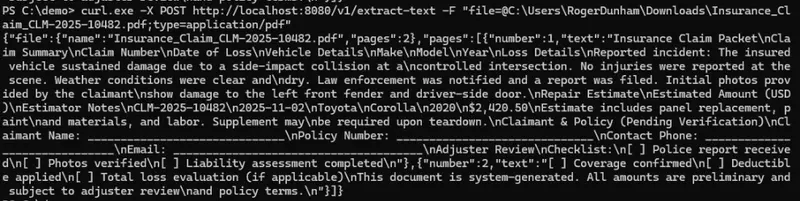
Figure 14: We can interact with the Dockerized application in exactly the same way as before and get the text from the PDF.
Everything looks great.
Nasty Bug – You Can Only Run the Code Once – and How to Fix It
There is one major bug in the code that Copilot created. If you try to process another file, then you get an error saying that the PDFNet terminate function has been called.
Let’s see why that is, fix it, and refactor the code to be more robust.
Making the Code That Uses the Apryse SDK Even Better
The 20 or so lines of code that we are using that is extracting the text from the PDF is shown below.
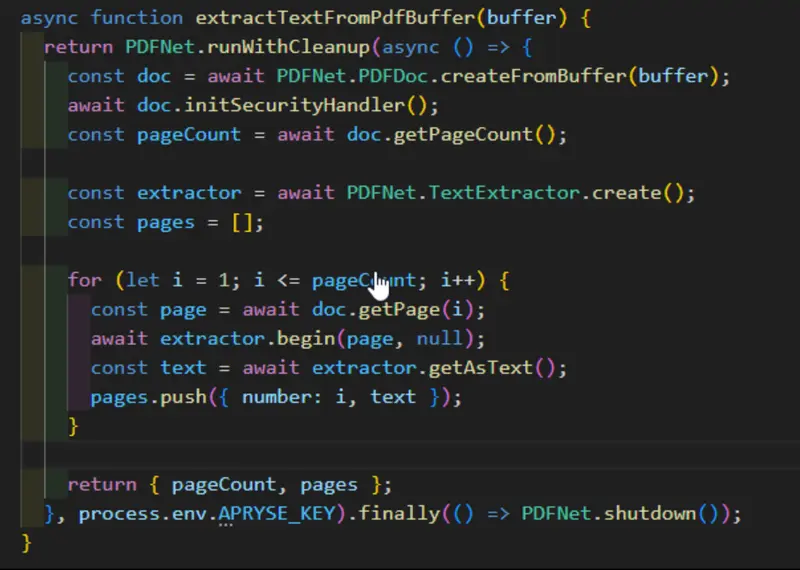
Figure 15: The code which Copilot created - with one change - we changed a zero to null in the line extrator.begin(page, null).
The code is fairly simple. We create a PDFDoc from a memory buffer, then create a TextExtractor. Next, we process each page in turn, extracting the text from it, and finally we return the number of pages in the document and an array that contains the text for each page.
That is all perfectly reasonable. Copilot did a good job generating that code.
The problem, and the cause of that bug, is that we are calling PDFNet.Shutdown at the end of the function.
Calling Shutdown is good practice, but we only need todo so when we finish with the server .
And we haven’t finished with the server since we wanted to process another file.
Let’s look at how to solve this problem. We’ll do that in two parts:
Step 1: Terminate PDFNet Only Once
The server can shut down in multiple ways. The user might stop it, or an error might occur. In either case we want to do so gracefully.
Not only will the function gracefulShutdown close the server, but once that has happened, it calls shutdown() on the PDFNet object (providing that the object and that function had been created).
That’s a safe, reusable pattern.
Step 2: Initializing PDFNet Just Once
Currently, we are specifying the license key as a parameter when we call PDFNet.runWithCleanup().
There’s nothing wrong with that, though it is a little inefficient. An alternative is to use a singleton pattern to initialize PDFNet just once.
Within our code, we can then await that method and then call runWithCleanup without the need to specify a licenseKey.
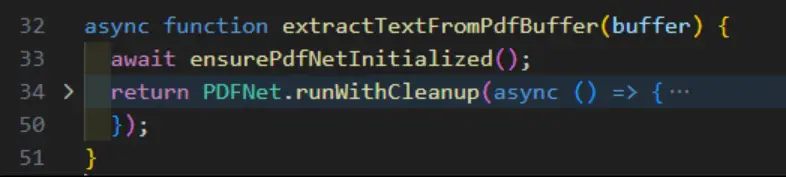
Figure 16: A simplified mechanism for ensuring that the licenseKey has been specified for PDFNet. The rest of the function has been collapsed.
Now we can process multiple PDFs one after another.
Wrapping Up
We’ve seen how Copilot can be used to generate code that allows you to create a Docker container that will allow you to extract text from PDFs.
You could extend this process to support many other document processing workflows: redaction, converting PDFs to office files, generating dynamic documents from templates, smart data extraction, or any of the wealth of other functionality that the Apryse SDK supports.
Clearly, though, there were some problems
- Outdated versions of libraries were specified, some of which contained vulnerabilities.
- Incorrectly used a zero when a null (or nothing at all) would have worked.
- Made assumptions about how to terminate PDFNet that were incorrect.
Nonetheless, the speed with which we were able to go from an idea to a working Proof of Concept was impressive.
And once you have the Dockerized service running, you could then create an MCP server that points to it, and allow your favorite AI applications to interact directly with the Apryse based tools that you have created.
So why not give it a go? If you run into any problems, then you can reach out to us for help.