Roger Dunham
Published November 10, 2026
Updated November 10, 2026

5 min


Reading Between the Lines: How to Detect Data in CAD Title Blocks
Roger Dunham
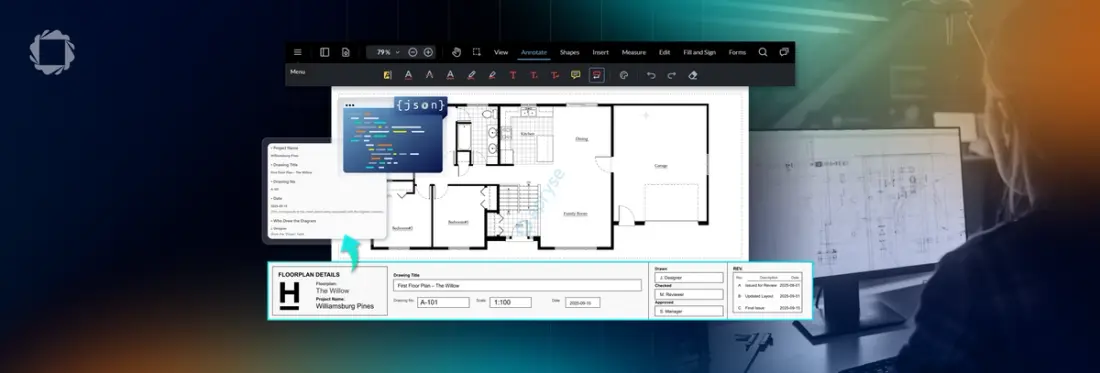
CAD title blocks hold the metadata that keeps drawing archives and project documentation organized, but no two layouts are quite alike. One architect writes “Client,” another writes “Customer,” and the block might sit at the right, the bottom, or anywhere else on the sheet.
This article shows how to pull that data out generically using the Apryse SDK’s key-value detection. With a few lines of Python and the Data Extraction add-on module, you’ll turn a PDF drawing into a JSON file listing each key, its value, its position on the page, and a confidence score you can use to flag items for human review. You’ll also see the results overlaid on the drawing, how an LLM can answer questions from the JSON, and how to try it with no code in the WebViewer Showcase.
Introduction
Title blocks may look like a simple box of text in a CAD drawing with “project name” here, “revision number” there, but to an automation engineer, they’re a goldmine of structured data just waiting to be extracted. The catch? They’re rarely as consistent as they appear. Fonts change, layouts drift, and what’s a neat grid in one drawing becomes an interpretive artwork in another.
In this post, we’ll explore how to detect key-value pairs in CAD title blocks using the Apryse SDK, turning messy, human-designed layouts into clean, machine-readable data. Better still you can run Apryse SDK where you want, giving the opportunity of deployment on-prem, helping to keep your valuable data secure.
Whether you’re managing drawing archives, generating reports, or feeding metadata into a document management system, automating this step can save hours of manual work and help keep your project documentation in sync with reality.
What Are Title Blocks
A title block in CAD is a template, often in the lower-right corner of a technical drawing, that provides essential metadata about the drawing and the project.
Typically, it includes information such as the drawing's name and number, date, author, revisions, and so on.
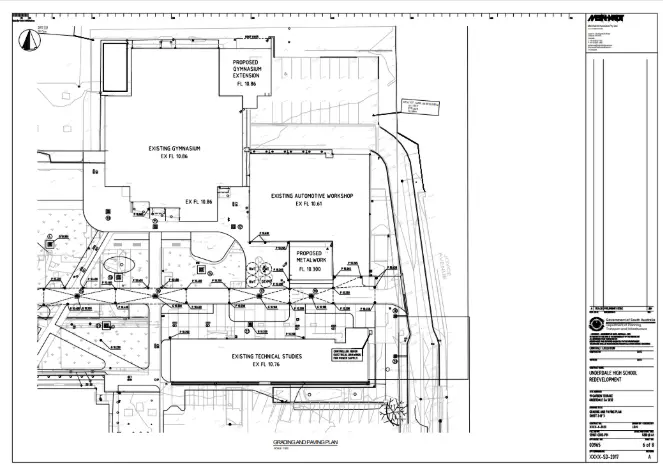
Figure 1: Example CAD drawing with the title block at the right-hand side.
But the title block doesn’t have to be on the right-hand side, it could be at the bottom of the page, or in fact anywhere at all.
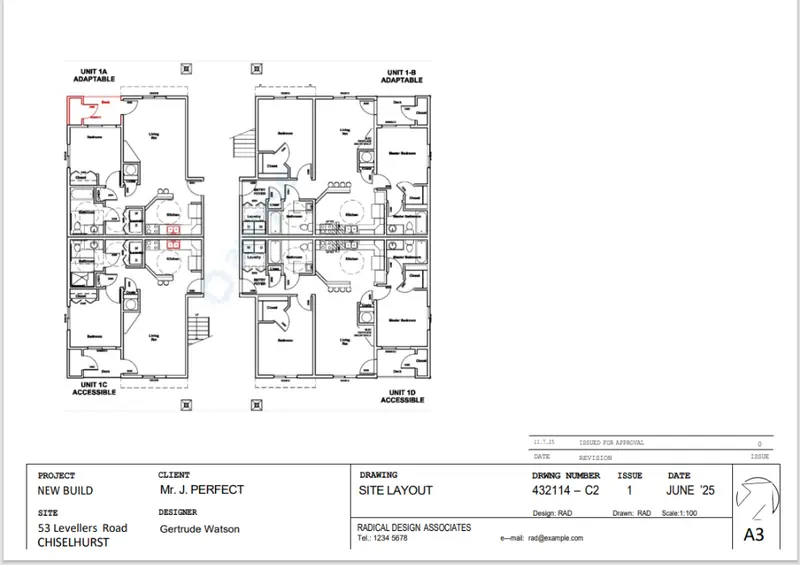
Figure 2: Example CAD drawing with the title block at the bottom of the drawing.
What’s more, there’s no guarantee of exactly what might be in the title block. The template used by one architect might differ substantially from that used by another. At its simplest, one might use the word “Client”, while another might use “Customer” or even “Owner.”
That gives us a problem.
How do we extract that data from a CAD drawing in a generic way without needing to know exactly what the layout is?
Sounds like a job for AI!
Key-Value Detection with the Apryse SDK
The Apryse SDK has supported Key-value pair detection since version 11.3, released in February 2025. Even in the initial release, it was great at using “Machine Learning” to find key-value pairs in forms or invoices, for example.
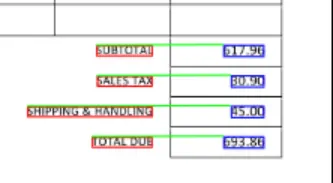
Figure 3: Apryse Smart Data Extraction has been great at extracting data from invoices and receipts.
Recently we have been extending the models to extract key-value pair data from CAD title blocks as well.
Currently key-value detection works using text content, rather than images. This means that if you have a scanned image then it will be necessary to OCR it before data extraction. That’s not a problem with the Apryse SDK, which includes an optional OCR module.
Let’s look at an example document. In this case, the title block is at the bottom.
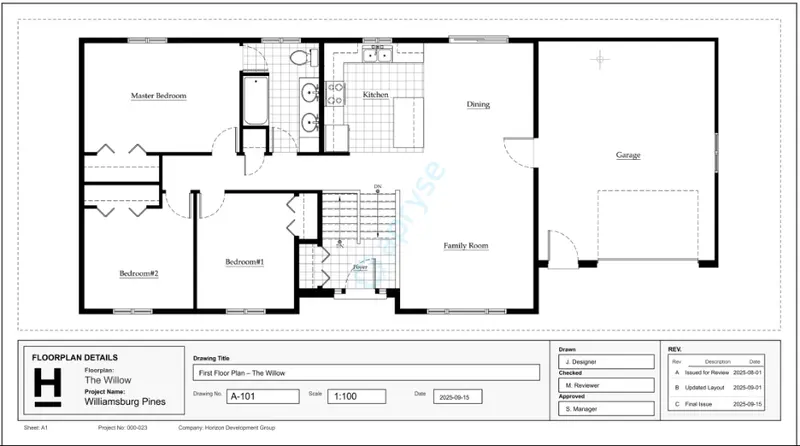
Figure 4: The example CAD drawing that we will process.
We can see many key/value pairs in the title block. There’s a lot of information in those, for example:
- Project name is “Williamsburg Pines”
- Drawing Title is “First Floor Plan – the Willow”
- Drawing No is “A-101”
- Date is “2025-09-15”
- Drawn by “J. Designer’
- The highest revision number is “C”
My sample file is already a PDF. If you have CAD files, then you can convert many formats to PDF using the Apryse CAD Conversion Module.
Let’s use the Apryse SDK to get that data.
Extracting the Data Using Python
The Apryse SDK is available in many different languages – Python, Java, C++, Go as well as many others. It’s also available for Windows, macOS and Linux.
I’m using Python on Windows, which I can install using:
pip install apryse-sdk --extra-index-url=https://pypi.apryse.comData Extraction isn’t built directly into the Apryse SDK, but instead is available from the DataExtraction add-on Module .
You can download a complete set of Python samples. These demonstrate a wide range of functionality. The code used in this article is based on “DataExtractionTest.py”
You will also need a license key, but it’s free to get a trial license.
I created a new file called cad_titles.py and dropped the following code into it:
Much of that code is there to provide logging. The part that does the actual work is:
- Initialize the SDK with a license key
- Specify where the Data Extraction module is located (in this case it is a folder called .lib that is in the same folder as the script.)
- DataExtractionModule.ExtractData(inputFile, outputFile, DataExtractionModule.e_GenericKeyValue)
- Terminate the SDK to release any resources
Wow! That’s easy. In fact, the hardest thing is usually working out the path to the DataExtractionModule, and you only need to do that once!
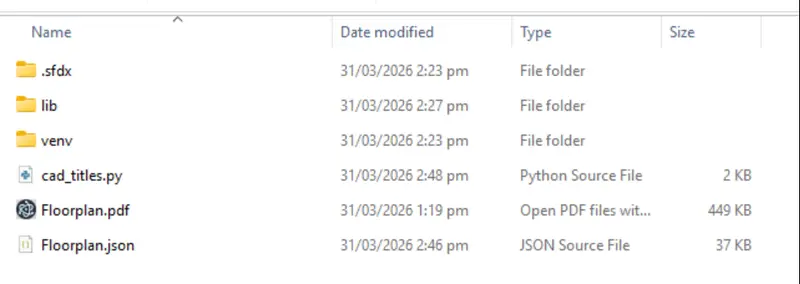
Figure 5: My folder layout. The Data Extraction module is in the folder "lib".
The result is a JSON file that contains information about what was found, where it was on the page, and the confidence that the engine has in the result (which you could use to flag the need for a human to review the data).
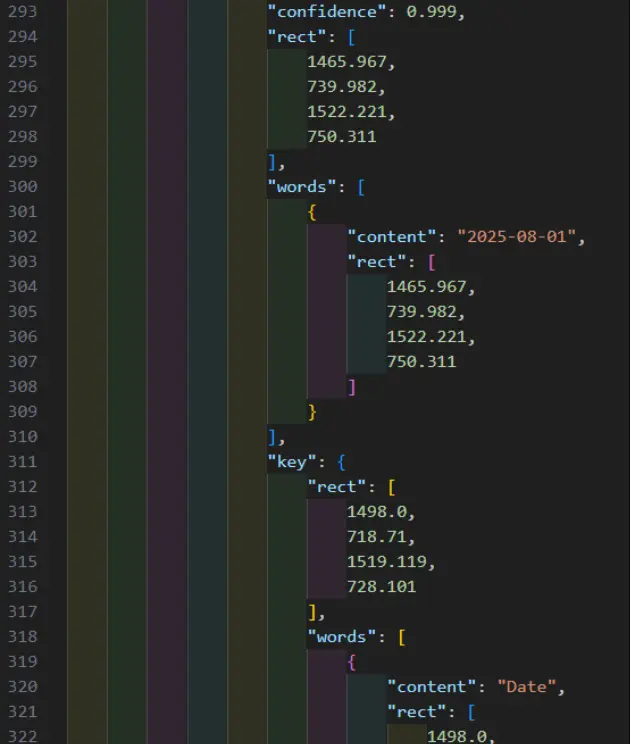
Figure 6: Part of the generated JSON file. In this case showing that it is very confident (0.999) that the 'date' has a value of '2025-08-01'.
That’s everything you need. You can now use that JSON file for further processing, perhaps training your own model or adding metadata to the file or storing metadata in a database.
For the purpose of this article though, I’ll use it to annotate the PDF, which will make it easy for us to see where the data was found on the page.

Figure 7: Illustrated example of the keys (in red rectangles) and the values (in blue) that were found.
You can see that we automatically detected a lot of information.
We got all the data we had manually noted earlier in this article, plus everything else. That is a great result.
For fun, let’s feed the JSON file that we extracted into Copilot. We’ll ask:
For this file, tell me:
- Project name
- Drawing Title
- Drawing No
- Date
- Who drew the diagram
- The highest revision number
After a short delay we get a response with correct answers to all of our questions.
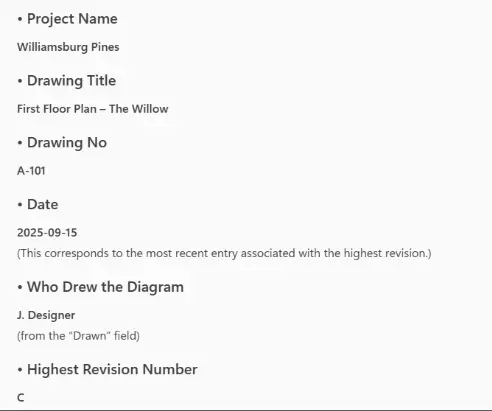
Figure 8: The result from Copilot. All of the answers are correct.
Next Steps
With very little effort on our part, we have managed to extract the data from the CAD drawing as JSON data. Having access to that data means that if we want then we could redact some of the information, perhaps removing customer names or addresses. That’s the kind of thing that you would want to do if you were to later send the data to an off-prem AI.
Try It for Yourself
While I used Python for this sample, you can try this out, right now, with zero coding.
Hop over to the Apryse WebViewer Showcase and try the “Title block extraction” sample.
WebViewer is powered by the Apryse SDK, but runs in your browser, and the showcase shows the wealth of other functionality that is available whether you want to view or edit PDFs, or work with DOCX files or Spreadsheets, or as we have seen, CAD documents.
Experimenting with this in your own workflow? Join the Apryse Community to share your results, get advice, and connect with developers.