Garry Klooesterman
Senior Technical Content Creator
Published November 18, 2026
Updated November 18, 2026

8 min


How to Extract Barcodes from Incoming PDFs into a Database With C#
Garry Klooesterman
Senior Technical Content Creator
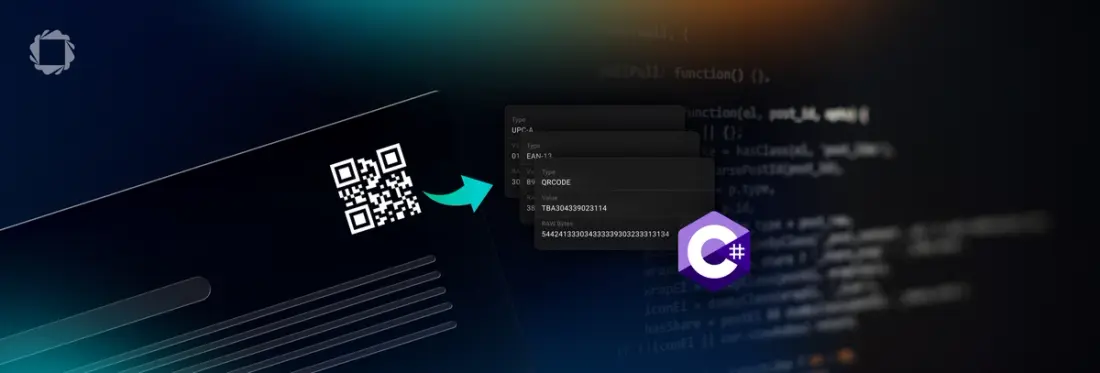
To send barcode data from incoming PDFs to a database, run the Apryse Server SDK Barcode Extraction Module in a C# service on your own Windows or Linux server. For each PDF, call BarcodeModule.ExtractBarcodesAsString to get every barcode as JSON, then write each value and its type to your table. To handle volume, initialize the SDK once and process one document per thread.
Why Barcodes from Incoming PDFs Belong in a Server-Side Pipeline
It is six in the morning at a freight forwarder's dock office, and the first scanner run of the day is already done. Every bill of lading is now a multi-page PDF, and the barcodes on its pages name the shipment, the container, and the seal. Until a person keys those values into the shipment table, dispatch cannot match the load, and every typo sends a pallet to the wrong lane.
Bills of lading, patient forms, lab reports, and invoices all arrive as PDFs with barcodes that tie each page to a record. A backend barcode recognition pipeline reads those codes and lands them in a table, so matching and routing start without anyone keying values by hand. Teams working with barcodes in patient records and claims build the same intake service.
The naive build starts with an open-source decoder. Those libraries decode images, not PDFs, so you add a separate renderer, rasterize every page, and keep both dependencies aligned on Windows and Linux. The Barcode Extraction Module removes that stack. It is an add-on module for the Apryse Server SDK that detects, extracts, and decodes barcodes directly in PDFs, and it ships with the Smart Data Extraction add-on license as a separate module download. It runs on your own servers, so documents are processed locally with no cloud API call and no document content going to Apryse.
Compared with an open-source decoder, the choice is a license cost against engineering and maintenance time. What you build once is the pipeline: the loop that reads one bill of lading is the loop that reads a folder of them, because you initialize the SDK once and give each document its own thread. Camera capture is a separate job, so this pipeline starts after the PDF exists.
This post covers Apryse Server SDK integration using C# on Windows or Linux, reading barcodes from incoming PDFs into a database. It does not cover camera scanning, which belongs to the Scanbot SDK, or reading barcodes from a single PDF, which the C# how-to for extracting barcodes from a PDF walks through. For other languages or platforms, see the Server SDK get-started guide.
Extract Barcodes from PDFs into a Database with C# and the Apryse Barcode Extraction Module
The Apryse Barcode Extraction Module returns every barcode in a PDF as one JSON string, so your C# service only has to parse it and insert rows. The module runs on Windows and Linux x64 only.
This feature requires the Barcode Extraction Module add-on, which is a separate download from the base Server SDK. See the modules documentation for download and installation instructions.
License keys are confidential. Do not commit them to public repositories. Use environment variables or a secrets manager to inject your key at runtime. The code below reads the key from APRYSE_LICENSE_KEY.
The service below walks a folder of incoming bills of lading, gives each PDF its own thread with standard .NET Parallel.ForEach, reads the barcodes, and saves one row per barcode.
PDFNet.Initialize and PDFNet.AddResourceSearchPath run once at startup. The search path points at the parent Lib folder that holds the installed modules, not at the Windows or Linux Barcode folder inside it. PDFNet.Terminate runs in the finally block at shutdown. Replace the Lib path and the incoming folder with your own paths.
Each bill of lading opens in its own PDFDoc, so nothing needs locking. ExtractBarcodesAsString reads every page in one call and returns JSON, and each entry carries the barcode type, position, rotation, and value. IntakeRepository.SaveBarcode stands in for your own data access call that writes the document, type, and value to your table.
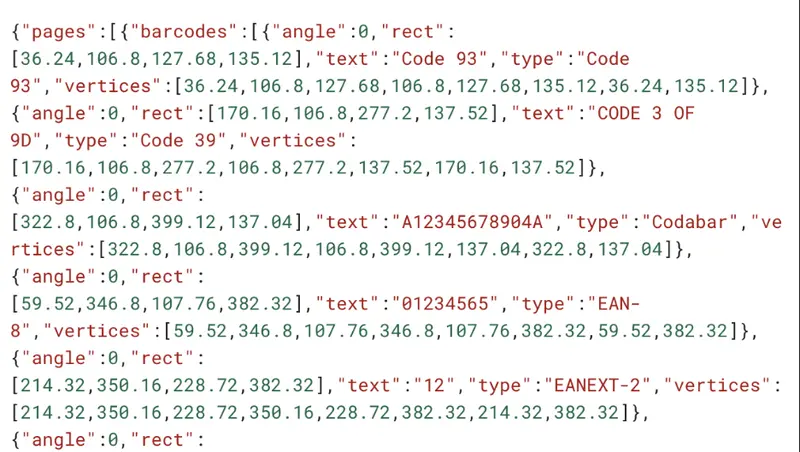
Figure 1: Sample JSON output.
The options object narrows the work. SetBarcodeSearchTypes limits the search to basic 1D types such as Code 128, which cuts processing time, so widen it if your documents also carry 2D codes. Add SetPages with a range such as "1-3,5,10-" to skip pages that never carry barcodes. The profile setting trades speed for tolerance: the default profile assumes a moderately high quality source and reads fastest, the low quality source profile is slightly slower, and the small barcodes and natural picture profiles are significantly slower.
Run the service with dotnet run. The native library must sit in your build output folder, and the search path in the code must point at the Lib folder that holds the module. The BarcodeTest sample ships in nine languages and shows page ranges and type filters, and the MultiThreadedTest sample shows the locking model in C#. For the full list of options, see the Barcode workflow docs.
Running a PDF Barcode Extraction Pipeline in Production: Threads, Streams, and Scanned TIFFs
A PDF barcode extraction pipeline on the Apryse Server SDK comes down to four decisions: how documents map to threads, where the bytes come from, which format scans arrive in, and what you store when a barcode does not decode.
Give each document its own thread: Initialize the SDK once at startup and leave it initialized for the life of the worker. If each thread opens its own PDFDoc, as the loop above does, nothing needs locking. If two threads share one PDFDoc, use the documented Lock call for writes and LockRead for read-only work, because sharing a document without locking gives undefined behavior, including crashes. The multi-threaded document locking guide covers both patterns. How many threads run, how documents reach them, and what happens on a retry are your code.
Open PDFs from a stream when they come from a queue or object store: Construct the PDFDoc from the in-memory bytes instead of a file path, and the document never touches disk. The SDK does not fetch URLs, so your code downloads the bytes first. A path-based PDFDoc and a stream-based PDFDoc feed the same extraction call.
Convert scanned TIFFs to PDF first: The Barcode Extraction Module reads PDFs, so a TIFF from your scanner needs converting before extraction. The Server SDK converts TIF and TIFF files to PDF as part of its base image-to-PDF conversion. If converted scans still return missed barcodes, see fixing missed barcodes on scanned PDFs.
Store Base64 payloads from the data field as-is: When the module cannot decode a barcode, it returns the raw bytes as a Base64-encoded string in the data field instead of the value field. Write that string to its own column without decoding it and decode it later with your own logic. Keep the row, because a barcode that was read but not decoded still tells your matching step that the document carries a code.
How to Check Barcode Values Extracted from PDFs Before They Reach Your Database
Barcode values extracted from PDFs can arrive as valid JSON and still be wrong for your table, so check each document before the insert. Run these four checks in the service, between parsing and saving.
- Count: Compare the number of barcodes returned per document with the number you expect. If every bill of lading in your intake carries one barcode per page, count the entries across all pages and compare the total with the page count. Log both numbers on the document row and route any mismatch to review.
- Type: Check that each barcode type matches the document, for example Code 128 for a bill of lading number. Keep a map from document type to allowed barcode types, and compare the type field of each entry against it. A QR code on a document that should carry only Code 128 points to a misread or a misfiled page.
- Data field: Flag every entry that returns the data field in place of a value. Test for the data field on each entry before the insert and save those rows with a needs-review status.
- Your own format rules: Validate each decoded value against the pattern your documents follow. Match the value against a regular expression per document type, such as the bill of lading number format your carriers use, and apply the check digit rule where the barcode type defines one. Reject the row on a mismatch and keep the raw JSON for the review queue.
Run all four on the worked example. A three-page bill of lading that returns two entries sends one row to review before dispatch ever sees it.
Get Started with the Apryse Barcode Extraction Module in C#
Download the Apryse Server SDK for .NET 8 or 9 (PDFNetC64.zip) or .NET Framework (PDFNetDotNet4.zip), then download the Barcode Extraction Module and extract it into your SDK directory. Follow the C# get-started guide for project setup and use the BarcodeTest sample and the MultiThreadedTest sample as your references.
Try it on your own documents: get a trial key at dev.apryse.com, run the BarcodeTest sample against one of your own incoming PDFs, and check the type, position and value of each barcode in the JSON. Then join the Apryse Community to share your results, get advice, and connect with developers.
That is the whole shape of it: one PDF in, JSON out, and rows in your table. The same loop that reads your first test file reads your whole intake folder, so the work you do today is the work you keep. Start with the messiest bill of lading in your folder, because the document that breaks your assumptions teaches you more than the clean ones do.