Roger Dunham
Published February 26, 2026
Updated August 07, 2026

7 min


Cross-File Teleportation: The Magic of GoToR Links
Roger Dunham

Summary: GoToR (Go-To-Remote) links in PDFs allow a document to open a specific location in another PDF file. They’re useful for navigating large, multi-file document sets like technical manuals or legal briefs. However, they come with risks, such as broken file paths and security concerns. Alternatives include internal links and named destinations. In WebViewer, GoToR links can be handled and configured to open the target document in a new tab for a smoother user experience.
In PDFs, most navigation happens within a single document — bookmarks (technically called “outlines”), internal links, and named destinations. But occasionally, a PDF needs to reach beyond its own borders. That’s where GoToR links come in.
A GoToR (short for Go-To-Remote) action allows a PDF to link directly to a specific location in a different PDF file, giving a way for the user to move from one document to another, optionally, right to a specific page.
These links can be really useful if you are working with large collections of documents such technical manuals or legal briefs, where related content lives across multiple files. Being able to jump to the exact location can save hours of manually scrolling through documents trying to find, for example, page 417 in the PDF 1.7 specification, which is the section that relates to GoToR actions.
We will learn:
- Risk associated with GoToR links – think before you dive in
- Alternative link types
- Working with GoToR links in WebViewer
- The final result – Opening the link in a new Tab
Desktop apps such as Xodo PDF Studio and Adobe Acrobat both support GoToR links. That’s great if you are working on a machine where they are installed. But what if you are not?
Apryse WebViewer is an awesome piece of technology, but it doesn’t directly support GoToR actions, and there are good security reasons for that.
In this article we will look at why GoToR links aren’t supported in WebViewer, and see how with just a little code you can get something similar, but safer and better, working.
And as this is all about solving a mystery, what better way than to use publicly available PDFs about Sherlock Holmes to illustrate them?
You can, of course, use this functionality with any kind of PDF, and in later articles in this series we will look at a short document that summarizes the Miranda law which contains links to citations from the original opinions of the Supreme Court of the United States.
What are the risks associated with GoToR links?
Before we go any further, let’s consider the risks associated with GoToR links.
As we will see in a moment, under the hood, a GoToR link is a reference to an external file path or URL. As a result, it could inadvertently (or intentionally) point users to unexpected or untrusted locations – essentially doing exactly the same as when a phishing email says “click on this link”
That could, potentially, result in you opening a file that causes a script to run.
That can be a real problem with desktop apps.
In some ways, browser-based apps are safer, since in order to increase computer security, web browsers generally cannot open arbitrary files unless they are being “served” by a webserver, or the user has explicitly selected them.
As such, WebViewer simply can’t access files on your computer in response to you clicking on a link in a PDF. While that is safe, we have lost the benefits that GoToR links provide.
Jumping to locations in PDFs
There are several different ways that we can jump to a specific location in a PDF. Let’s look at what is available in WebViewer before we look at GoToR links.
Outlines
While often described as “Bookmarks”, outlines provide a link that will take us to a specific location on aspecificpage in the same document.
There’s a great example in the Table of Contents for “Scandal In Bohemia”.
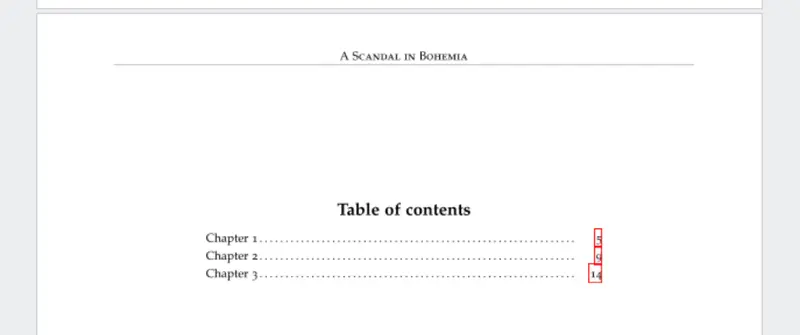
Figure 1 - In the Table of Contents the links are actually “Outlines” - clicking on one will take you to a specific location on a page.
In that document the Outline links are shown with red rectangles (unless you are using Chrome, or Edge – both of which are based on PDFium in which case you see nothing), and clicking on them takes us to the specified location – whether you are using Xodo PDF Studio or Apryse WebViewer.
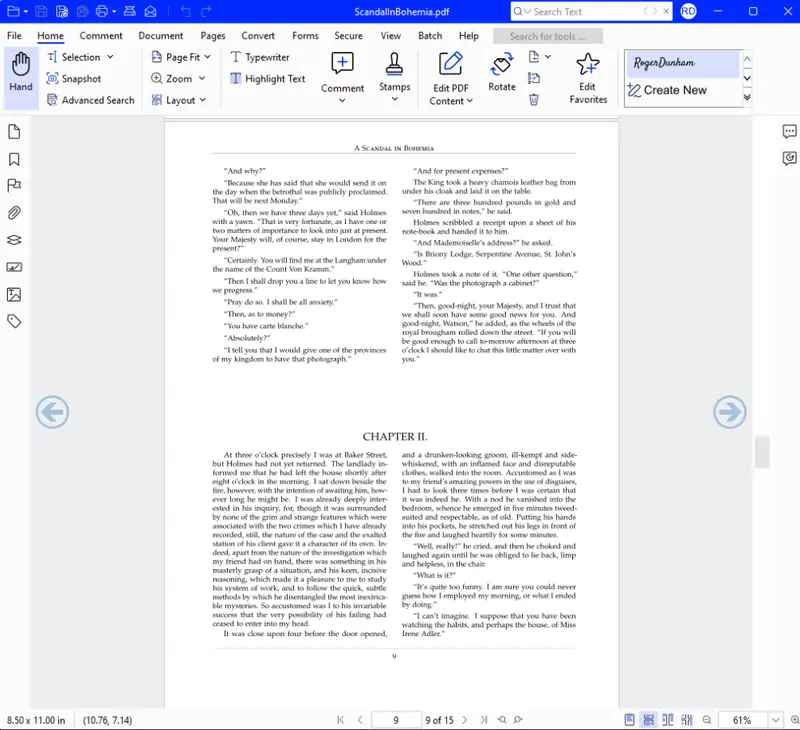
Figure 2 - Clicking on the Outline (aka Bookmark) makes the PDF navigate to the specified location.
While the link is to a specific place on the page, it may be hard to work out exactly where even if the correct page is shown.
GoTo links to a page the same PDF
The PDF specification allows links to be added to the PDF that result in jumping to a specific page in the same document. We won’t say much more about them, but they are supported by both Xodo PDF Studio and WebViewer.
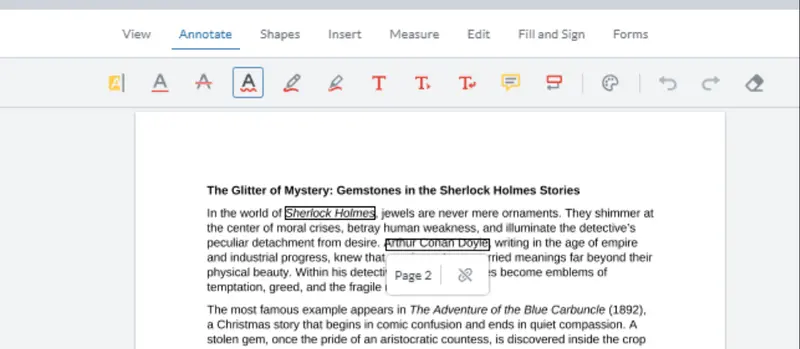
Figure 3 – GoTo links within the same document are supported by WebViewer.
Links to a URL
It’s also possible to have a link in a PDF that will take the user to a different document, whether that is a Web Page or a PDF.
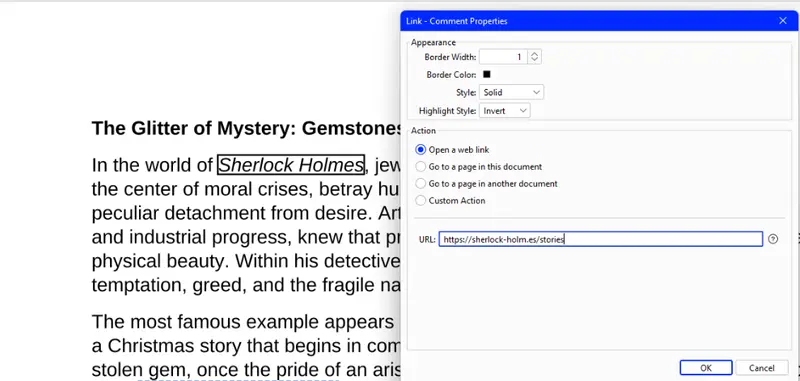
Figure 4 - Adding a link to a URL within Xodo PDF Studio
WebViewer works with those too, though it will warn you of the risk of navigating to an external site, which you need to acknowledge before it takes you to that location.
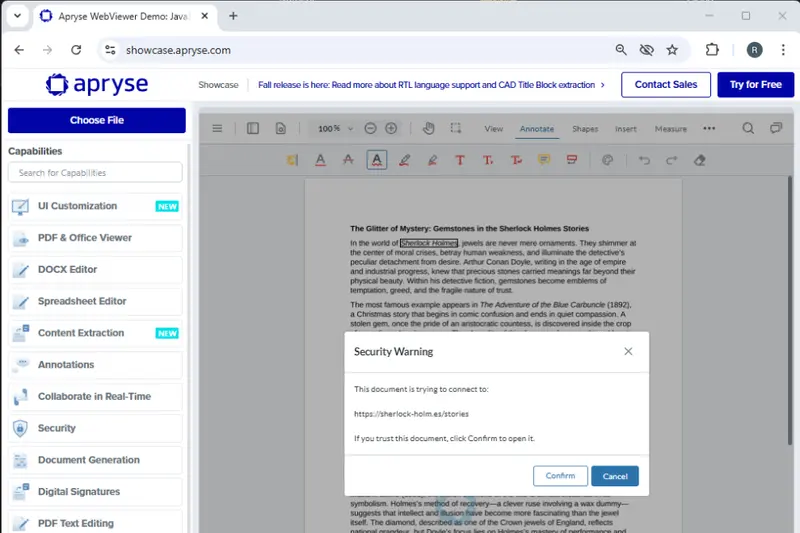
Figure 5 - Apryse WebViewer warns you that going to other sites from a link may be risky.
From a security point of view that is great. Going to remote sites has risks, as we have seen. And while WebViewer warns you about this, the PDF viewers in Chrome, Edge or Firefox don’t, increasing the risk of security breaches.
GoToR links
Finally, we get to GoToR links.
Xodo PDF Studio, for example, makes it easy to create them: just click on a location and say where you want the link to point to.
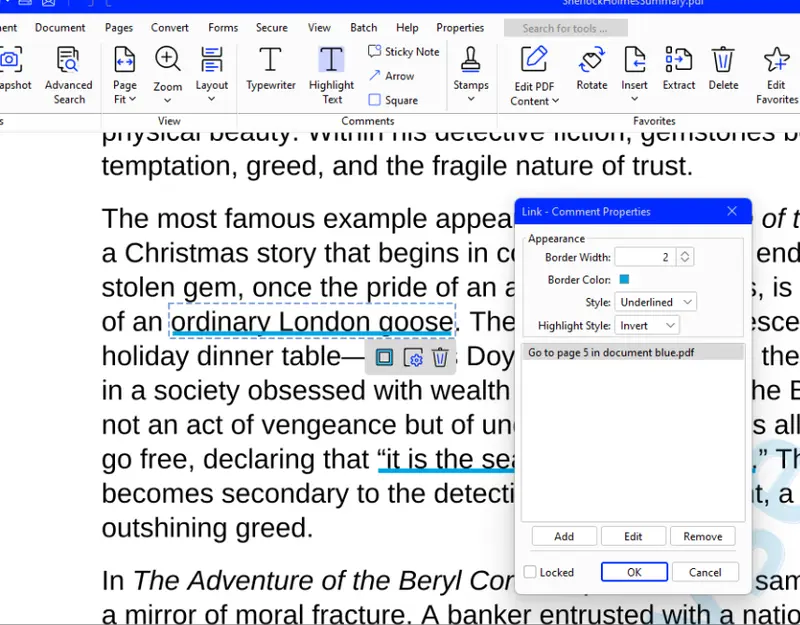
Figure 6- a GoToR link shown within Xodo PDF Studio.
As we saw at the beginning, desktop apps may handle these links. Browser based tools have varying responses: Edge recognizes that there is a link but takes you to the end of the document, Firefox and Chrome just ignore them and WebViewer recognizes that a link exists, but does absolutely nothing with it. There isn’t even any logging shown in the DevTools console.
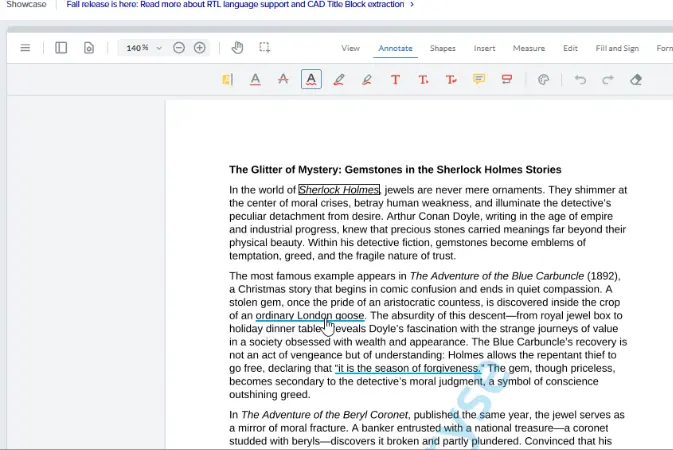
Figure 7- WebViewer indicates that something is there with the hand cursor, but clicking does nothing.
Let’s do something about that!
Working with GoToR links in WebViewer
Getting information from the GoToR link
Let’s create some code using the Apryse Web SDK, and log where the link points to
Most of the code is based on this guide for Getting started with WebViewer with React. You can get the full code from this GitHub. In this article we are using the code in the file OpenInTab.tsx
The only significant difference in the code that I’m using compared with the Getting Started Guide is that I am storing the instance object, which is available when the WebViewer constructor promise resolves, as ‘wv1Instance’, and I’m mounting WebViewer into a div with a useRef if “viewer1”.
That’s not essential, but later in this series of articles we will do more with the code, so being able to identify this WebViewer instance is useful.
Identifying when an annotation is clicked
Typically, when an annotation is clicked, you can get the annotation using:
annotationManager.addEventListener(‘annotationSelected’) However, link annotations with aGoToR actiondon’t raise that event when it’s clicked. WebViewer doesn’t handle them after all, so why does it need to know if they are clicked?
We therefore need to use an alternative approach, working with the viewerElement object:
Since we are manually adding an eventListener to the viewerElement, we also need to remove that eventListener when WebViewer unmounts, otherwise we will get a resource leak.
This event is fired when the document is clicked and then it is possible to work out what annotation – if any is located where the mouse event occurred.
At this point we just know whether, or not, an annotation of any type has been clicked, but that could be a stamp, or a redaction, or an underline.
We need to find our whether it is a Link Annotation with a GoToR action, and we can do that using the following code:
The inner workings of PDFs is complex, so let me explain how the code works.
If the annotation is a link, then it may contain one or more actions that are intended to be fired when various events occur.
The various actions are indexed by the type of trigger which can be when the user clicks down, or releases the mouse, or moves the cursor over the link.
In this case we are interested in when the user releases the mouse button, which is a U for “Up” (or “mouseUp”) event, which gives us:
const actionArray = actions.U; We are still not finished with the processing though, since there could be multiple actions that occur as a response to the event, so we need to iterate through each one, looking for any with the name “GoToR”.
When we find such an action, we get the “dest” object from it, which includes the page number, and the “filename”. Having got those, we can log them to the console.
Now if we run the code, and click on a GoToR link, we will get information about the link.
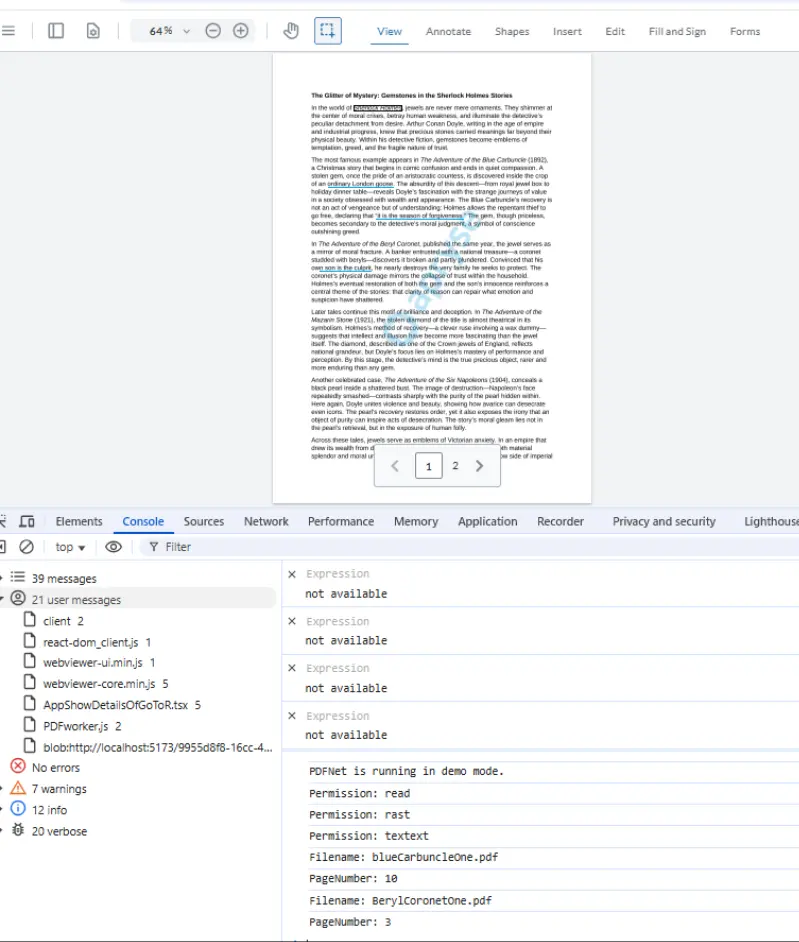
Figure 8- We can see the Filename and Page Number for a couple of links that have been clicked.
Note that you may find that the event fires twice if you have strict mode enabled. That doesn’t occur in release builds, but can be a little confusing.
Dealing with the links
Now we have the links we need to decide what to do with them. There are several options, but let’s see what other software does.
Xodo PDF Studio and Acrobat both show the target document in a new tab.
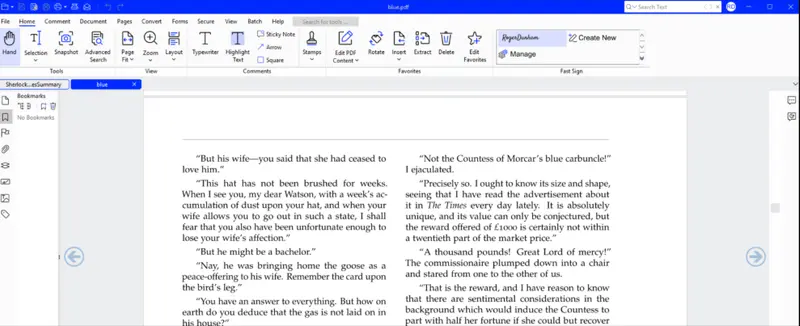
We can do that within WebViewer too, since it has supported multiple tabs since 2022.
You can try out the multi-tab, as well as lots of other functionality, in the Apryse Showcase.
To enable the “Multi Tab” feature in WebViewer we just need to update our constructor with one line instance.UI.enableFeatures([instance.UI.Feature.MultiTab]);.
Now let's add a new function localSendToTab(fullPath, page) to open the file when we find a GoToR link, rather than just logging the path and page to the console.
Let’s break down what that code is doing, but before we do that, this is the part of the process where we need to take care, since we probably don’t want the user to be able to click on links to malicious files. Exactly how you choose to handle that is up to you. You could show an alert so the user must verify they want to open the link or modify which files can be opened.
In my code sample, I am getting the files served from local storage, having copied them to my “public” folder after creating the PDF with its links. I’m therefore taking the filename, which might include a path, and just extracting the filename.
Alternatively, I could take that filename and map it in some way to get a file from a server as a byte array or blob or translate it into a URL, taking the opportunity to sanitize the files so that I know that no malicious files get opened.
However we choose to get the file, we are using it to create a new tab with:
await wv1Instance.UI.TabManager.addTab(targetFile, { setActive: true });That will open the file, but we also need to jump to the correct page. We do that by listening for the 'annotationLoaded' event that will fire just once, when the annotations for the document are loaded. When that fires, we use setCurrentPage() and the target page number to scroll to the correct page.
Note: we could use the documentLoaded event, but that may take us to the wrong page if the PDF contains an annotation that also sets the page when the document loads.
The rest of the code in the snippet checks whether there is an existing tab open for that filename and closes it if one is found. That isn’t really needed but means that we don’t end up with more and more tabs open if you keep clicking on new links to the same target document.
The final result: opening the link in a new tab
If we run the code in VS Code, and navigate to the URL (probably localhost:5173/tab) then you can click on any of the links and the target document will open in a new tab.
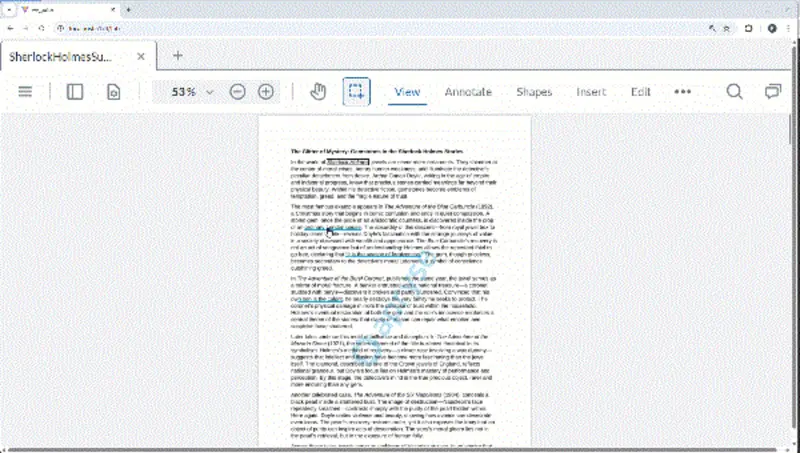
Figure 10- The final result: WebViewer showing GoToR links in new tabs.
So now we can open a file and scroll to the page, exactly what a GoToR link should do! We even have the option to choose where to get the file from, potentially a URL or a database, not just from the file system. That’s better than the desktop app.
What’s more, we’ve done this in about 100 lines of code.
And we are only getting started!
In the next article in this series, we’ll create a web page that allows us to see two documents side by side, rather than in tabs, adding even more functionality and flexibility to Apryse Web SDK powered apps.
We shouldn’t forget, though, that WebViewer is already awesome, even without this customization. You’ve already got built in access to a huge range of tools, annotation, redaction, plus PDF, DOCX and spreadsheet editing.
So, grab yourself a trial license key and check things out for yourself, or head over to the Apryse Showcase and see, right now, what WebViewer can do, knowing that you can quickly extend it to tailor it for your particular requirements.