Roger Dunham
Published October 20, 2026
Updated October 20, 2026

9 min


Bates Numbering: Why Every Page Needs an Identity
Roger Dunham
Need to number every page in a large PDF set automatically? This article shows how to apply Bates numbers with the Apryse SDK and when to use each method. You’ll see how Stamper and FreeText annotations compare for ease of implementation, editability, and review workflows, plus how to flatten Bates annotations while keeping other annotations editable.
Picture this: you're three weeks into litigation discovery, staring at a stack of 50,000 pages of documents pulled from a client's email servers, shared drives, and filing cabinets. Opposing counsel references "the email on page 12,483." Which document is that? Which page, in which folder, on which server? Without a consistent way to identify individual pages across a massive, fragmented document set, that question can turn into hours of searching.
This is the exact problem Bates numbering was built to solve, uniquely numbering every page in a PDF.
In this article, we will look at three ways that the Apryse SDK can add a Bates number to each page in a document.
Get the GitHub repo that demonstrates working with Bates numbers using Apryse.
But first some background.
Named after the Bates Manufacturing Company, which patented an early automatic numbering machine in the late 1800s, Bates numbering (also called Bates stamping) assigns a unique, sequential identifier to every page in a document collection. A typical Bates number looks something like ABC000001, ABC000002, and so on, often combining a prefix that identifies the case, client, or production batch with a zero-padded sequential number. Once applied, that page can be referenced unambiguously by anyone, at any time, regardless of where the document originated or how it's stored.
While Bates numbering is most closely associated with the legal industry, its usefulness extends well beyond the courtroom. In fact, any industry that has large collections of files, whether for an insurance claim, a regulatory submission or a contract negotiation may gain value by being able to identify a specific page.
Manually stamping tens of thousands of pages, however, isn't practical and doing it by hand invites exactly the kind of numbering errors and inconsistencies Bates numbering is meant to eliminate. This is where automation comes in. In this article, we'll walk through how to programmatically apply Bates numbering to PDF documents using the Apryse SDK.
What is the Apryse SDK?
Apryse has an extensive SDK that allows you to work with PDFs and other document types. Available for many programming languages and with dedicated Support Engineers and a wide collection of sample code snippets, it offers an easy route to automating Bates numbering as well as many other document processing requirements.
The code in this article is based on Python and was tested using a Windows 11 machine. You should get similar results with other languages, and also on macOS and Linux.
Screenshots are taken by using Apryse WebViewer, a browser-based PDF viewer and editor.
Ways to Add a Bates Number
You could, if you wish, work directly with the PDF file at a low level using ElementBuilder/ElementWriter to explicitly define and layout each element within a PDF. That gives almost unlimited flexibility to implement just about anything within the PDF specification, but it is significantly more complex.
Easier alternatives are to add the Bates number using the Stamper class, or to create an Annotation that has the same information. We will look at three ways to do that.
Code Used by Each Option
Regardless of how we actually apply the Bates number, we need to generate it in some way. For this article, I generated the number using the following code, specifying the prefix that I wanted (for example “STAMPER-“ and the format for the number (6 digits, with preceding zeroes).
Option 1: Using Stamper to Create Bates Stamps in PDFs
You can think of Stamper as a way of applying a rubber stamp to the PDF. You can add text, images or vector graphics.
In this case we are going to stamp text (which we get from the “get_bates_number()” function) by calling stamper.StampText.
You could generate that number in many ways, so feel free to do so. How that number is generated is much less important than how it gets added to the page.
After initializing PDFNet with a license key, we create and configure the stamper. In this case, we are saying that we want to use font size 12, although other options exist.
We also need to say where we want to put the stamped text. That’s done by setting the alignment (which can be left, middle or right). In this case, we have set the alignment relative to the bottom right. For right and left, and top and bottom alignments, when we call SetPosition that indicates measurements towards the center of the page (in this case, inwards from the right edge, and upwards from the bottom).
StampText has many uses and needs to know the document what text should be applied, which pages it should be applied to, and where the stamp should be on the page.
In this case, the page set will be just a single page (since the Bates number will be different on every page).
We then just need to iterate through each page of the document, get the current Bates number and apply it.
When we have finished, we save the document, and tidy up after ourselves. PDFNet.Terminate will release any resources that were used.
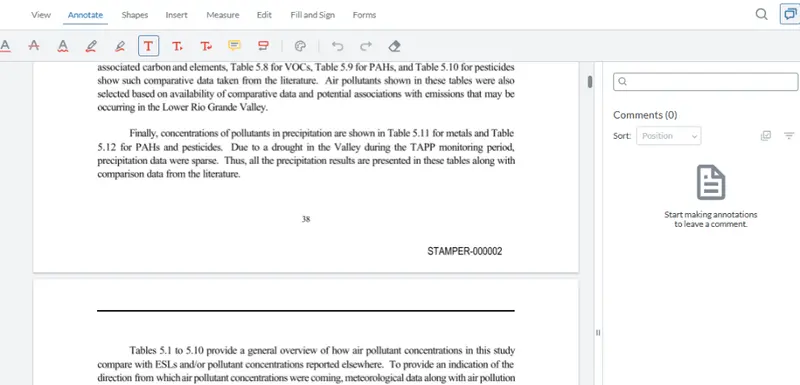
Figure 1: The second page of the PDF that we have stamped. Note that the stamps are not annotations.
Stamper is really flexible. We can add a few extra lines of code, and change the font, color and rotation of the stamp.
Now if we run the code, we get the same Bates number but in red and at an angle.
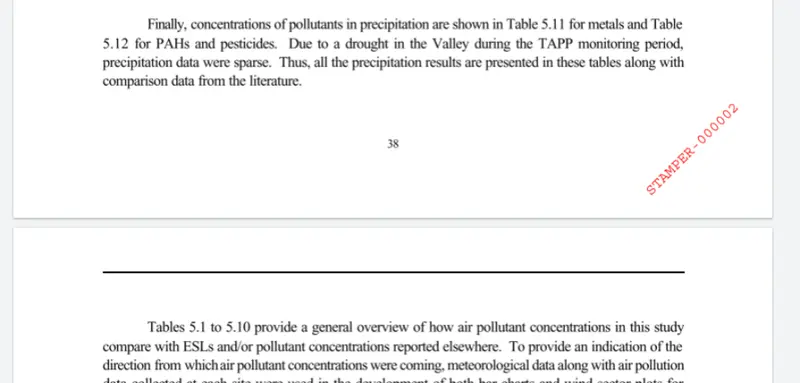
Figure 2: A Stamp rotated to 45 degrees. This would be non-trivial to do with an annotation.
Working with Stamper also offers some extra options. You can find if a page has stamps and even programmatically remove them. Check out the documentation if you want to know more.
Option 2: Using Stamper to Create Annotations
So far, we have used Stamper to create a stamp, but it can also be used as a simple way of adding annotations.
To do that we just need to specify:
# previous code
stamper.SetAsAnnotation(True)
Now when we run the code, annotations rather than stamps are created.
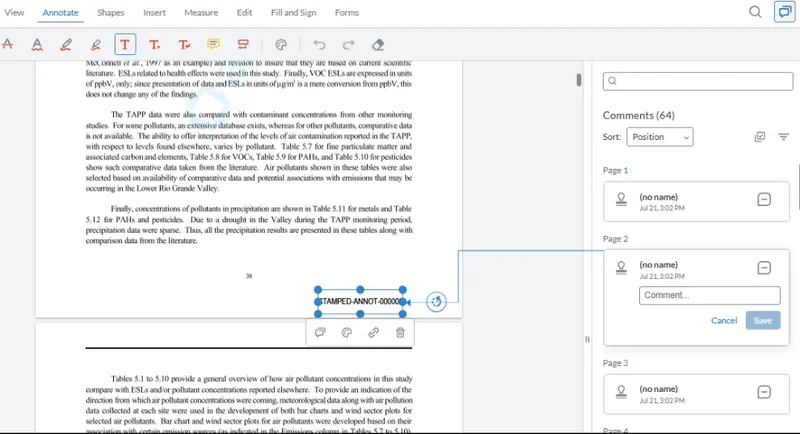
Figure 3: If you use stamper to create annotations then you can see them in the comments pane.
Ultimately, you may want to “flatten” those annotations into the general content of the PDF. We’ll see how to do that later in this article.
Just as before, you can alter the rotation, font and color of the text when using Stamper to create an annotation.
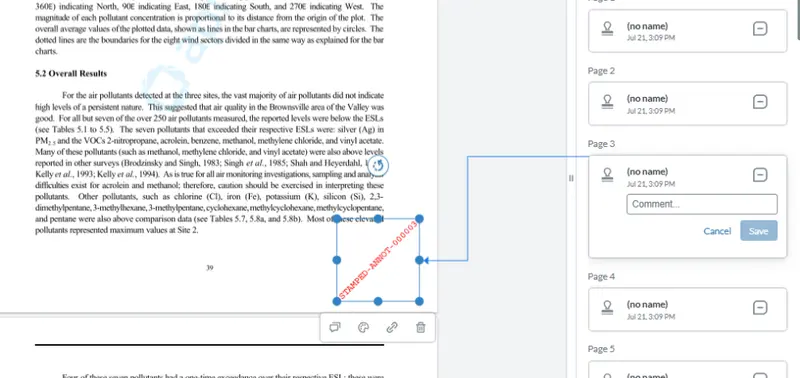
Figure 4: If you use Stamper to create an annotation then you can set the rotation and color.
Because we are working with Annotations, and they are always added at the end of the list of annotations for a page, you could (assuming that you have only a single thread), get information about the annotation that was added.
The loop for iterating over pages would then become (I’ve left the code deliberately non-compact, but feel free to rewrite it).
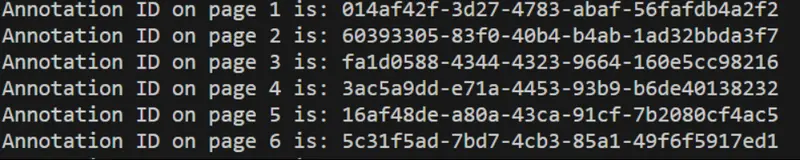
Figure 5: You can get information about the recently added annotation.
We can even extend the code (which will be see details of in the next section) so that the Bates Number and a title are added to the annotation
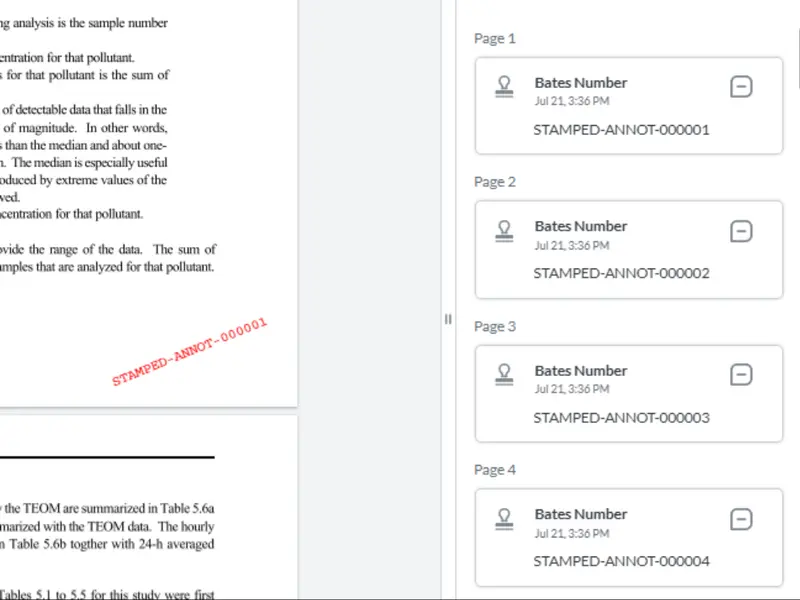
Figure 6: By working with the annotation object created by stamper, you can customize what is visible.
Option 3: Adding a Bates Number to a PDF using a FreeText Annotation
Rather than using Stamper to create an annotation we can create an annotation that holds the Bates number directly. This can be useful if you want complete control over how the number is displayed.
Annotations are created using the SDFDoc object that is owned by the PDFDoc object.
If you work directly with annotations then you will need to specify the location where they should be placed. You can, specify annotation alignment using SetQuaddingFormat, but this is more complex than the Stamper process.
You will also need to update the text color and borders, since by default, FreeText annotations have a border and blue text.
Hiding the border can be done by setting its width to zero.
If you want to change the color then the process is slightly different from using Stamper, since SetColor sets the annotation background color, and we want to set the text color.
We can do that using SetTextColor which takes a ColorPt (just as with Stamper), but we also need to specify the number of color components that the ColorPt object has. That will be:
1: for gray scale
3: for RGB
4: for CMYK
In our example if we will set the text to red (which is RGB), so we can do that using:
red = ColorPt(1, 0, 0)
ann.SetTextColor(red, 3)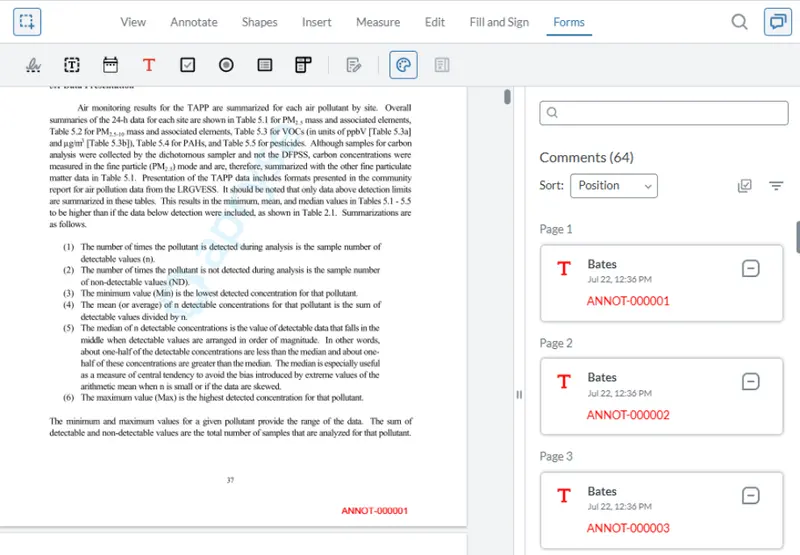
Figure 7: It's easy to adjust the appearance of a Freetext annotation.
Flattening the entire document is fast, but if you have manually added annotations, perhaps underlining or a sticky note or a Rubber stamp, then you might want to only flatten the Bates number annotations not any others.
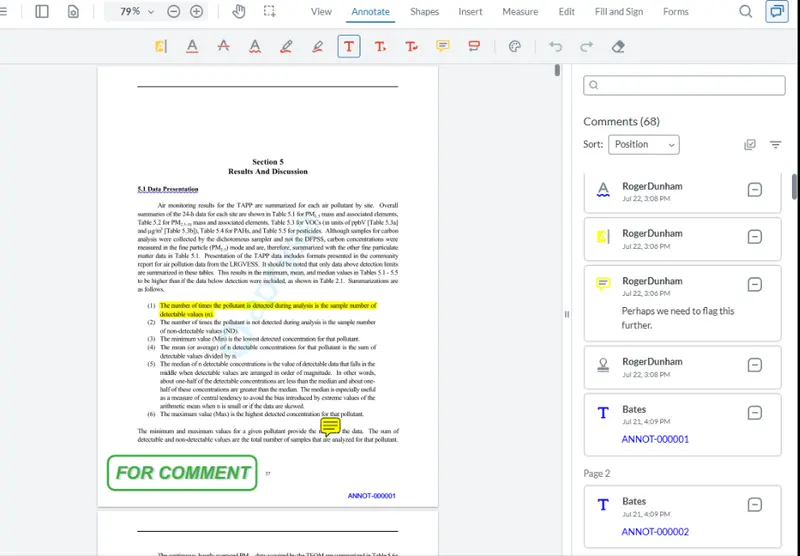
Figure 8: You could end up with a PDF that has annotations that contain Bates numbers and many other types of annotation.
The Apryse SDK allows you to do that too.
There is a little work involved, but we can make use of PDFDoc.FDFExtract, which allows us to copy annotations to an external file, and then reapply them.
If we make two copies of our initial file that contains both Bates numbers and other annotations, then we can iterate through each of the annotations and check whether it is a Bates number (which we can test, using the Title in our example, since we had added that, but you could use an alternative method, such as an array of IDs).
In one file we can keep all of the Bates numbers and in the other we discard them. When we have finished, we will have one file that has only Bates number annotations, and no other ones, and in the other file there will just be annotations that are not Bates numbers.
We can then flatten the first file as we did before.
The trick then is to export all of the annotations from the other file using:
non_bates_fdf = doc_non_bates_only.FDFExtract(PDFDoc.e_annots_only)Alternatively, you can use PDFDoc.e_both if you also want to extract any form fields that are present in the PDF.
We can then apply the annotations back to the first file:
doc_bates_only.FDFUpdate(non_bates_fdf)If we now save that file, we will find that the Bates numbers are now permanently embedded while the other annotations remain editable.
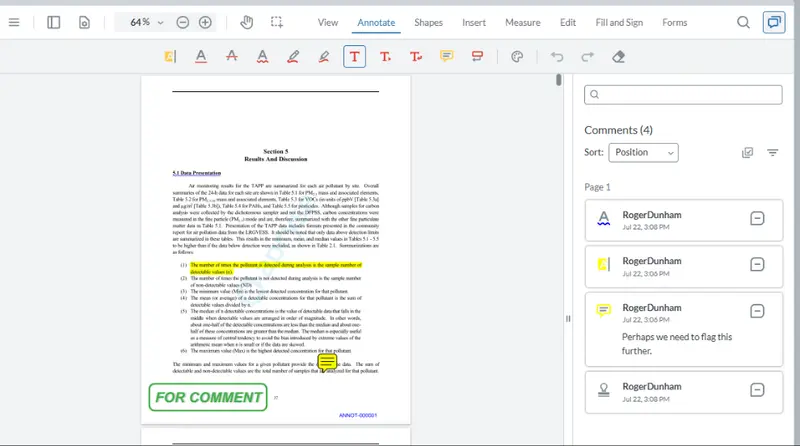
Figure 9: The PDF has Bates numbers as well as all of the other annotations.
Wrapping Up
Bates numbering remains one of the simplest and most effective techniques for maintaining traceability across large document collections. Whether you're preparing evidence for litigation, managing regulatory submissions, or organizing records for internal review, automating the process helps eliminate human error and saves significant time.
Apryse makes it easy to add these to each page within a PDF. There are three ways that you can do this. Stamper is the simplest, but there may be times when you want to use an annotation rather than a Stamp. In that case, you can either use Stamper to create the annotation or manually create one yourself.
For most Bates-numbering workflows, Stamper is the recommended approach because it requires the least code and produces content directly on the page. Use annotation-based approaches only when reviewers need to interact with, inspect, modify, or selectively flatten Bates labels.
Method | Easy to Implement | Editable After Creation | Appears as Annotation | Best Use Case |
|---|---|---|---|---|
Stamper | Yes | No | No | Simple Bates numbering |
Stamper as Annotation | Yes | Yes | Yes | Review workflows |
FreeText Annotation | Moderate | Yes | Yes | Maximum customization |
The Apryse SDK provides access to enormous flexibility beyond adding a Bates number, or getting the ID of the element on each page.
That’s only the start of what the SDK can do though, offering a wide range of document processing functionality, so you can leverage your knowledge and quickly add a document generation or a redaction process using the same API. And there is more than just server-side processing, there is also a browser-based document viewer and editor that allows you to work with not just PDFs but also DOCX and spreadsheet files.
In the next article, we will see how we can use the SDK to resolve some real-world problems that you may encounter when you start implementing a Bates numbering solution.
In the meantime, though, grab yourself a free trial license and see what Apryse can do for you.
If you have any questions, you can reach out to us on Support channel.
If you have any questions about this blog, or there are other blogs that you would like us to write, then please contact us at blog-feedback@apryse.com.