Roger Dunham
Published November 09, 2026
Updated November 09, 2026

6 min


Validating Documents for PDF/UA Compliance
Roger Dunham
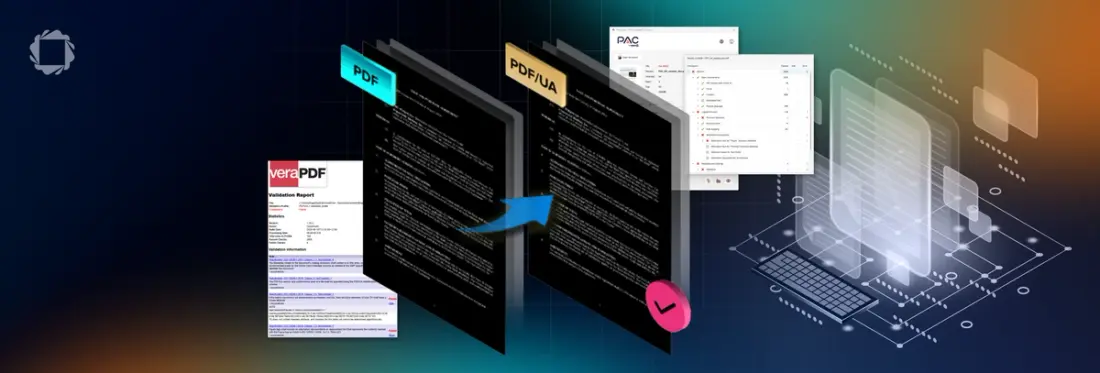
A green checkmark from an accessibility checker doesn’t guarantee a PDF is truly PDF/UA compliant. You’ll learn what PDF/UA-1 and PDF/UA-2 require, including tagged structure, reading order, alt text, artifacts, metadata, and embedded fonts, and why PDF/UA-2 isn’t simply a superset of PDF/UA-1. Using two free tools, veraPDF and PAC, you’ll see how to validate a file through a UI or the command line, how to read the reports for compliant and non-compliant documents, and where each tool falls short, such as PAC’s lack of PDF 2.0 support. You’ll also see why automated checks must be paired with human review of reading order and artifacts.
How to Verify That a PDF Is PDF/UA Compliant
If you've been told your PDF needs to be "PDF/UA compliant," you might reasonably assume that running it through an accessibility checker and seeing a green checkmark is the end of the story. But that is not enough.
In this article, we will look (briefly) at what PDF/UA is, what tools can be used to verify that a document is PDF/UA compliant, and how just getting that checkmark is not necessarily enough.
In the next article in this series, we will look at how the Apryse SDK can be used to automatically add tags to a PDF, and how we can customize the Apryse WebViewer to offer a way to review and edit some of the aspects of a PDF/UA document where a human needs to manually check that the document is genuinely accessible.
What is PDF/UA?
The PDF/UA-1 standard (ISO 14289) was first published in 2012. It introduced a set of rules to ensure that less-able users can understand the document content. PDF/UA-2, published in 2024, aligns accessibility requirements with PDF 2.0 and introduces support for newer PDF 2.0 accessibility features, including improved handling of mathematical content and associated files.
PDF/UA-2, however, requires that the PDF has been created using the PDF 2.0 standard.
Although PDF 2.0 became the ISO standard in 2017, industry adoption has been gradual. It is likely (though no hard data exist) that the vast majority of PDFs produced in 2026 are still based on earlier versions such as PDF 1.7.
The uptake of PDF/UA-2 has therefore also been limited.
It’s worth noting that PDF/UA-2 is not a simple superset of PDF/UA-1. It is possible for a PDF to be PDF/UA-2 compliant but not PDF/UA-1 compliant. If your requirements need a specific version, then test against that version.
What Are the PDF/UA Requirements
At its core, verification comes down to checking a document against these pillars:
- Tagged structure: Every piece of content like paragraphs, headings, lists, tables, figures, must be wrapped in a logical structure tree using standard tag types (<P>, <H1>, <Table>, <Figure>, etc.).
- Reading order: The structure tree must reflect the correct reading order. That doesn't always match the visual left-to-right, top-to-bottom layout (think multi-column layouts or sidebars).
- Alternative text: Images, figures, and other non-text content need meaningful /Alt text, so that assistive technology can convey their purpose and meaning.
- Artifact detection: Purely decorative elements (such as horizontal lines) aren’t really part of the content, and need to be marked as artifacts, so screen readers skip them.
- Language and metadata: The document must declare a primary language, include a proper /Title in the document properties (not just the filename), and set the /DisplayDocTitle flag, so viewers show that title instead of the file path.
- Fonts and character mapping: All fonts must be embedded, and every character must map to a valid Unicode value, so text can be extracted and read aloud correctly.
- Security restrictions: PDF/UA prohibits certain restrictions, such as disabling text copying for accessibility purposes.
- Adequate navigation: for longer documents, bookmarks are strongly recommended to allow rapid navigation to a specific page.
- Forms and interactive elements: Form fields need accessible names, tab order needs to be logical, and annotations must be tagged appropriately.
Tools for Verifying PDF/UA Compliance
For this article, we will look at two freely available tools that can be used to verify whether or not a PDF complies with the PDF/UA standard. These are veraPDF and PDF Accessibility Checker.
veraPDF
veraPDF is available from http://www.verapdf.org/ and can used either as a command line tool, or with a UI.
The tool was originally created, back in 2015, as a way of validating PDF/A documents (the “A” is for “Archiving”) compliance. PDF/UA-1 support was added in 2021, with PDF/UA-2 support added in 2024.
The version of veraPDF used for this article is 1.26.2.
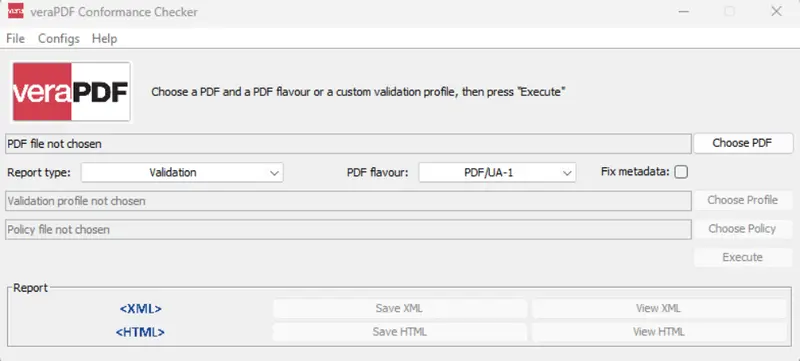
Figure 1: The UI for VeraPDF (version 1.26.2).
Using it is a breeze.
- Drag the file that you want to verify into the UI (or select it from a file picker).
- Select the PDF flavour that you want to validate against (which covers all of the PDF/A versions, plus PDF/UA-1, PDF/UA-2, and custom options).
- Click Execute.
After a few moments, you get a result. You can either view or download the report as XML or HTML.
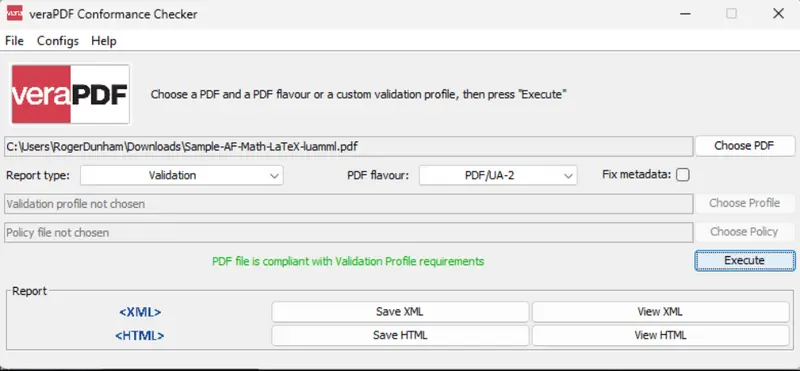
Figure 2: An example of the report when a PDF is compliant (in this case PDF/UA-2).
The report will tell you either that the document was compliant, or it will explain which aspects of the PDF were non-compliant. For non-compliant files, it includes a description and link to the information for the failed test. You can even see the places in the PDF content stream where the problem occurred.
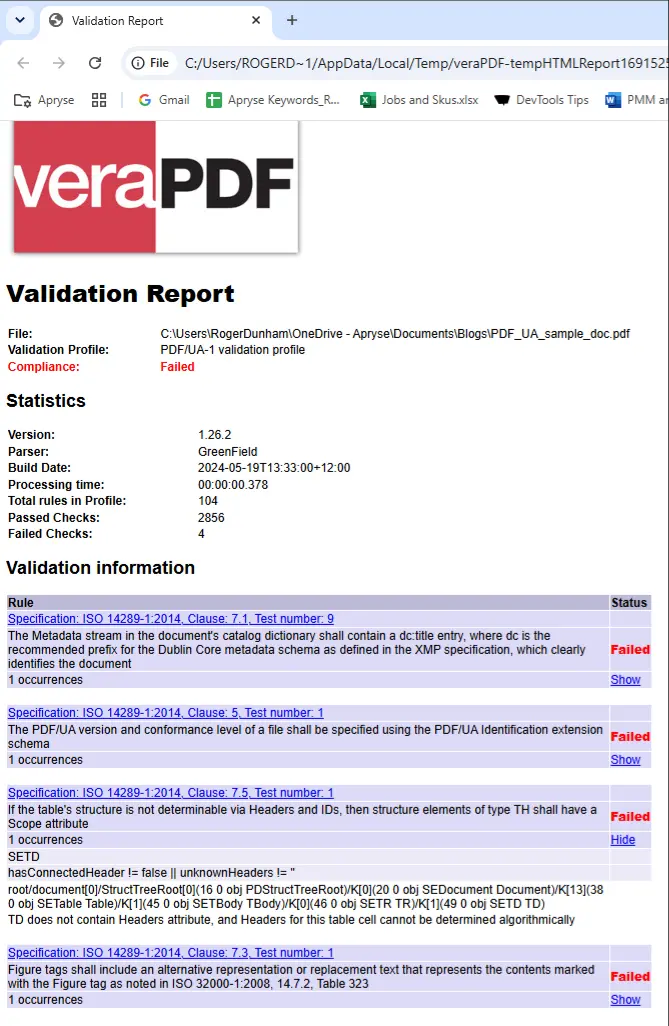
Figure 3: The veraPDF report for a file that is not-PDF/UA-1 compliant. It informs you about what is non-compliant and will even let you see the low-level contents of the PDF.
PDF Accessibility Checker, “PAC”
The second tool that we will use is commonly described as “PAC” and is available from https://pac.pdf-accessibility.org.
PAC has been around for more than 10 years and was specifically built around PDF/UA validation. In recent years, WCAG 2.1 AA compliance (and other testing types) have been added.
The version of PAC used for this article is 26.1.0.0.
Once again, it’s easy to use. You just drag the document into the UI. It then checks the technical, machine-verifiable requirements like tag presence, /ByteRange-style structural integrity, embedded fonts, and metadata flags and a report is generated.
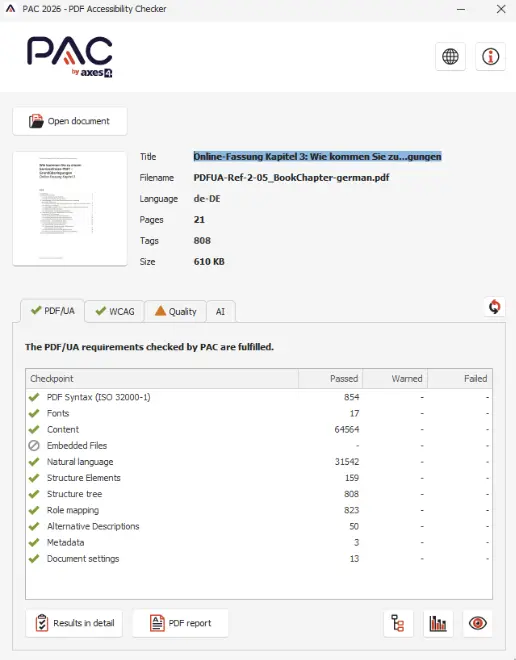
Figure 4: The report created for a PDF/UA-1 compliant file.
Just as with veraPDF, if you process a noncompliant file, then you are told exactly what is wrong.
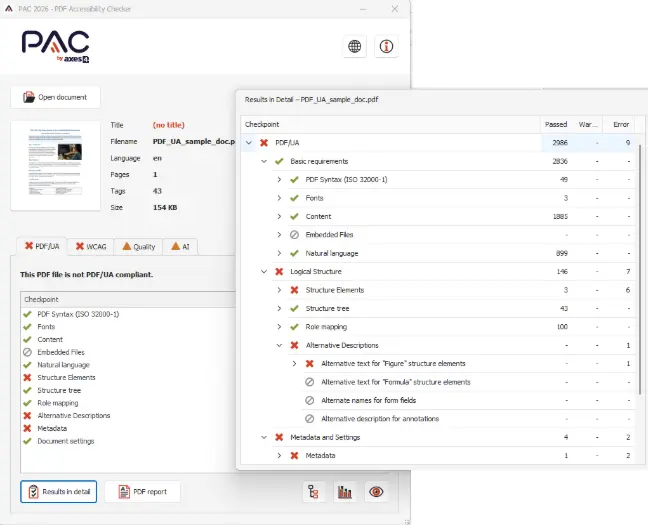
Figure 5: The PAC report for a con-compliant file.
In this example, we can see that the Title has not been set, there are issues with Alt text, and various other problems. You can get the Results in detail which will explain exactly what is wrong.
The WCAG tab also informs us that there are issues with WCAG compliance. For this file, the issues are essentially the same as PDF/UA, but this tool would also report issues such as poorly color-contrasted text that is difficult to read.
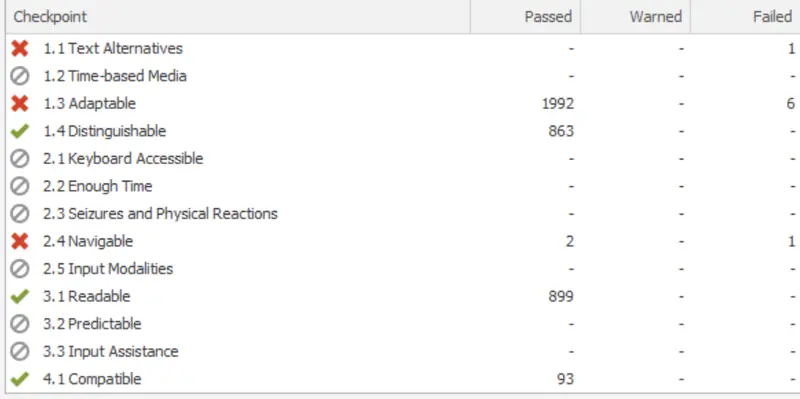
Figure 6: WCAG report for a sample PDF.
Getting More from PAC
PAC includes two other tools.
One is the Logical Structure viewer. This shows you how the various parts of the document relate to each other and also shows the “Artifacts”; those parts of the document, items such as decorative graphics, page furniture, and some headers and footers.
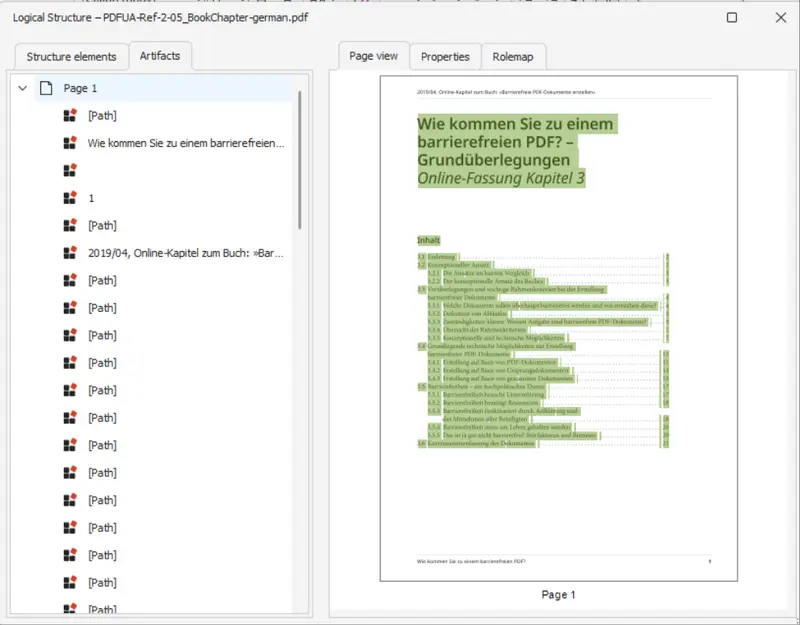
Figure 7: The Logical Structure viewer in PAC. Currently, the Artifacts are displayed. The Headers and footers are often artifacts.
The second tool is a Screen Reader Preview. That tool displays the “Reading Order” for the page content.
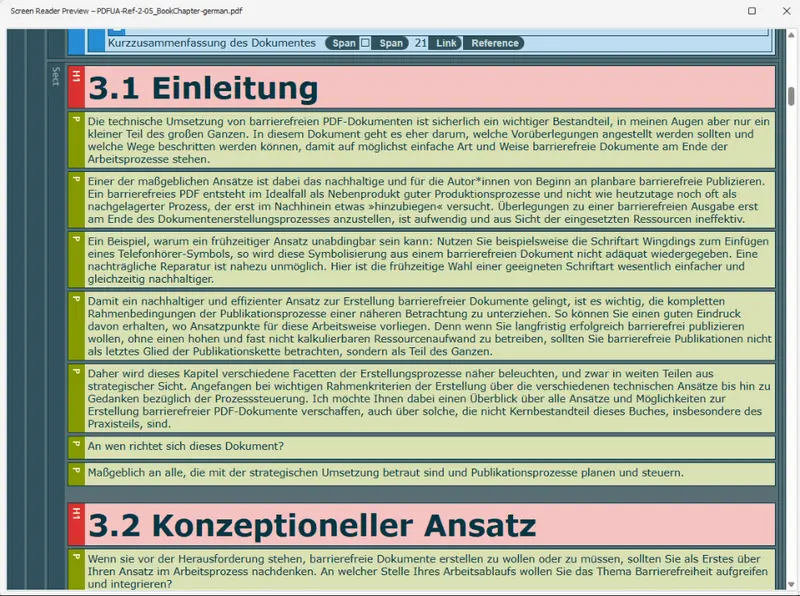
Figure 8: The Screen Reader Preview in PAC.
These two aspects of the document are both critical to understanding and accessibility, and still require at least some degree of human review, even though modern tools increasingly automate parts of the process. The presence of these tools is extremely useful.
PAC and PDF/UA-2
Unlike veraPDF, PAC does not offer support for PDF/UA-2 (at least not in version 26.1.0.0). In fact, if you open a PDF 2.0 file (which is a pre-requisite for PDF/UA-2) then you will be informed that the results might not be reliable.
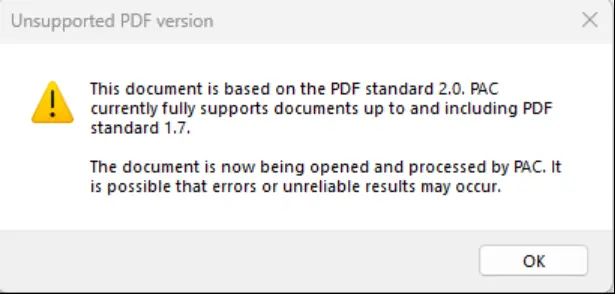
Figure 9: PDF Accessibility Checker (PAC) does not support PDF 2.0. It therefore cannot test PDF/UA-2.
If you persist, then you may get failures, even if the PDF is actually PDF/UA-2 compliant, since as we saw with veraPDF, a file can be PDF/UA-2 but not PDF/UA-1 compliant.
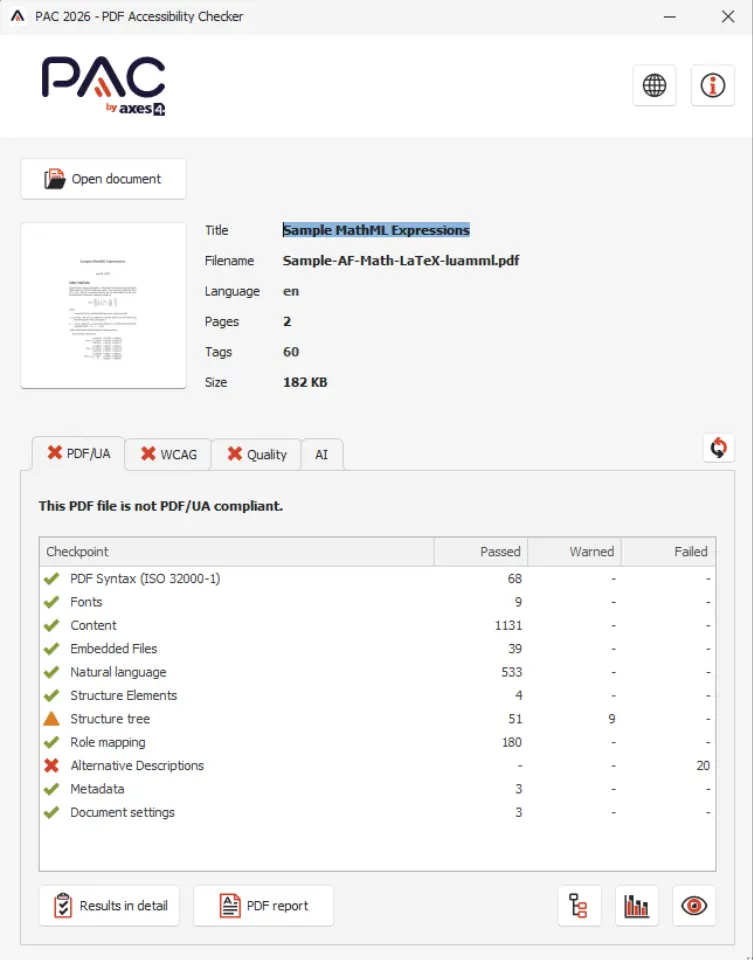
Figure 10: PAC does not currently work well with some PDF/UA-2 files. The example file is PDF/UA-2 but not PDF/UA-1 compliant.
PDF/UA Validation from the Command Line
veraPDF can be used directly from the command line.
The exact syntax depends on your operating system, and the type of command line that you use.
For this article, I am using PowerShell on Windows.
.\verapdf --flavour ua1 myfile.pdfYou need to specify the flavour (in our case ua1 or ua2), and watch out for that non-American spelling of “flavour”.
By default, the output is XML, but other options are available. You can find out more from the veraPDF documentation.
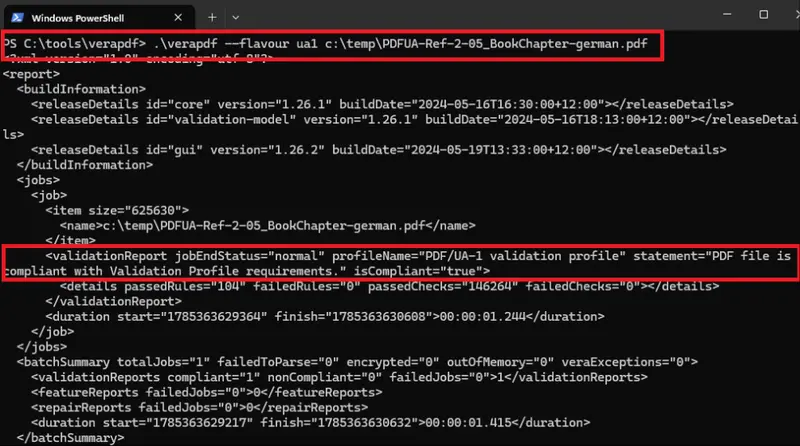
Figure 11: Typical output for a PDF/UA-1 compliant document when using veraPDF from the command line.
In this example, I have specified just a single file, but you can also process all of the files within an entire folder.
PAC, on the other hand, cannot be directly controlled from the command line.
If you really want to use PAC style functionality, then there is a commercial solution using axesPAC.
Wrapping Up
True PDF/UA verification is a two-layer process: first running an automated tool such as PAC or veraPDF to catch structural and technical gaps, then following up with manual review checking for reading order and artifacts.
So far, we have only looked at the machine checkable parts of PDF/UA compliance, either via a UI or via the command line, and very limited manual review.
In the next article, we will see how we can resolve the issues that these tools identify.
We will see how we can automatically add “Tags” to a PDF using the Apryse SDK. We will also see how we can use other tools from the Apryse family to verify that the text associated with images (the “Alt” text) is meaningful, and how we can fix it if it is not.
If you have any questions, you can reach out to us on our Support channel.
If you have any questions about this blog, or there are other blogs that you would like us to write, then please contact us at blog-feedback@apryse.com.