Roger Dunham
Published November 09, 2026
Updated November 09, 2026

8 min


Making Documents PDF/UA Compliant
Roger Dunham
Find out how to fix a PDF that has tags but still fails PDF/UA checks. Starting with a Word-exported document that PAC and veraPDF both flag, you’ll see how the Apryse SDK’s PDFUAConformance autoConvert call rebuilds tags, adds a missing title, and fills in image Alt text so the file passes validation. You’ll also learn why passing isn’t the end of the story: titles like “TRN-31616” and Alt text like “Image1” are technically present but not meaningful. The article shows three ways to review and improve them, using Xodo PDF Studio, the Apryse Server SDK (including LLM-generated descriptions), and a WebViewer-based review workflow that keeps a human in the loop.
Introduction
In the previous article in this series, we saw how we can use tools such as veraPDF and PDF Accessibility checker (PAC) to check that a PDF passes a set of tests that indicate PDF/UA compliance.
In this article we will look at three distinct areas where Apryse can help you:
- Automatically adding and rebuilding tags
- Updating document metadata such as the title
- Reviewing and improving Alt text
You can get the sample code for this article from - https://github.com/DocRog-maker/PDF-UA_Fixup.git.
We’ll do that using a document that I originally created in Word (with the help of CoPilot) which was then exported as a PDF.
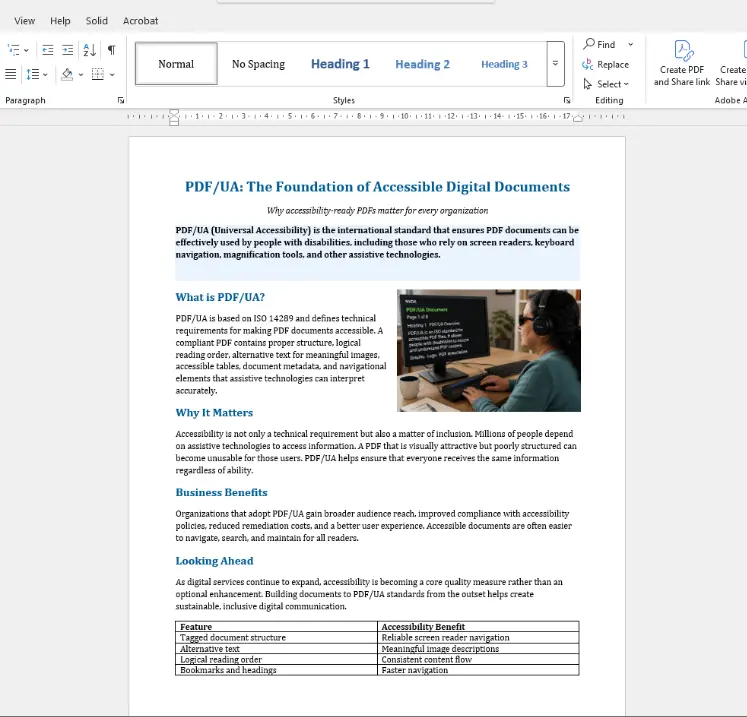
Figure 1: The sample document within Word.
By default, exporting a document from Word to PDF will result in tags being included in the generated PDF.
If we open that document in a tool such as Acrobat or Xodo PDF Studio, then we can see the tags that were created.
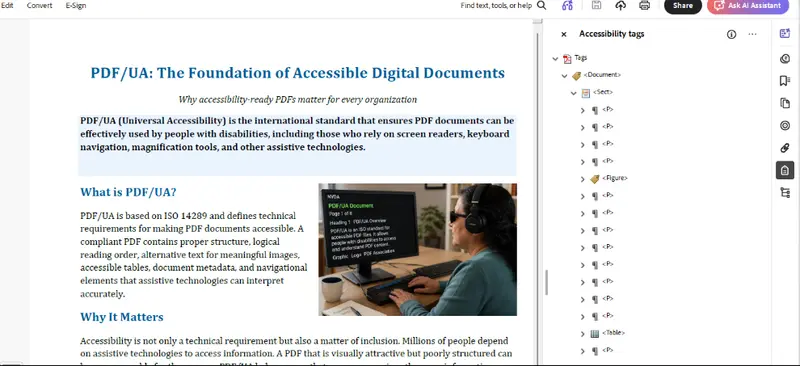
Figure 2: Acrobat shows the tags that were created when the PDF was exported from Word.
That was easy! One click and the problem is solved.
Not so fast.
Even though tags exist, that doesn’t necessarily make the document “Accessible” or make the document PDF/UA-1 compliant.
Let’s use the two tools that we looked at in the previous article.
Verifying That a PDF is Compliant
PDF Accessibility Checker (“PAC”)
PAC can verify whether a PDF meets PDF/UA requirements and can identify accessibility issues that may impact WCAG conformance (and check several other “Quality” issues).
For now, though, we are only interested in PDF/UA (which is currently, in 26.1.0.0 limited to PDF/UA-1).
If we drop our PDF into PAC, then it will show that there are several issues.
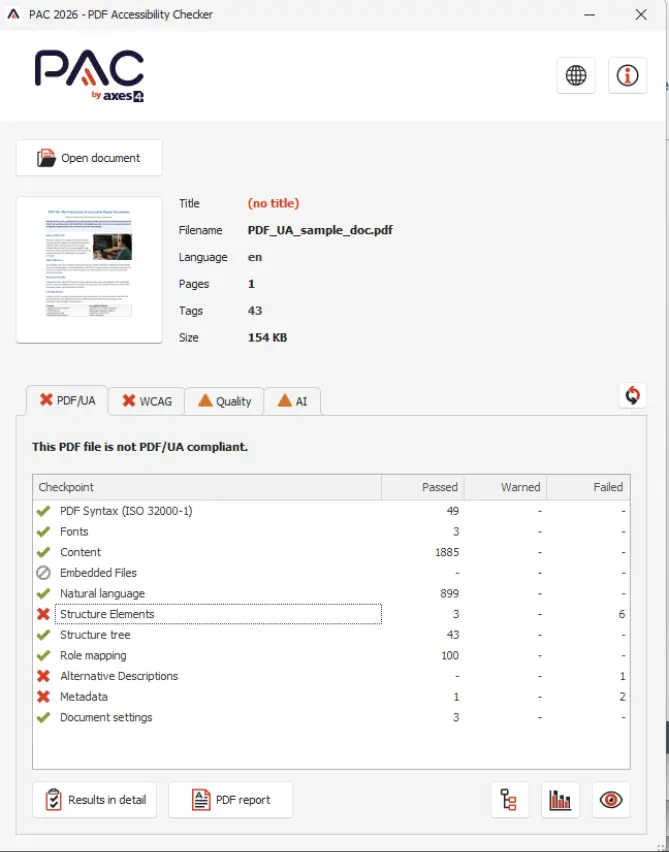
Figure 3: PAC shows that there are a number of issues with the PDF that we created with Word.
For a start there is no Title in the metadata. There are also issues with the way that the table is structured, there is no Alternative Description (Alt text) for the image that we added, and (among other things) the PDF is not claiming PDF/UA compliance in its metadata.
veraPDF
veraPDF is another widely used tool for verifying accessibility. It supports both PDF/UA-1 and PDF/UA-2 (and various other standards such as PDF/A).
We can just drag our file into the UI and click Execute.
As expected, we get a report that informs us of the parts of the PDF that are non-compliant.
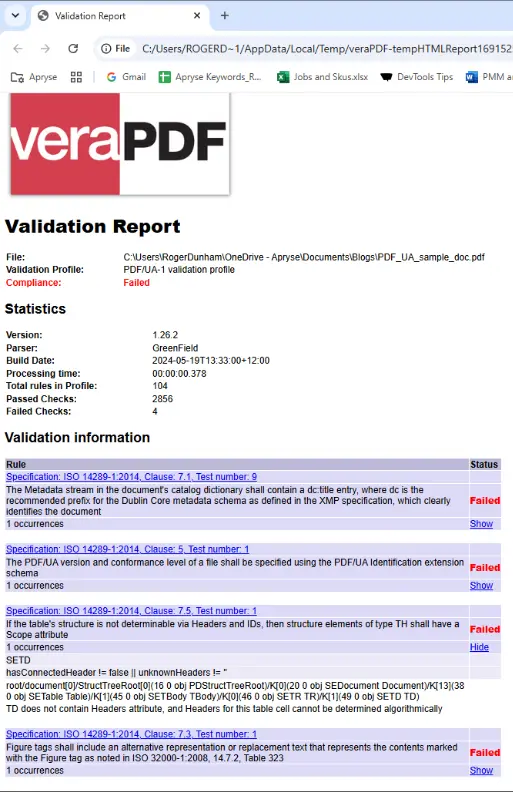
Figure 4: veraPDF tells us which parts of the PDF/UA-1 standard the PDF does not comply with.
Just as before, we are told that there are issues with metadata, the title of the document and the Alt text for the image.
It’s wise before panicking to check that there really is a problem, and that the tools aren’t being overly cautious.
Are Those Compliance Failures Valid?
If we open the PDF within Xodo PDF Studio then we can look at the Document Properties. It is then obvious that the title has not been set.
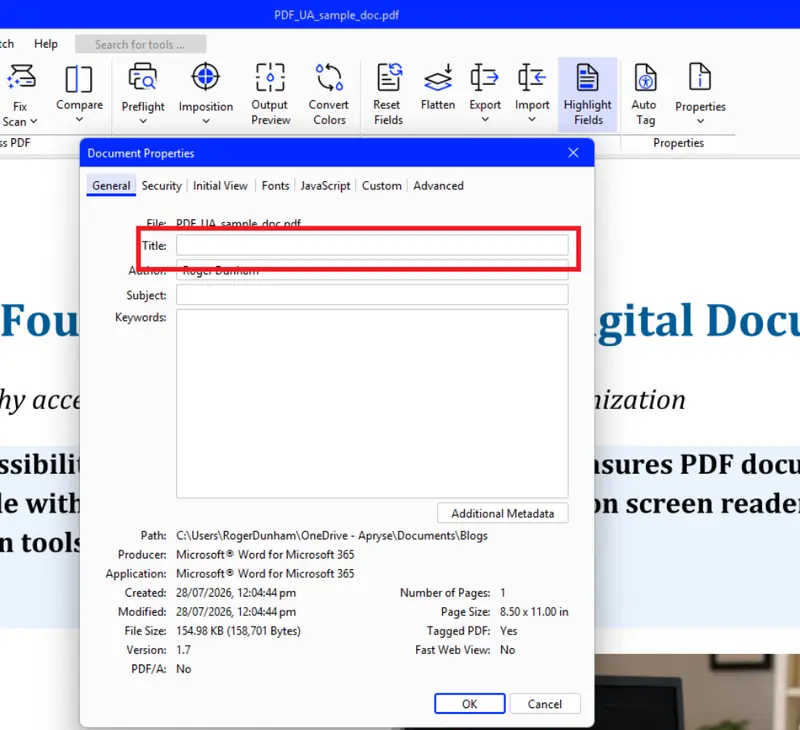
Figure 5: One of the PDF/UA failures was that no title has been specified for the PDF. This is obvious in Xodo PDF Studio.
We can also look at the tags for the PDF, which are the ones that Microsoft Office created for us, and we can see that there is no Alt text for the image.
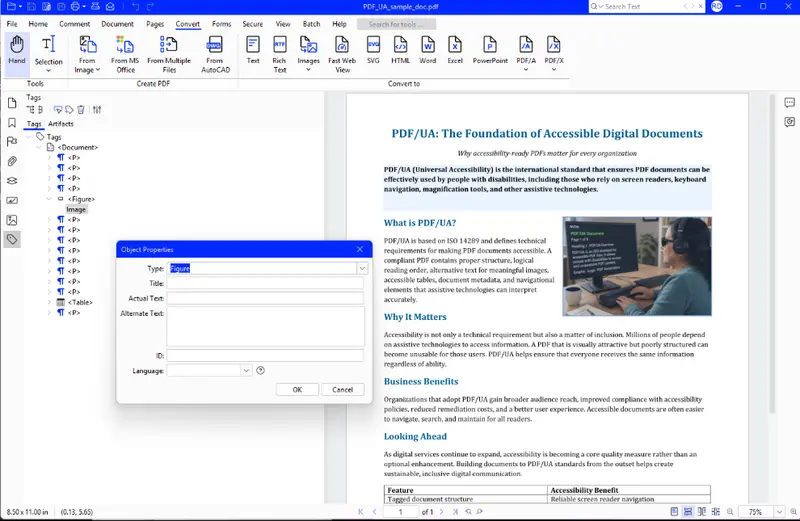
Figure 6: Xodo PDF Studio will show the tags that were applied by Word when it created the PDF. Note that there is no Alt text for the image.
It looks as though the verification tools have spotted real problems, and our PDF is not compliant.
If the title and Alt text have been specified within Word, then these will be included when the PDF is created.
There is still no need to panic. Apryse offers a solution.
Using Apryse SDK to Create a PDF/UA Compliant PDF
The Apryse SDK provides APIs for PDF rendering, editing, conversion, OCR, accessibility compliance (including PDF/UA), redaction, digital signatures, and document automation.
Part of the SDK is the ”Data Extraction” add-on module. That module uses heuristic and AI-powered structure analysis to extract text, tables, reading order, form fields, key/values pairs and layout information from documents. That information is then used to generate tags for the PDF and resolve other issues so that ultimately a PDF/UA compliant PDF is created.
At the time of writing, PDFUAConformance supports only PDF/UA-1. This may change in future depending on customer requirements.
The processing is implemented using the PDFUAConformance object.
At its simplest, you just need to call the function “autoConvert” to process the PDF (possibly with some options).
This code is taken from the Apryse samples which are available in a range of programming languages. You can find the full sample code at https://docs.apryse.com/core/samples/pdfuatest.
The code:
- Creates a metadata based title if one is missing.
- Adds tags to the PDF, replacing any that are already there.
- Ensures that image tags have Alt text, (though the resulting descriptions may still require review and refinement).
Having processed our PDF with that code, PAC now shows that it is PDF/UA compliant.
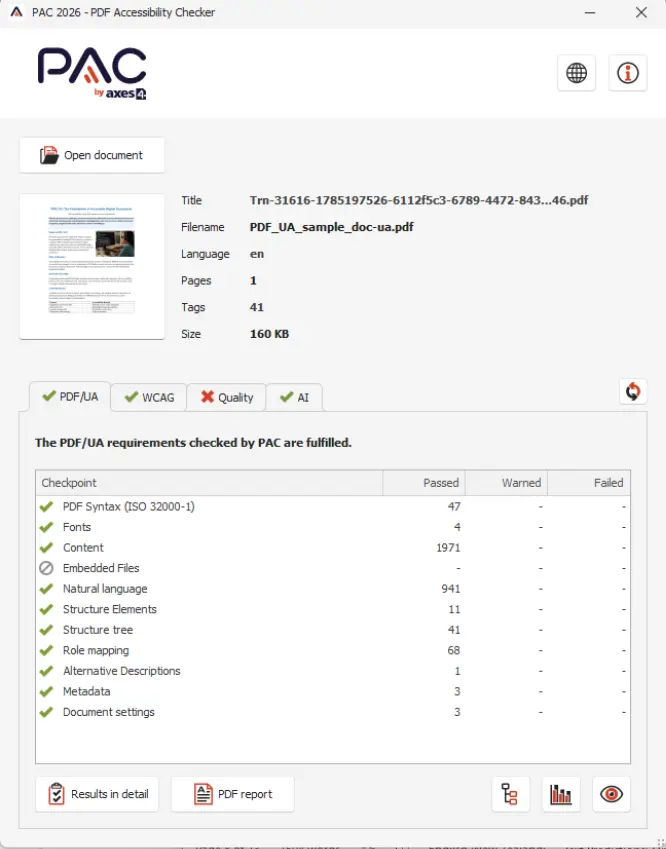
Figure 7: After using PDFUAConformance.autoConvert the file passes validation.
Important: Automated tools can verify many PDF/UA requirements, but they cannot determine whether a document title, reading order, or Alt text is meaningful. Human review remains an essential part of accessibility compliance.
While PAC suggests that the PDF is now compliant, some parts of the PDF/UA specification are not machine checkable. For example, do the title and Alt text make sense?
If we look at the Quality tab, then it shows us that the title may not be valid (and that we need to review it).
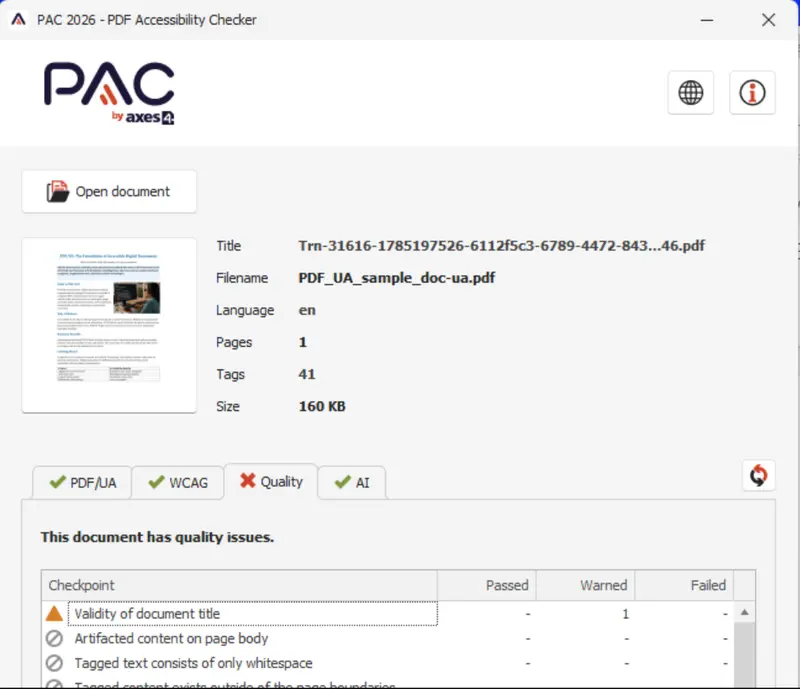
Figure 8: PAC's Quality tab suggests that we need to review the title.
If we look at that title then we can see that it is “TRN-31616….”, which is not meaningful.
If we open the Screen Reader Preview, then we can see another problem. The Alt text for the image is “Image1”, which is also not useful.
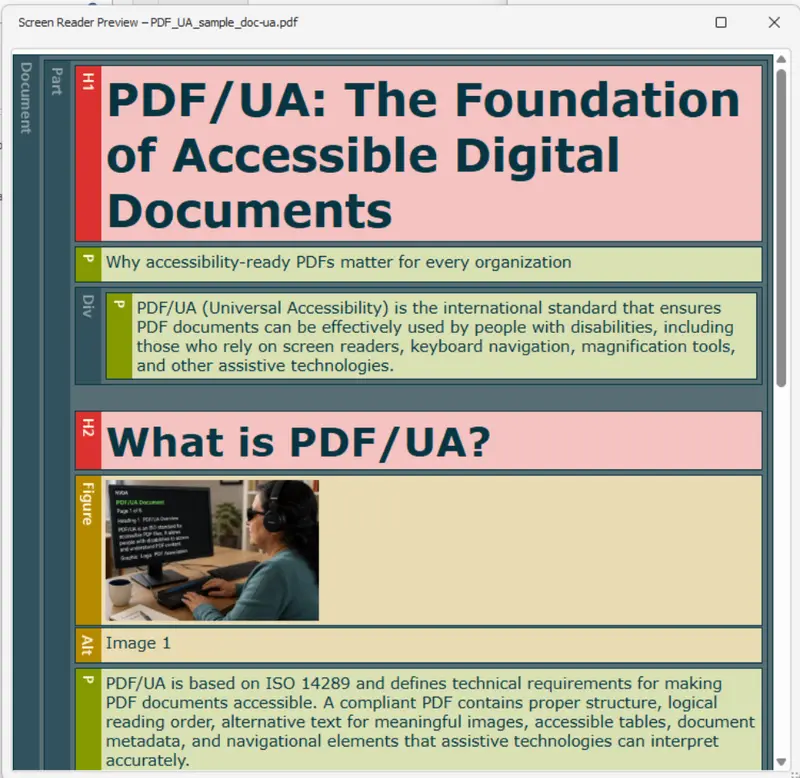
Figure 9: PAC's Screen Reader Preview is one way to see what Alt-text is for an image. In this case, it is not useful.
Improving Accessibility Beyond Automated Compliance Checks
To make the PDF truly PDF/UA compliant we still need to make some fix-ups. Apryse offers three ways (at least) that we can do this.
Using a Desktop Tool
Xodo PDF Studio is a great desktop tool from Apryse. It allows a wide range of PDF editing functionality. We can also use it to see the Document Properties, verify what the title is, and in this case change it to something more useful.
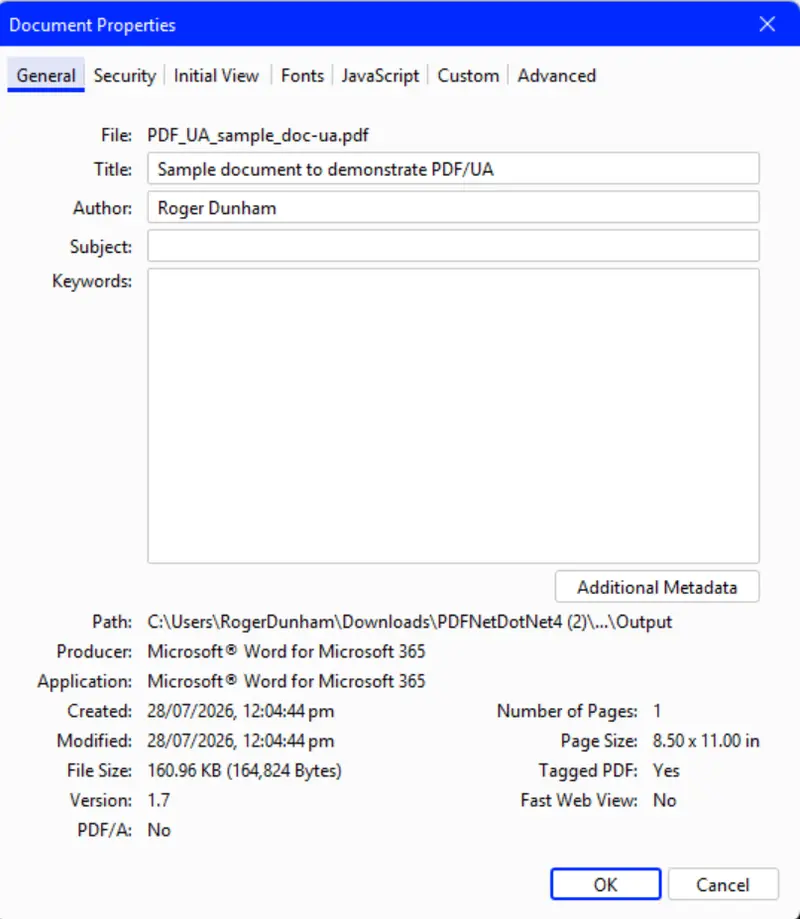
Figure 10: Xodo PDF Studio makes it easy to edit the PDF title.
Xodo PDF Studio also allows us to see the tags that were created. We can select the Image tag and change the associated Alt text from “Image 1” to something more useful.
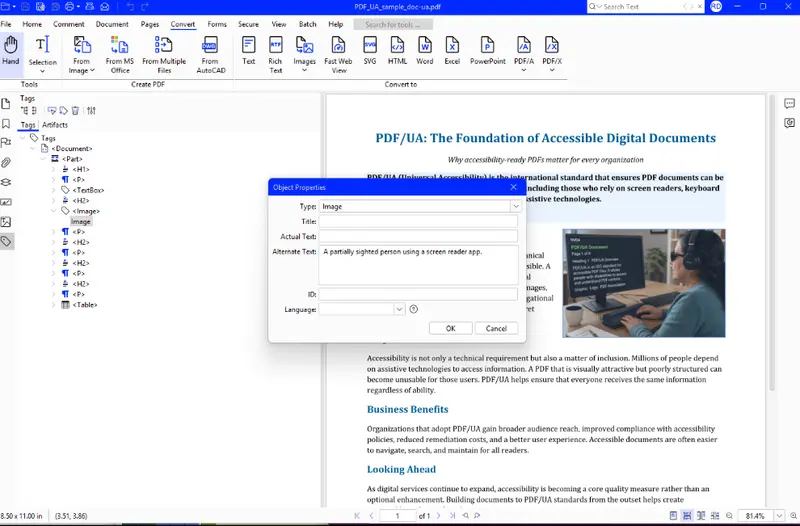
Figure 11: Xodo PDF Studio also makes it possible to see and update the Alt text.
Xodo PDF Studio therefore offers one way to make the PDF compliant. That’s fine if you have a few files, but it’s not going to be scalable if you need to process thousands.
Using the Apryse Server SDK
We’ve already worked with the Apryse SDK to convert the PDF to PDF/UA. But it can do much more.
Not only can it update the document title, it can also programmatically open the PDF, extract the “tag tree” (using doc.getStructTree()) then iterate through each of the elements, and when it finds an image extract the name of the image and the associated Alt text.
What you do next is up to you. You could manually review the text, edit it and reapply it (which might be difficult if you can’t see the image and the surrounding context), or you could extract the image and get an LLM to describe that and then copy the AI generated description back into the tag.
How you verify that the text is meaningful is up to you. You could manually review the Alt text, or you could extract the image and send it to an LLM which would describe the image, and that description could be saved back into the tag tree.
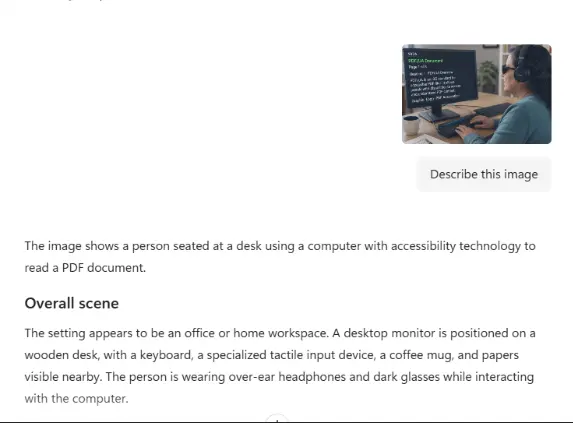
Figure 12: Output from CoPilot when asked to describe the image in the PDF. That description could then be copied back into the tag as Alt text and saved.
That might be a great result, but it may be a little clunky if you want a human to review the result, since you will need to make the image easily accessible to the reviewer.
Using the Web SDK from Within the Browser
Another approach is to use Apryse Web SDK and WebViewer to create a browser-based review workflow.
That allows you to view the PDF directly from within your browser.
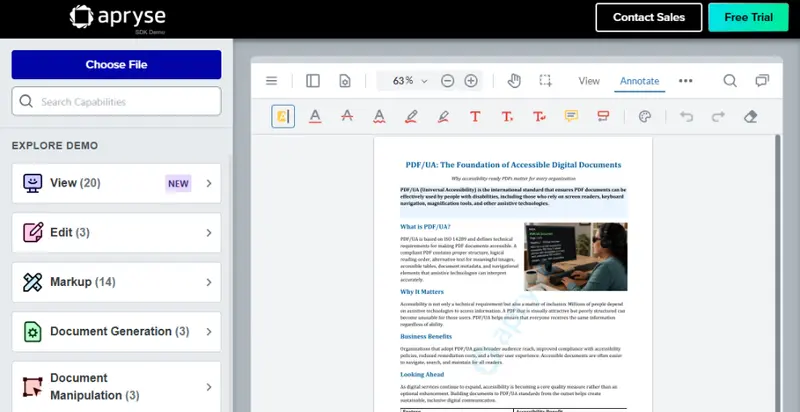
Figure 13: The sample PDF shown within WebViewer (in this example within the Apryse showcase).
At its simplest WebViewer provides access to a wide range of commonly used PDF functionality – viewing, adding annotations etc.
However, if you enable the fullAPI, then further functionality is enabled such as working with redactions, or editing PDF content, or for this article, working with the Apryse SDK.
I used GitHub CoPilot to put together sample code that will allow us to check the PDF title and the Alt text for each of the images.
When the PDF is first loaded, the user is asked to Accept the current title or to enter and save a custom title.
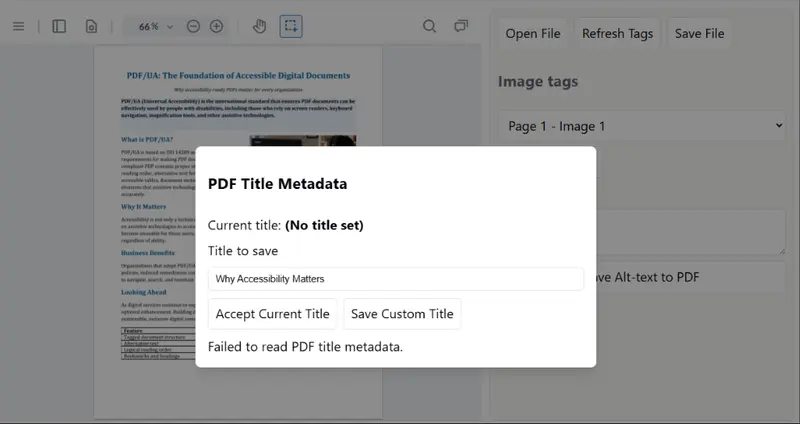
Figure 14: WebViewer can access advanced PDF editing functionality. For example allowing you to see and modify the title for a PDF when it loads.
Once the document loads, the “tag tree’ is parsed and a drop-down menu is populated with links to each of the images that were found.
The user can click on each one in turn, and the PDF will scroll to the image. The user can then see if the Alt text is correct.
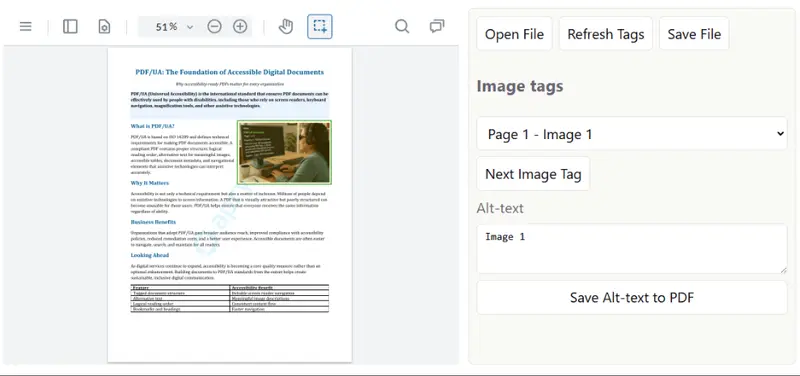
Figure 15: WebViewer can be programmatically controlled to iterate through each of the image tags, allowing you to see the Alt text and update it as you wish. The UI has also been customized to remove unnecessary menus.
You can then accept the Alt text, or enter something more appropriate which will be included when the document is saved.
You could take this process a step further and extend the code to extract the image and send that to an LLM, then review and save the AI-assisted description.
Check out the sample code that demonstrates how to use WebViewer as part of an AI Chat experience.
Having access to so much functionality within the browser offers a huge amount of flexibility for solving your specific problems.
Wrapping Up
When it comes to creating PDF/UA documents Apryse has your back. Apryse can automate many of the mechanical tasks involved in achieving PDF/UA-1 compliance, including rebuilding tags, updating metadata, and addressing common accessibility issues.
When it comes to including a human in the loop, whether to review the tagging, reading order, metadata and Alt text are all meaningful, Apryse is there too, offering desktop, server side, or web-based solutions.
And there is so much other functionality available to help with your document processing requirements, so get yourself a trial license and try things for yourself.
If you have any questions, you can reach out to us on our Support channel.
If you have any questions about this blog, or there are other blogs that you would like us to write, then please contact us at blog-feedback@apryse.com.