Isaac Maw
Technical Content Creator
Published May 27, 2026
Updated October 23, 2026


PDF Redaction SDK: A Developer's Guide to Permanent, Production-Ready Redaction
Isaac Maw
Technical Content Creator
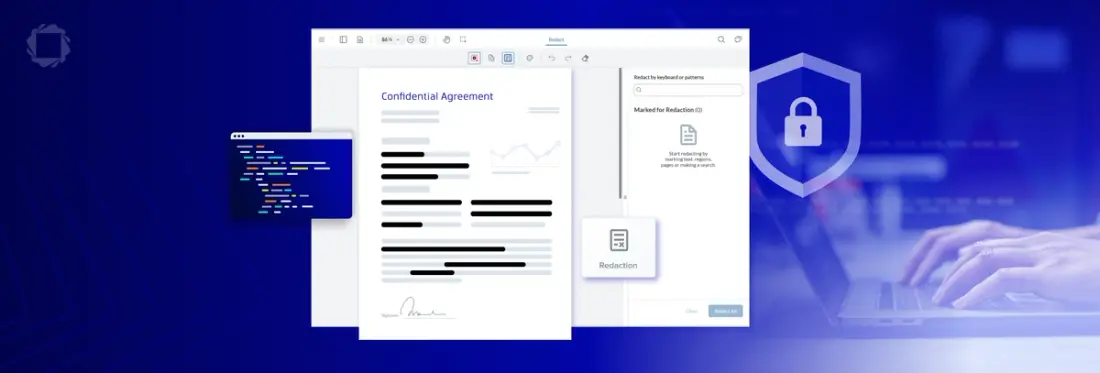
Secure PDF redaction permanently removes marked content, including the text and image data underneath, from a document. A black box, a deletion in an editor, or white text leaves the original data in the file. Apryse WebViewer’s Redaction add-on removes the content itself in the browser, which satisfies privacy regulations such as GDPR and CPRA.
What Is Secure PDF Redaction?
Secure PDF Redaction is a form of editing where information is permanently removed from a document. This is typically used to remove classified information so confidential documents can be distributed. PDF files store content in layers, so hiding content visually does not delete it.
Before digital documents, redaction was historically done with black ink or a craft knife, permanently removing or obscuring words. In the age of PDF documents, users sometimes think that these same ideas can work – adding black boxes over text, editing the document to delete sensitive info, or changing the text color to white are sometimes incorrectly used when redaction is needed. In fact, there have been high-profile legal cases in which sensitive data was exposed due to improper digital redaction.
Redaction consists of two steps:
- Marking content. Users select regions or text for redaction. Because redaction is irreversible, this step is critical to confirm content before removal.
- Applying redactions to remove information. Apryse removes the content and then draws the box, so moving or deleting the box reveals nothing. This redaction step is irreversible and the content is permanently removed.
To see the Apryse Redaction SDK in action, check out the demo.
Why Use Apryse for PDF Redaction?
Apryse redaction removes content instead of masking it. Redaction is available through the WebViewer UI and programmatically through the Full API. It supports manual marking and search and redact by text string or pattern, including ambient strings, wildcards, and regular expressions. The WebViewer UI is WCAG 2.2 Level AA compliant.
Apryse is an embedded SDK. Documents never reach Apryse infrastructure. WebViewer runs client only, with a Docker backend, or with a custom server. Redaction is also available in the Server SDK.
How Do You Enable Redaction in WebViewer?
To use Apryse Redaction, you’ll need to get a trial key for Apryse WebViewer SDK. Redaction is an add-on that needs a separate license. Trial keys have full access to all add-ons. Follow the Quick Start guide to integrate WebViewer with your platform and framework.
Redaction requires two constructor properties, fullAPI: true and enableRedaction: true. Both must be set, because Full API alone does not enable redaction.
This example uses SDK v11+, which initializes via web component by default. If you are on v10.2 or earlier, use the iframe constructor pattern.
Every redaction operation must wait for the documentLoaded event. Redaction is permanent once applied.
Besides passing in a constructor option, redaction can be toggled using the WebViewer API with the enableFeatures and disableFeatures functions.
WebViewer({
  ... // other options
}, viewerElement)
  .then(instance => {
    instance.UI.enableFeatures([instance.UI.Feature.Redaction]);
  });
How Do You Create and Apply Redactions in the WebViewer UI?
Users mark regions or text for redaction in the UI, then apply them. Application is irreversible, so review before applying.
How Do You Create and Apply Redactions Programmatically?
Redactions can be added to a document similarly to other annotations, by adding them to the AnnotationManager and redrawing. Redaction annotations have two differences compared to other annotation types.
- setRect() should be used instead of setting X,Y,Height, or Width directly
- The redaction annotation constructor can take an options object that can be used to configure the annotation. There are a number of properties that can be set using the constructor:
- StrokeColor: This is the border color of the redaction before it been applied. Defaults to red.
- FillColor: This is the fill color of the redaction after it been applied. Defaults to black.
- PageNumber: The page that the redaction should appear on.
- Rect: A Math.Rect object of the redaction area.
- Quads: An array of Math.Quad objects of to specify multiple redaction areas. If Quads are provided then Rect is not needed.
Redactions are applied programmatically using the applyRedactions function on AnnotationManager. applyRedactions returns a promise and can be used to apply a single redaction, an array of redactions, or all redactions in a document.
Where Do You Go Next With PDF Redaction?
With the right tool for marking and removing sensitive content, developers can support better compliance and industry-specific workflows inside their software projects, without forcing users to leave the platform to use standalone web or desktop applications for redaction.
To learn more about WebViewer capabilities, check out our product page. Check out the redaction documentation and start your free trial to get started. With any questions, contact sales.
What Do Developers Ask About PDF Redaction?
How Does Apryse Redaction Differ From Covering Text With a Black Box?
Apryse redaction permanently removes the underlying text and image content instead of masking it visually. Redaction is irreversible once applied. It is used to satisfy privacy regulations such as GDPR and CPRA.
How Do You Find and Redact PII Automatically?
Use search and redact to find content by text string or pattern. Patterns include ambient strings, wildcards, and regular expressions, such as SSNs and credit card numbers. Redactions found this way are removed with the same true redaction as manual ones.
Can Developers Embed Apryse Redaction in an Existing Web Application?
Yes. The WebViewer SDK is embedded in your application, and redaction is available through the WebViewer UI and the Full API. Set fullAPI: true and enableRedaction: true in the constructor. Documents never reach Apryse infrastructure.
Does Redaction Require a Separate License?
Yes. Redaction is an add-on that needs its own license on top of the base Web SDK. Trial keys have full access to all add-ons, so you can test redaction before buying.