Garry Klooesterman
Senior Technical Content Creator
Published November 18, 2026
Updated November 18, 2026

6 min


How to Extract Barcodes From PDFs in Python
Garry Klooesterman
Senior Technical Content Creator

To extract barcodes from PDFs in Python on a server, install the Apryse SDK from Apryse's Python package index, add the Barcode Extraction Module to the SDK's Lib folder, and call BarcodeModule.ExtractBarcodes with your PDF and an output file name. The module reads 100+ barcode types from born-digital and scanned PDFs on Windows or Linux and writes each barcode's type, position, rotation and value to a JSON file.
Why Read Barcodes from PDFs with an SDK Instead of Rendering Pages for a Python Decoder
It is 6 a.m. at a freight broker, and the overnight batch has landed: a stack of scanned bills of lading, each with a tracking barcode that decides where a shipment goes next. A Python worker has to read every one of those barcodes before anyone downstream opens a file. The barcode is small. Getting it out of the PDF and into your system is the whole job, and the same job shows up in invoice routing, claims intake, and patient record indexing.
Most teams start by rendering each PDF page to an image and passing the image to a decoder. Open-source decoders take images, not PDFs, so you add a page renderer, choose a resolution, and maintain the glue between the two. The Barcode Extraction Module reads the PDF directly, so there is no page-rendering step in your code. It reads barcodes inside PDF files, which is a different job from camera scanning, where the Scanbot SDK is the right tool.
Compared with an open-source decoder, the choice is a license cost against engineering and maintenance time. The Barcode Extraction Module is an add-on module that ships as a separate download, and it belongs to the Smart Data Extraction add-on license. Everything runs on your own servers, so no document data leaves your environment.
This post covers Apryse Server SDK integration using Python on Windows and Linux (x64). It shows how to extract barcodes from PDFs, scanned pages included, and save the results as JSON. Camera scanning belongs to the Scanbot SDK, and other languages are covered in the Server SDK get-started guide.
Extract Barcodes from a PDF to JSON in Python with the Apryse Barcode Extraction Module
Extracting barcodes from a PDF to JSON in Python takes one call to BarcodeModule.ExtractBarcodes. That class is the Python barcode extraction API in this post: a local call into the SDK on your own server, not a request to a hosted service. Install the SDK with pip install apryse-sdk --extra-index-url=https://pypi.apryse.com, then extract the Barcode Extraction Module archive into the folder you run the script from, so a Lib folder sits next to your script.
This feature requires the Barcode Extraction Module, an add-on module that is a separate download from the base Server SDK. See the modules documentation for download and installation instructions.
License keys are confidential. Do not commit them to public repositories. Use environment variables or a secrets manager to inject your key at runtime.
Save the script as extract_manifest_barcodes.py, set the APRYSE_LICENSE_KEY environment variable, and run it with python3 -u extract_manifest_barcodes.py on Linux or python.exe -u extract_manifest_barcodes.py on Windows. The SDK installs as a precompiled Python package, so the run command needs no library-path flag. The AddResourceSearchPath call in the script is what tells the SDK where the module lives.
PDFNet.Initialize registers your license key, and PDFNet.Terminate in the finally block releases the SDK even when extraction fails. AddResourceSearchPath takes the parent Lib folder, not the Windows or Linux Barcode folder inside it. IsModuleAvailable returns false when that path is wrong, so the script fails with a clear message. ExtractBarcodes scans every page and converts each barcode it finds to JSON in the output file. Scanned pages go through the same call, because the default profile assumes vector graphics or an average to high quality scan.
Each entry in the output file reports the barcode type, position, rotation, and value.
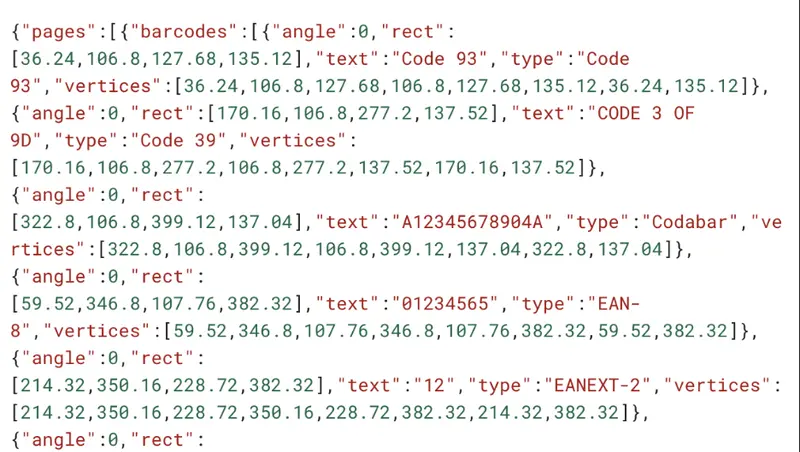
Figure 1: Sample JSON output.
For the full list of extraction options, see the Barcode workflow docs.
Running Python Barcode Extraction on a Server in Production
Running Python barcode extraction on a server in production with the Apryse Barcode Extraction Module adds five constraints that a single-file test never shows.
Initialize once per process: PDFNet.Initialize is a once-per-process call. In a long-running worker, call it at startup, keep per-document work between startup and shutdown, and call PDFNet.Terminate when the worker exits. The example above wraps both calls around one document so it runs as a standalone script.
Convert scanned TIFFs to PDF first: Pass the module a PDF. If your scanner writes TIFF files, convert each one with the base Server SDK's Image to PDF conversion, which covers TIF and TIFF input, then run extraction on the converted file.
Handle payloads that land in the data field: When the module decodes a barcode, it reports the decoded value. When it cannot decode one, it stores the payload as a Base64-encoded string in the data field. Decode those entries in your own code or set the binary output format on BarcodeOptions to receive every payload as Base64 in data.
Narrow the search to cut processing time: By default, the module searches for every supported barcode type in every orientation, which is its slowest setting. If your documents carry only shipping labels, restrict the search to the types and orientations you expect, and limit pages with a range such as "1-3,5,10-". Profiles trade speed for source quality: the default profile is fastest, Low Quality Source is slightly slower, and Small Barcodes and Natural Picture are significantly slower. Read about fixing missed barcodes on scanned PDFs before you change profiles and pass the BarcodeOptions object as the last argument to ExtractBarcodes.
Deploy on Windows or Linux x64: Server-side barcode detection with this module runs on Windows and Linux x64 only, so build container images for Linux x64, not ARM or 32-bit. For image setup, see how to run it in a container.
How to Check Barcode Values Extracted from PDFs in Python
Checking barcode values extracted from PDFs in Python catches output that is valid JSON and still wrong.
Back at the freight broker's dock, the check that matters is the count: a manifest with four labels yields four entries, or the batch goes to a person.
- Count: Compare the number of barcodes in the JSON with the number you expect. Keep a test PDF with a known barcode count, load the output with Python's JSON module, and assert that the entry count matches. A result file with fewer entries than you expect is still valid JSON, so the check has to live in code.
- Type: Check each entry's type against what the document should contain. Build a test set with one PDF per barcode type you accept, assert that every reported type is on your allowed list, and log any other type for review.
- Data field: Flag every entry whose payload sits in the data field. Scan the entries for that field, route them to a review queue, and decode the Base64 string in your code to confirm the content.
- Scanned copy: Compare a scanned copy of a test document with its born-digital original. Run both through the same script and diff the two counts, which shows whether your scans need a different profile.
Get Started with the Apryse Barcode Extraction Module in Python
Get started with the Apryse Barcode Extraction Module in Python by installing the SDK with pip install apryse-sdk --extra-index-url=https://pypi.apryse.com and downloading the Barcode Extraction Module from the modules documentation. Virtual environment and Ubuntu setup steps are in the Python-on-Linux setup guide and the Python get-started page. The full working example is the BarcodeTest sample.
Try it on your own documents: get a trial key at dev.apryse.com, run the BarcodeTest sample against one of your own PDFs, and check the type, position and value of each barcode in the JSON. If you have any questions, the Apryse Community is a great place to get answers.
That is the full path: one install, one module download, and one call that turns a PDF into JSON. What your app does with each barcode is up to you, whether that is matching a tracking number, filing an invoice, or flagging a claim for review. Start with one of your own documents and see what comes back.