Garry Klooesterman
Senior Technical Content Creator
Published November 18, 2026
Updated November 18, 2026

7 min


How to Run Barcode Extraction From PDFs in Docker
Garry Klooesterman
Senior Technical Content Creator
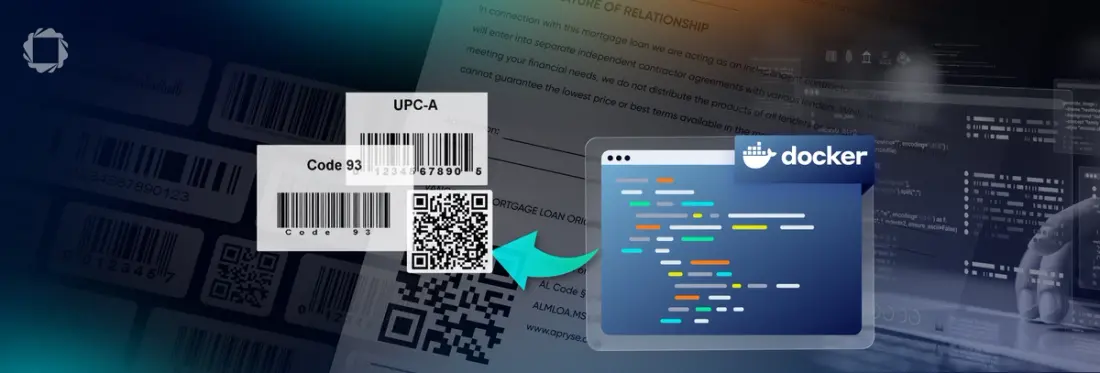
To run barcode extraction from PDFs in Docker, build a Linux x64 image that installs the Apryse Server SDK for Python and the Barcode Extraction Module, then run a small service that initializes the SDK once and extracts the barcodes from each PDF it receives. To scale, run more containers; Kubernetes handles the orchestration.
Why Run PDF Barcode Extraction in Your Own Container Instead of a Cloud API
It's 7:45 on a Monday morning at a freight broker, and the intake queue is already deep. Bills of lading keep landing as PDFs, and each one carries a shipment barcode your routing code needs before anything else can happen. Nobody is watching the queue; your service is.
Teams that need barcodes out of PDFs usually weigh two paths first. A cloud document API sends every PDF to a third-party server, which is a data residency problem for logistics, finance, insurance, and healthcare teams. An open-source decoder keeps the data home, but it takes images, not PDFs, so your team owns the step that turns each page into an image.
Here's where the SDK fits. The Barcode Extraction Module is an add-on module for the Apryse Server SDK that works as a barcode API for backend services, detecting, extracting, and decoding barcodes inside PDFs. It runs inside your own container, not as a cloud API, and document content never leaves your environment. By default, the SDK sends limited usage metadata, such as API call names, call counts, and page counts, and Apryse issues a no-tracking license key, or a key configured for fully offline operation, on request. Camera-based scanning on mobile is a different job and belongs to the Scanbot SDK.
When the queue doubles, add replicas. When it clears, remove them. Kubernetes handles the scheduling, and you control the scale. The Barcode Extraction Module is part of the Smart Data Extraction add-on license and installs as a separate module download. Against an open-source decoder, the choice is a license cost versus engineering and maintenance time.
This post covers Apryse Server SDK integration using Python on Linux x64, in a Docker container and on AWS Lambda. It does not cover other serverless platforms or any language other than Python. For other languages or platforms, see the Server SDK get-started guide.
Build a Docker Image for Barcode Extraction from PDFs with Python and the Apryse Barcode Extraction Module
Building a Docker image for barcode extraction from PDFs with Python and the Apryse Barcode Extraction Module takes three layers: the Apryse Server SDK for Python, the Barcode Extraction Module, and your own service script. A barcode detection API integration in Docker starts with the Dockerfile below, which stacks those layers on a Debian-based Python image.
This feature requires the Barcode Extraction Module add-on, which is a separate download from the base Server SDK. See the modules documentation for download and installation instructions.
The pip line pulls apryse-sdk from pypi.apryse.com rather than public PyPI, because the legacy PDFNetPython3 package on public PyPI is no longer maintained. The Barcode Extraction Module installs by extracting BarcodeModuleLinux.tar.gz, which you download into the build folder before running docker build. The archive extracts into /opt/apryse and creates a Lib/Linux folder holding BarcodeModule.so.
Extraction alone does not make the module visible to the SDK. Your service script calls PDFNet.AddResourceSearchPath("/opt/apryse/Lib/") with the Lib folder, not Lib/Linux, so a single search path covers every installed module.
The module supports Windows and Linux on x64, which is why the image pins the linux/amd64 platform. Pin the Python version to one your SDK release supports. The extraction code itself lives in a separate walkthrough on how to extract barcodes from PDFs in Python. The image only has to run it.
License keys are confidential. Do not commit them to public repositories. Use environment variables or a secrets manager to inject your key at runtime.
Running Barcode Extraction Containers in Production with Kubernetes
Barcode extraction containers on Kubernetes scale horizontally because each operation is stateless. The SDK has nothing to coordinate across documents, so you choose the topology that fits your memory and throughput limits. Five rules keep the queue moving.
Initialize once per process and verify the module at startup: Call PDFNet.Initialize() at service startup, then PDFNet.AddResourceSearchPath(), and leave the SDK initialized for the life of the worker. Repeated calls have no extra effect, but the first one carries the setup cost, so pay it at startup rather than inside a request handler. Check BarcodeModule.IsModuleAvailable() in the same startup path and fail your Kubernetes readiness check when it returns false. A pod with a wrong search path then never receives a PDF.
Give each worker its own document: Each worker opens its own PDFDoc, extracts the barcodes, and releases the document. Sharing one PDFDoc across threads without locking gives undefined behavior, including crashes. If your design shares a document, use the documented Lock and LockRead APIs.
Inject the license key as a Kubernetes Secret: Expose the key to the container as the APRYSE_LICENSE_KEY environment variable from a Secret, never from the image or from a manifest in source control. A key baked into an image travels with every copy of that image.
Match input and options to your documents: Convert scanned TIFFs to PDF first. The Barcode Extraction Module reads barcodes in PDFs, and Image to PDF in the base SDK handles TIF, TIFF, JPG, PNG, GIF, and BMP files. For very poor scans, the Low Quality Source profile is slightly slower than the default High Quality Source profile, which is the fastest. The Small Barcodes and Natural Picture profiles are significantly slower, so reserve them for unusually small barcodes and images. To read only part of a document, set the Pages option with a range such as "1-3,5,10-" through SetPages. If barcodes still go missing, see the guide to fixing missed barcodes on scanned PDFs.
Own the queue and the retries: Queueing, retries, and job orchestration are your code. Your service decides when to requeue a malformed PDF, and your pipeline decides where results go. To send barcode values to a database, follow this pipeline walkthrough.
Back at the freight broker, Monday looks different. The queue still doubles, and the replicas follow. Your platform owns the queue, the scaling, and the retries. The Barcode Extraction Module reads the barcodes inside each PDF, and no PDF leaves your environment.
Running PDF Barcode Extraction on AWS Lambda with Python
Running PDF barcode extraction on AWS Lambda with Python uses the same Apryse Server SDK and the same Barcode Extraction Module, packaged as a zip file instead of a Docker image.
Install apryse-sdk into your function folder with the pip --target option, as the Apryse Lambda guide shows, then copy the extracted Barcode Extraction Module Lib folder into the same package and zip the folder. Your handler calls PDFNet.AddResourceSearchPath() with the packaged Lib folder, initializes the SDK with the key from APRYSE_LICENSE_KEY, and checks BarcodeModule.IsModuleAvailable() before it reads a PDF. Repeated calls to PDFNet.Initialize() are safe, so initializing inside the handler works.
The Barcode Extraction Module supports x64 only, so create the function with the x86_64 architecture. The Apryse Lambda sample writes the incoming file to /tmp before it opens the document, and each invocation processes one document. Triggers, queues, and retries belong to your AWS configuration, not to the SDK.
For the full setup, follow the AWS Lambda tab of the Python get-started guide.
Get Started with the Apryse Barcode Extraction Module in Docker
To get started with the Apryse Barcode Extraction Module in Docker, install the SDK with pip install apryse-sdk --extra-index-url=https://pypi.apryse.com and download the module from the modules documentation. Follow the Python get-started guide for environment setup and the Barcode workflow docs for the extraction steps.
Try it on your own documents: get a trial key at dev.apryse.com, run the BarcodeTest sample against one of your own PDFs inside the container, and check the decoded content of each barcode in the JSON output. The Apryse Community is a great place to get answers, share what you're learning, and meet developers working on similar problems.