Roger Dunham
Published October 23, 2026
Updated October 23, 2026

9 min


No Single Source of the Truth When Viewing Office Files
Roger Dunham
Find out why there’s no single “correct” way to render an Office file, and why that matters before you trust any conversion tool’s accuracy claims. Using real DOCX, PPTX, and DOC samples, you’ll see how page breaks, fonts, slide titles, and even old Word files render differently across Word, Google Docs, LibreOffice, and WebViewer, and how to test fidelity with your own documents.
Introduction
A common problem that businesses have is the need to convert Office files, whether they are DOCX, PPTX or XLSX, files into PDFs for archiving, and to create a non-editable version of the document.
If you only have a small number of documents to convert, then it is practical to open them in Office, and either “print” them to PDF or export them to PDF using tools such as Adobe Acrobat.
If you have thousands of documents, then manual export is not scalable.
Looking for a Server Based Solution
Technically, you can control Microsoft Office and get it to convert the files for you. There are two issues with that: firstly you need a license for Office, but far more importantly, Office was never designed to work within an unattended, non-interactive client application. At its simplest, what happens if a modal dialog appears? With no interactive user, the application is now blocked.
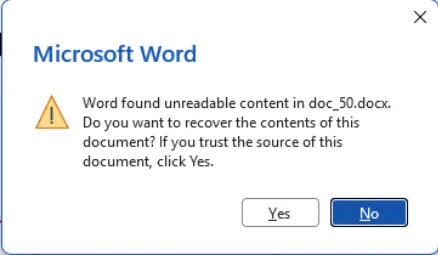
Figure 1: Word often displays modals to inform you of a problem. But if the app is running within a service, then it is not possible to dismiss the dialog, so the app will hang.
This is such a common business need that a number of solutions have been developed.
Some of the more common ones are:
- MS Graph API: is an online service that supports downloading files in a range of different formats.
- LibreOffice: running in headless mode, which can convert a DOCX (and other Office formats) to PDF.
- Apryse SDK: is a powerful document processing SDK that supports a huge range of functionality including the ability to convert files to PDF without the need for a Microsoft Office license.
But before you dive into investigating which is best for you, it is worth considering how you will decide that. You need to consider:
- Accuracy: How good is the output? Does the PDF faithfully reflect the original document?
- Performance: How long does it take to convert the file to a PDF?
- Cost: Is there a licensing cost? If so, is that based on a per document, per page, or a fixed cost?
In this article, we will just consider accuracy (“Document Fidelity”).
Before comparing Office-to-PDF conversion tools, we need to answer a surprisingly difficult question: what does a correct conversion actually look like? If Word, Google Docs, LibreOffice, and PowerPoint Online all display the same source file differently, then there may not be a single objectively correct answer.
Sample Files
You should, of course, test software with your own documents, rather than using those from a corpus that may not reflect your specific use case.
For this article, though, we will look at four documents:
- A PowerPoint template, which you can download from https://www.presentationmagazine.com/project-timeline-launch-rocket-28845.htm
- And three documents that you can download from the repo that goes with this blog.
- A two-page DOCX file uses the font Calibri.
- A three-page presentation, created by CoPilot, to which Titles were manually added.
- A DOC file (042669.doc) that was originally downloaded from the GovDocs1 corpus.
A Few Words About Versions
Testing for this article was primarily performed on a Windows 11 machine with typical fonts installed.
- Microsoft 365 Word, 64-bit, build 20228.20188
- LibreOffice 26.38.0.3 (x86_64)
- WebViewer 12.1.0 running within Apryse.Showcase
- Word for Web current versions on Sept 1st, 2026
- Google Docs current versions on Sept 1st, 2026
One part of the testing used an Ubuntu 24.04 machine with default fonts installed.
Even a Simple DOCX File Can Look Different on Different Machines
The sample file contains text, using the common font of Calibri.
On my Windows machine, the file looks very similar whether you open it in Word, LibreOffice, or Apryse WebViewer on my local machine.
In particular, the text around the page break is the same. Not only does each line contain the same words, but also the page break is at the same location.
Location of a page break is important since it can affect the total number of the pages in a document, the page on which a specific piece of text is located, and (if different header/footer text is used on odd and even pages) whether specific text appear on an “odd” rather than an “even“ page.
A different page break can therefore affect page numbering, references, legal citations, printed forms, accessibility reviews, and any workflow that depends on content appearing on a specific page.
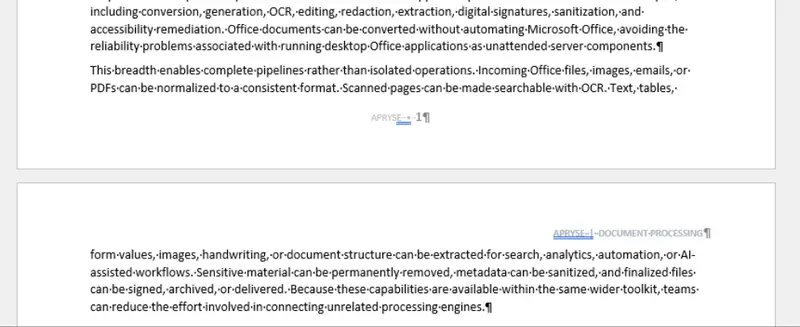
Figure 2: Word for desktop, LibreOffice, and Apryse WebViewer show a very similar result on my Windows machine.
If you open the same file in Google Docs, then the page break occurs at a different line in the document. There are a few other layout differences too.
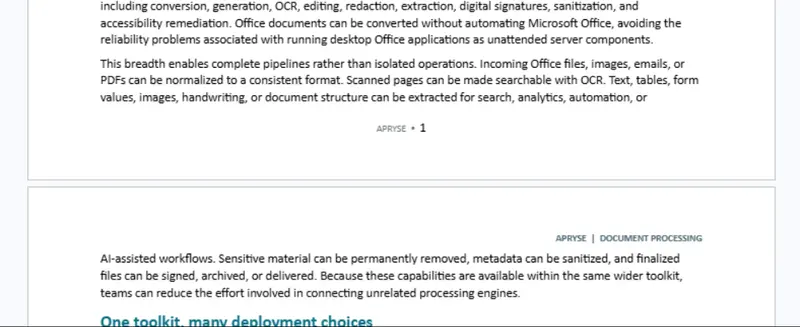
Figure 3: Google Docs shows the page break in a slightly different location.
Similarly, if you open the document in Word for Web then the page break is different again.
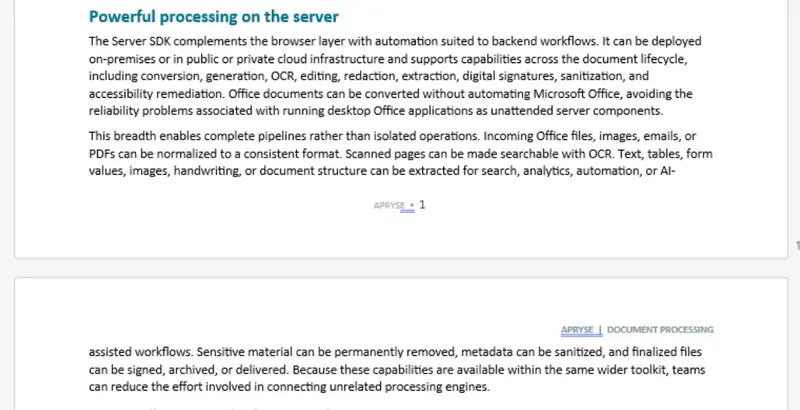
Figure 4: Word for Web shows the page break in a completely different location.
That’s three variations that we have uncovered when using the same machine. If we switch to an Ubuntu machine where Calibri font is not installed, then the appearance and location of the text and page break is entirely different.
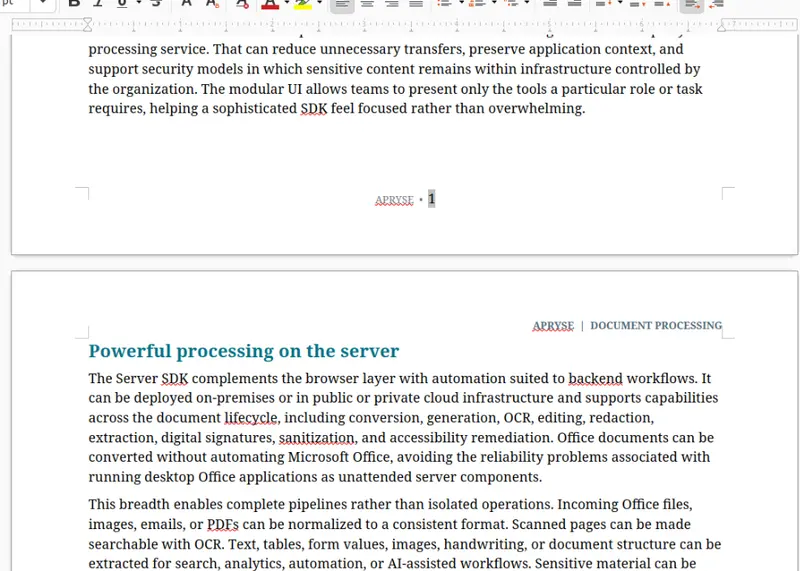
Figure 5: On a machine without Calibri, a font substitution occurs, which can result in significant differences in the layout and location of page break.
This is because LibreOffice substituted an alternative font because Calibri was unavailable. Although it warns the user, the resulting document layout still changes. If you look carefully, you can see that it is not even a very similar font (it has Serifs for a start). If that font was an exact match for Calibri, then this would not affect layout. However, the replacement font has a slightly different size, so that the number of words that fit onto a page changes.
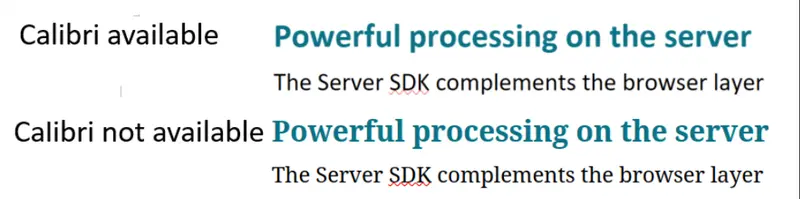
Figure 6: The appearance of the text differs within LibreOffice depending on whether or not Calibri is available.
It’s fair to say that LibreOffice shows an error that the requested font was not available, but that doesn’t alter the fact that the layout has been affected.
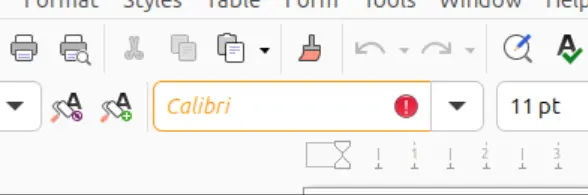
Figure 7: LibreOffice shows an error is a required font is not available.
Font substitution is not restricted to LibreOffice. Microsoft Word does something similar if the requested font is not available.
Read more about font substitution when converting DOCX files to PDF.
Layout Variation in PPTX Files
Now let’s look at a PPTX Presentation which uses the Arial font (which is installed).
PowerPoint desktop (and web), Google Docs, and Apryse WebViewer all show that there are six lines of text on the last page of the document.
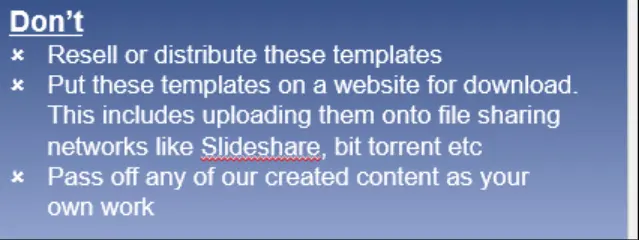
Figure 8: Most tools show six lines of text in these bullet points.
However, LibreOffice, even without font substitution, has slightly different layout of words in the lines which has pushed one word onto a new line, giving seven lines instead.
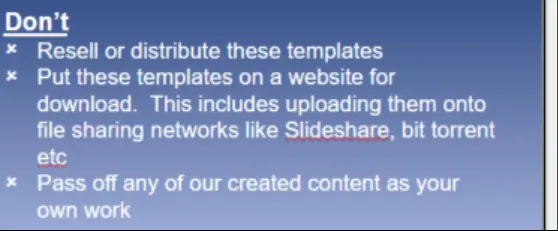
Figure 9: Part of the final slide in the template, shown in LibreOffice.
Once again, we have two versions of “truth”, one with six lines, one with seven.
That might, or might not, affect the usability of the document. For example, the extra line could result in text overlapping other content, or the bullets being off-slide entirely. It does however affect what you might consider to be the correct output when converting a file to PDF.
Titles on Slides in a PPTX File
The final area we will look at is the presence of titles within a presentation.
You can add text to a slide via a text box, or via a title. Visually you can get the same result by either method.
One of the benefits of using titles though, is that they are used to automatically generate a document “outline”, which offers a way to make Presentations more intuitive.
If we open the file in PowerPoint (either desktop or Web based), Apryse WebViewer, or Google Docs, then the title “Richer Experiences” is large and centered.
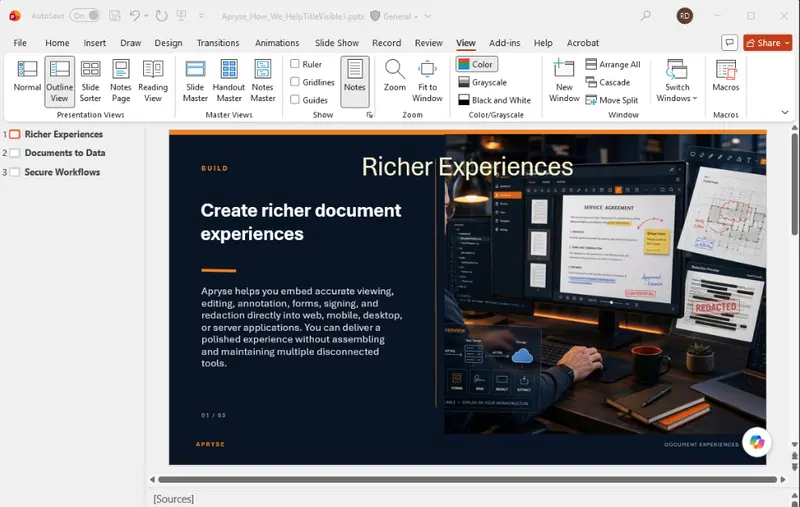
Figure 10: PowerPoint automatically uses slide Titles to create an outline.
You can add titles to a page then hide them using the selection pane if you want the benefit of a layout without affecting the appearance of the slide.
The same presentation, opened in Google Docs, looks similar, with the title still shown at the top center of the slide. One of the fonts has been substituted, as we have seen before.
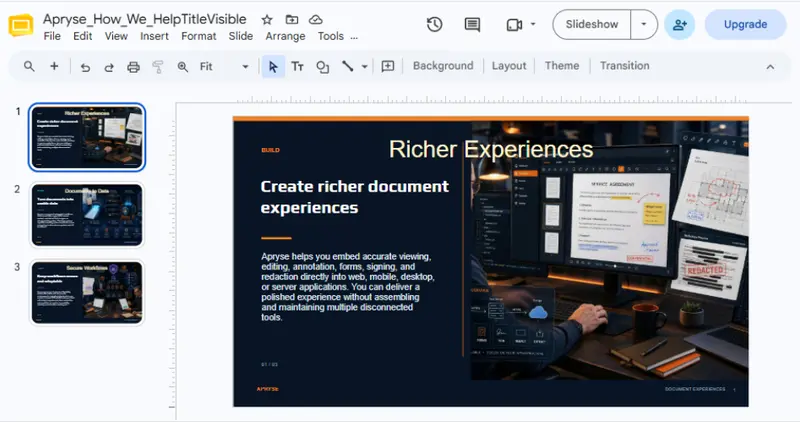
Figure 11: Google Docs shows the title correctly, although one of the body text fonts has been substituted.
However, if you open the same Presentation in LibreOffice then the title is much smaller than expected (and less faithful font substitution has also occurred). The difference here is not caused by a missing font but by how LibreOffice interprets the PowerPoint title placeholder.
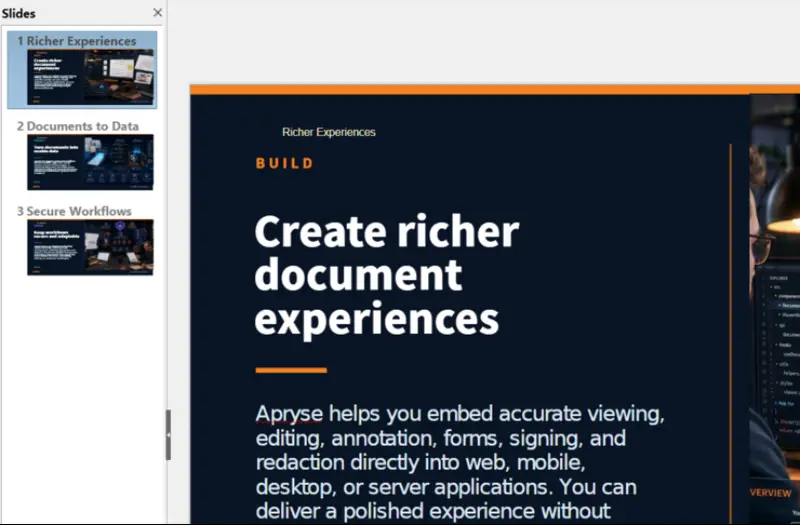
Figure 12: Titles can look different in LibreOffice compared to PowerPoint (note that the body text has also changed, but that is due to font substitution). The title is Arial, which is locally available.
Different Versions of Office
The final file that we will look at is a DOC (rather than a DOCX) originally created in 2006.
The file is of interest in that it contains a table of contents that has links to other pages in the document.
All the tested apps show the same text (more or less) in the table of contents, with “PART 1 – THE SCHEDULE” having a page number of “4”.
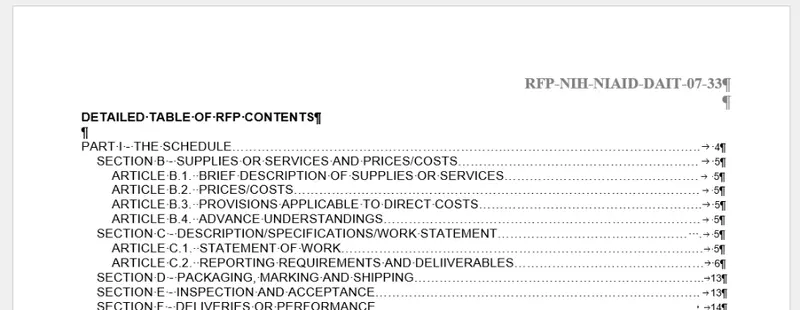
Figure 13: All of the apps show that “PART 1 – THE SCHEDULE” as being on page 4.
But if you look at the rest of the document, Word (desktop and Web) and Google Docs show that page 4 is blank, and the section for “THE SCHEDULE” is on page 5.
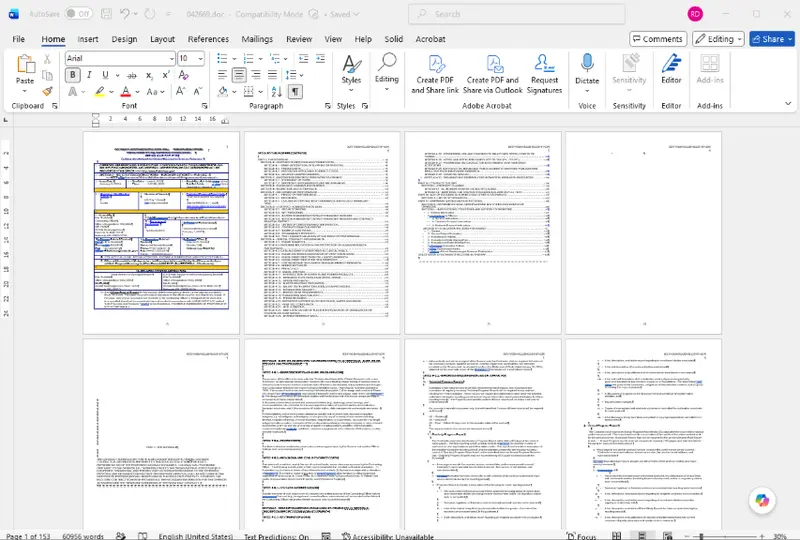
Figure 14: Word and Google Docs both show that page 4 is blank.
That is presumably because at some point in the last 20 years the way that Microsoft interprets the DOC file structure has changed, resulting in an additional page appearing.
LibreOffice and Apryse WebViewer, on the other hand both show ”THE SCHEDULE” on page 4, agreeing with the table of contents, and presumably matching the original intention of the author.
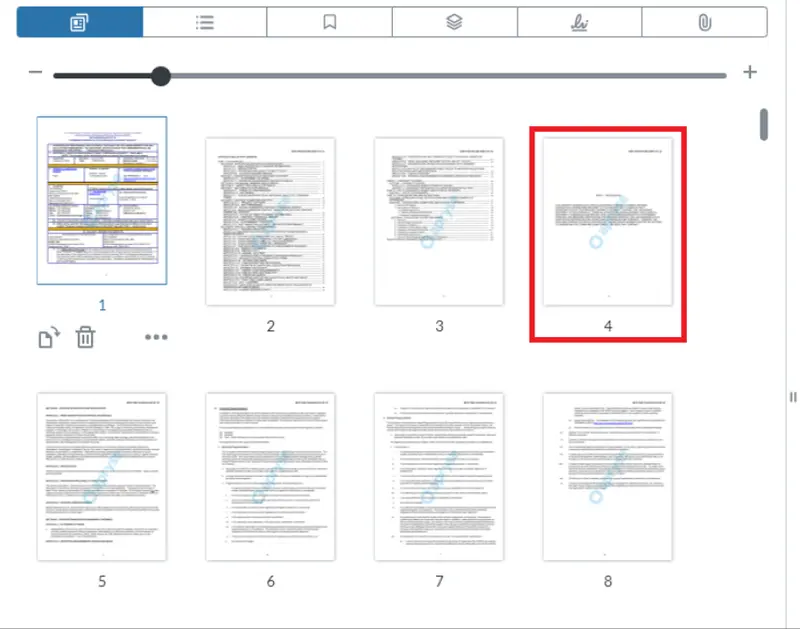
Figure 15: LibreOffice and WebViewer both show that page 4 is not blank.
If we export the DOCX to PDF using Word, then the result is even more curious. The table of contents now says that “PART 1 – THE SCHEDULE” has a page number of “4”.
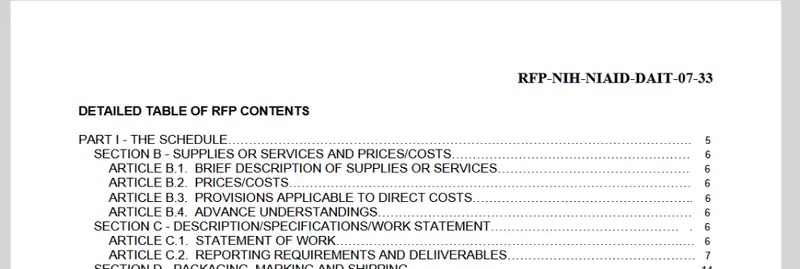
Figure 16: Exporting from Word updates the Table of Contents so that it is different from how it appears in Word.
Word apparently updated the Table of Contents as part of the export so that it matched the document. But that means that the generated PDF does not agree with the DOCX file. Definitely a case of two “wrongs” not making a “right” with Office unable to agree with itself what the truth is!
Other Layout Differences
In this article, we have looked at just three differences that occur when viewing the same simple documents in different tools. With the complexity that DOCX, PPTX and XLSX files support, there are undoubtedly many other examples that could be found to illustrate the uncertainty in what truth looks like.
PDFs, the Way to Certainty.
We’ve seen three ways in which a DOCX or PPTX file can display differently depending on the software that you are using to view it. As such, there is no single “truth” for what the output should look like that can be determined automatically.
Typically, the appearance within Word for Desktop on Windows is used as the standard, but that would not be sensible if the user created the document using LibreOffice or Apryse DOCX editor. We have also seen how a document created with an old version of Word may look different when viewed in a more recent version.
Ultimately, unless we ask the document’s author, we cannot know for certain what was intended.
This of course is one reason for converting DOCX (and other Office) files to PDF. It replaces a document that could look different depending on where and how it is viewed with one that will look the same on macOS, Linux, Windows and mobile devices (particularly if it is PDF/A).
That brings us back to the start of this article. We’ve seen how DOCX files can appear differently, and we know that there are a range of tools, including the Apryse SDK, that can convert Office files to PDF. In the next article, we will review the speed, accuracy, and price of a range of those tools.
If Office applications themselves cannot agree on how a document should look, claims such as "99% accurate Office conversion" become difficult to evaluate. The key takeaway of this article is to check Office-PDF visual fidelity claims with your own documents and with the software that you use for working with the Office files.
We’ve seen that since each tool uses a different layout engine, page-breaks, and extra pages can occur. How big a problem that is varies from customer to customer, since each business has different priorities. If you deal with a high volume of large documents then extra pages may be of concern, whereas a law firm may prioritize pagination and have strict layout requirements, for example that a signature is at a specific location on a page.
That reflects another important truth: as an end-user what you need to get from, and prioritize within, a document may be different from what other users want. You should check that whichever tool you use gives you the best value from those documents.
If you have any questions, you can reach out to us on our Support channel.
If you have any questions about this blog, or there are other blogs that you would like us to write, then please contact us at blog-feedback@apryse.com.