Roger Dunham
Published November 10, 2026
Updated November 10, 2026

8 min


Bates Numbering in PDFs: Implementing a Complete Solution
Roger Dunham

Adding a Bates number to every page is the easy part. Making that workflow hold up in production is where the real problems start. This article builds on a basic Apryse SDK Bates numbering setup and tackles three issues you’re likely to hit. Thousands of stamp annotations can slow a PDF to a crawl, so you’ll see how to flatten them, either all at once or just the Bates numbers while keeping sticky notes and other markup editable using FDFExtract and FDFUpdate.
When page content runs to the edges, you’ll learn how to scale and center it by adjusting the CropBox and MediaBox so the number always has room, without changing the page size. Finally, you’ll see how to add a certifying digital signature and verify it programmatically, so you can tell whether anyone has altered the document after numbering.
Previously, we saw how you can use the Apryse SDK to add a Bates number to each page in a PDF. In this article, we will look at three practical issues that you may encounter and see how the Apryse SDK can help to solve those too.
A Quick Summary of Bates Numbering
A “Bates number” is a way of uniquely identifying each page in a document (or set of documents). Typically, they are located at the bottom right of the page and have the format of a prefix, followed by a number that increments with each page, for example ABC000001, ABC000002, and so on.
The intention is that each page be uniquely identified, and if a page is inserted, deleted or moved, then the sequence of numbers will make this apparent.
The Apryse SDK allows you to add a Bates number as either a stamp or an annotation.
Learn more about how to implement Bates numbering with the Apryse SDK.
In this article, we will look at three practical problems that you may encounter as you develop a complete Bates numbering workflow and see how Apryse can help resolve them.
The issues are:
- Having thousands of annotations makes a PDF hard to use.
- If the original page content fills the page, there may be no clear space for the Bates number.
- Someone could change the document after the Bates numbers have been applied (which could cause confusion or worse).
Get the GitHub repo that demonstrates working with Bates numbers using Apryse.
How Apryse Can Make a Document With Thousands of Annotations Easy to Use
Two of the methods for adding a Bates number to a PDF involved the creation of an annotation (either a “Rubber Stamp” or a “Free Text” annotation) on each page of a PDF. That’s fine if you have fifty pages, but if you have 50,000 annotations, rendering and interaction performance may degrade significantly in many PDF viewers.
If you don’t need the Bates number to be an annotation, then it’s easy to convert it into regular content within the page by “flattening” it.
Flattening irreversibly converts the annotations to regular page content. The same idea also applies to converting form fields into static content.
Implementing flattening is easy, particularly if you want to flatten all annotations in a PDF.
If you run that code, then when you open the flattened file will no longer contain any annotations, and the Bates number will have been converted into regular page content.
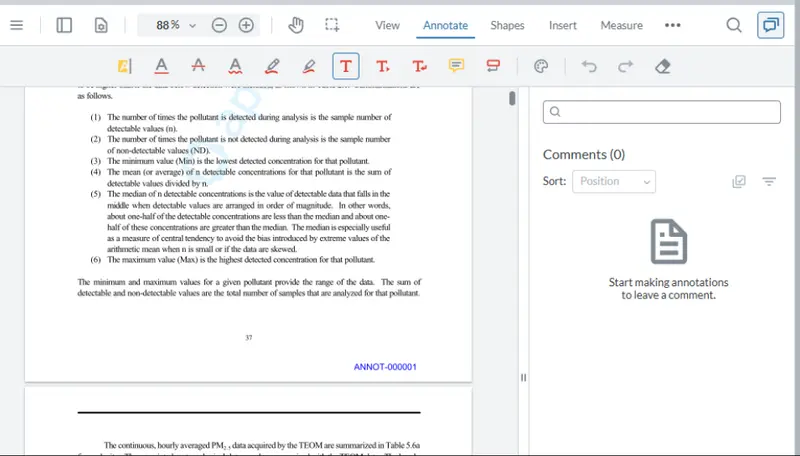
Figure 1: After flattening, the Bates number is still there, but it is no longer an annotation.
Flattening Just the Bates Number Annotations
Flattening all annotations is fast, but you might not want to flatten every annotation in the PDF. For example, there might be manually added annotations: underlining, or a sticky note, or a Rubber stamp. In that case, you might want to keep those annotations while still flattening the Bates numbers.
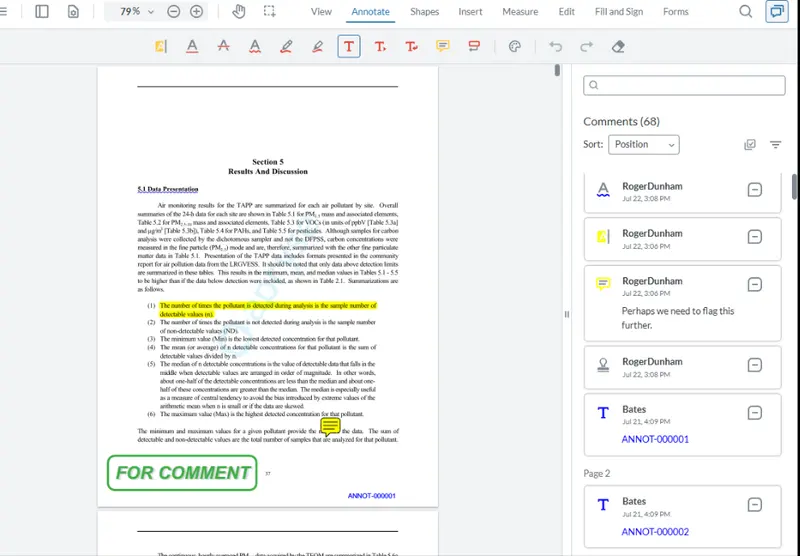
Figure 2: You could end up with a PDF that has annotations that contain Bates numbers and many other types of annotation.
We can do that by using the ability of the Apryse SDK to export annotations to, and reimport them from, an external FDF (or XFDF) file using PDFDoc.FDFExtract and PDFDoc.FDFUpdate.
One way to implement this is to create two copies of the initial file (the one that contains both Bates numbers and other annotations), and we will iterate through the annotations in each to find which are Bates numbers and which are not. In the previous article, we saw how we could add an Author to the annotations using:
o = ann.GetSDFObj()
o.PutText("T", "Bates")
In this example, we can therefore use the annotation Author field because we control the creation process and can rely on the value being unique to Bates annotations. If it is “Bates” then we will consider it to be a Bates number, otherwise we will consider it to be another annotation type.
There are other ways that you could identify the annotations that are a Bates number, for example, keeping a record of all of the IDs of the annotations as the code created them, or using a custom property.
Once we know how to find the annotations that are Bates numbers, we can iterate through the first copy of the PDF and remove all annotations that are not a Bates number.
In the second file, we do the opposite by deleting all of annotations that are Bates numbers but keeping any other types.
We can then flatten the first file as we did before.
Next, we export all of the annotations from the second file using:
non_bates_fdf = doc_non_bates_only.FDFExtract(PDFDoc.e_annots_only)(PDFDoc.e_annots_only means that only annotations will be exported, you could also export form fields, if that was required.)
When we have finished, non_bates_fdf will contain data that represents every annotation (and possibly form field) that was present, including metadata replies and annotation properties.
We can then apply those exported annotations back into PDFDoc for the flattened first PDF.
doc_bates_only.FDFUpdate(non_bates_fdf)If we save that PDFDoc, we will now have a file where the Bates numbers are permanently part of the page content while the other annotations are still present (and potentially) editable. Exactly what we wanted.
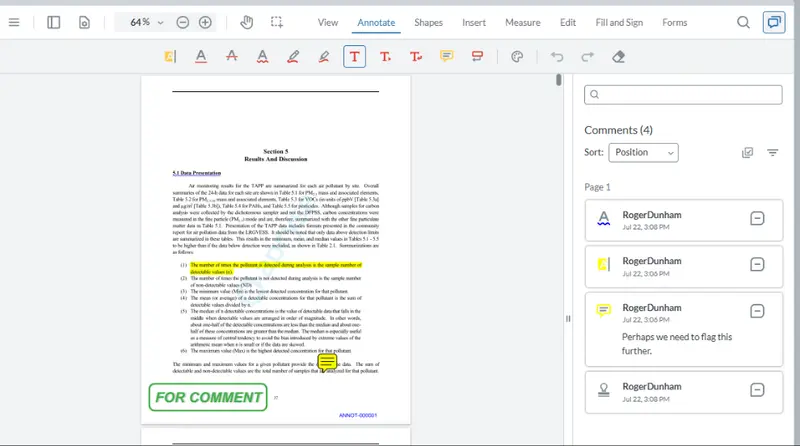
Figure 3: The PDF has Bates numbers which are now part of the regular content, as well as other annotations that are not.
Once again, the Apryse SDK has provided a lot of flexibility in creating a solution that gives you exactly what you need.
How Apryse Can Make Sure That There is Space for a Bates Number
It’s easy when creating a Bates numbering Proof-of-Concept application to just use a simple document and verify that the number increments on each page. In fact, we did that in the previous article.
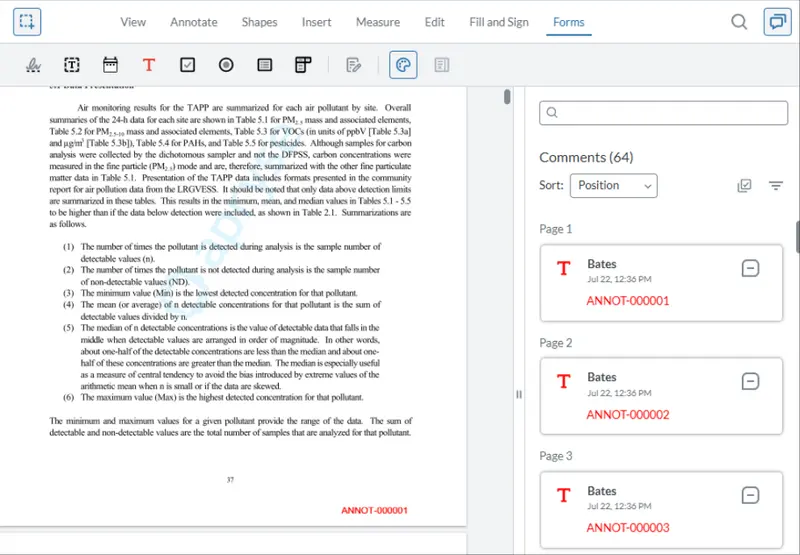
Figure 4: An example of a Bates number added to each page of a PDF, I’ve made it red just so that it is obvious.
However, when it comes to using the system in production, sooner or later you will come across a file which has very narrow margins or important content that is in the location where the stamp will be placed.
In that case, when the Bates number is applied it will be obscured by, or will itself obscure, the original page content.
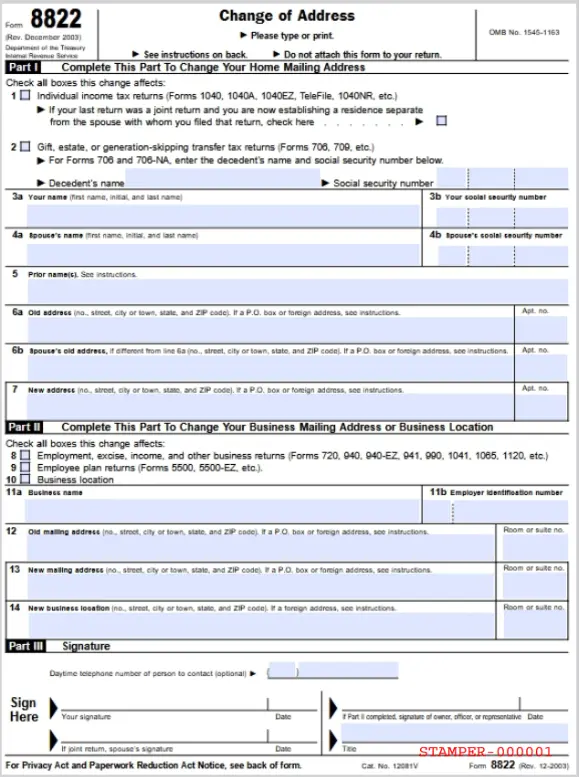
Figure 5: A simple solution of adding a Bates number will have problems if the page content extends to the margins.
Once again, the Apryse SDK can help you, providing a method to scale the pages in the document by manipulating their CropBox and MediaBox.
At its simplest you could use:
That’s a great start, the content from the original page will be scaled at 90% of its original height, but it will be anchored from the bottom left corner of the page.
We can solve that by centering the scaled content (feel free to change the code to anchor the content in whatever way you prefer).
Our page now has the original content scaled and centered, and the Bates number is entirely visible in the margin. The page size is also still the same as in the original PDF, which can be important if it becomes necessary to make a hard copy of the document.
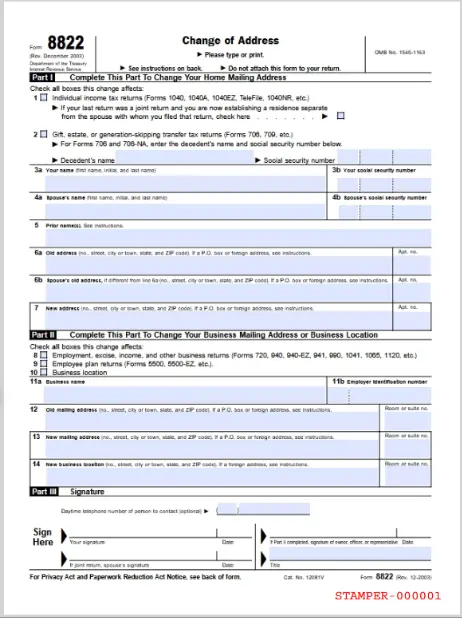
Figure 6: By scaling the page then adjusting the crop and media boxes, the Bates number can be applied into a margin, even where one did not previously exist.
That’s a great result.
Verifying That the Document has Not Been Tampered With
Bates numbering allows each page in the PDF to be uniquely identified, and as we have seen, it’s easy to apply.
And there lies a problem. It is also technically possible to delete the Bates numbers, add or remove pages, and then reapply new Bates numbers that differ from the original.
That raises the question “how do you know that the page that two different people are looking at are the same?”, or more bluntly, “how can you tell if the document has been modified in some way?”
One solution is to use Cryptographic Digital Signatures.
These can be applied after the Bates numbers have been added. Once again, the Apryse SDK can help.
How to Add a Digital Signature to a PDF Using the Apryse SDK
For this article, we will create a Certifying signature with no visible widget. I’m also going to use the example .pfx file and password that is used in the Digital Signature sample, that ships with the Apryse samples.
A Certifying signature allows us to specify what editing is possible for the document but note that even if a PDF is locked down to prevent editing, PDF permissions are advisory; some tools may ignore them, which is why cryptographic validation remains important.
Part of the process of creating a cryptographic digital signature involves calculating a “digest” for the document, which is then stored within the PDF.
If the digest is recalculated later and matches the signed value, the signed byte ranges have not changed since signing giving us a way to detect tampering. (If you “deep dive” into the subject then it’s a little more complex, but let’s ignore that for now.)
Under the hood, a digital signature always involves the presence of a signature field. It may also involve the creation of a “widget” which appears on the PDF and shows, for example, an image of the handwritten signature of the person that “signed” the document. In this example, we will set the size of the widget to zero so that it is not visible.
The resulting PDF will look the same in some viewers (such as Firefox), but in others such as Apryse WebViewer there will be information available about the Digital Signature.
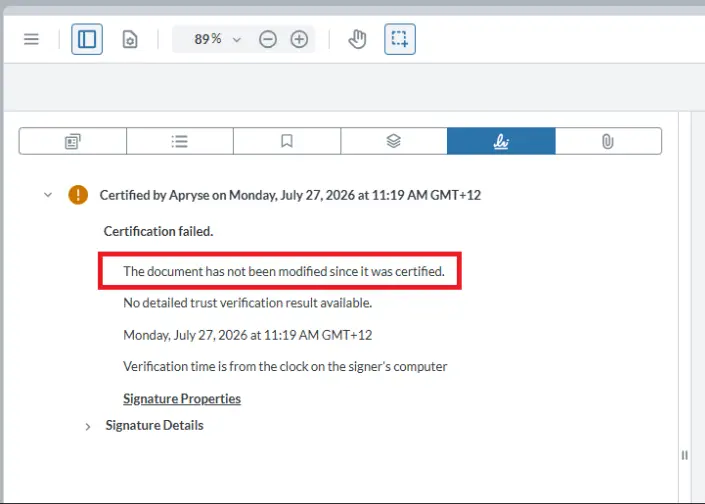
Figure 7: WebViewer tells us that the document has not been modified since it was certified.
If you try this code for yourself then you are likely to see that “Certification failed.” That is not because the PDF was changed, but because the private key and certificate that we used did not have a Trusted Root. If you were to repeat this with a real, purchased, certificate (or a self-signed certificate which you had configured as being trusted), then you would get a clearer “Valid” response. For example, Xodo PDF Studio makes it easy to trust specific certificates in which case you will see that the signature is valid.
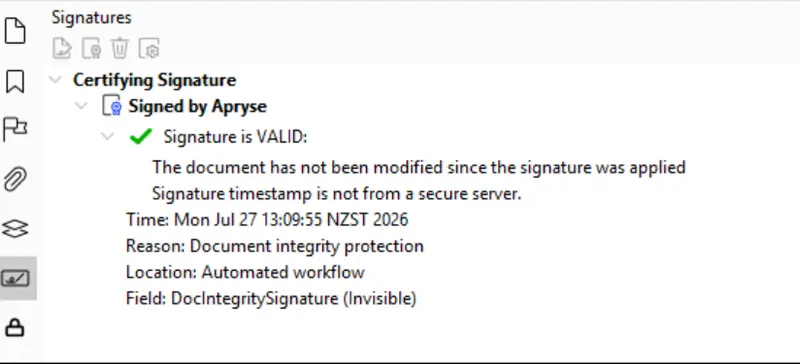
Figure 8: Xodo PDF Studio makes it easy to trust specific certificates.
You can also verify the signature programmatically.
Alternatively, if the PDF has been modified using a tool that did not honor the restrictions, then it’s easy to see (although the message changes from tool to tool).
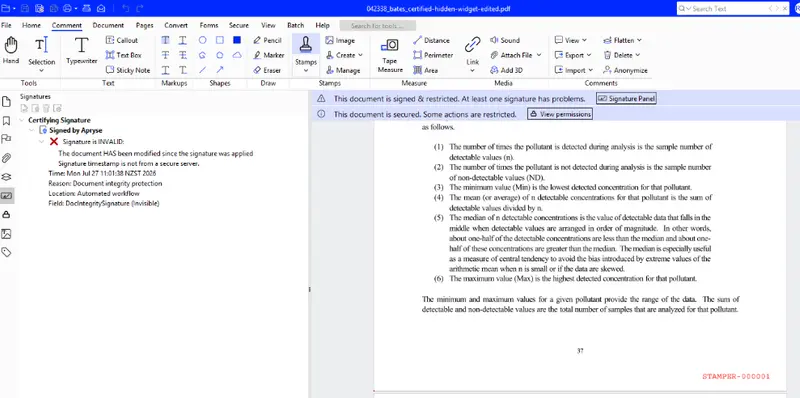
Figure 9: Xodo PDF Studio makes it clear that while the signature is valid, the PDF has been modified since it was signed (in this case a page has been deleted within Firefox).
It is unwise to ignore certificate errors in practice, unless you trust the originator of the PDF. Verification will tell you if the PDF has been modified since it was signed, but if you ignore errors then you don’t reliably know who signed the PDF, or when.
Wrapping Up
We've seen how to add Bates numbers to large documents while avoiding annotation-related rendering overhead, creating space for the numbers within page margins, and verifying that the document has not been changed afterward.
Better still, we have done this using tools from just a single vendor and all within the Apryse SDK.
And we have only just scratched the surface of what the SDK can do. It can also be used for dozens of other processes, for example to create documents from templates, or extract bar codes, or apply redactions.
So, grab yourself a free trial license and see what Apryse can do for you.
Want to put this into practice? The Apryse Community is a great place to get answers, share what you’re learning, and meet developers working on similar problems.