Isaac Maw
Technical Content Creator
Published May 13, 2026
Updated May 18, 2026

5 min


Best PDF Measurement Libraries for Developers (2026)
Isaac Maw
Technical Content Creator
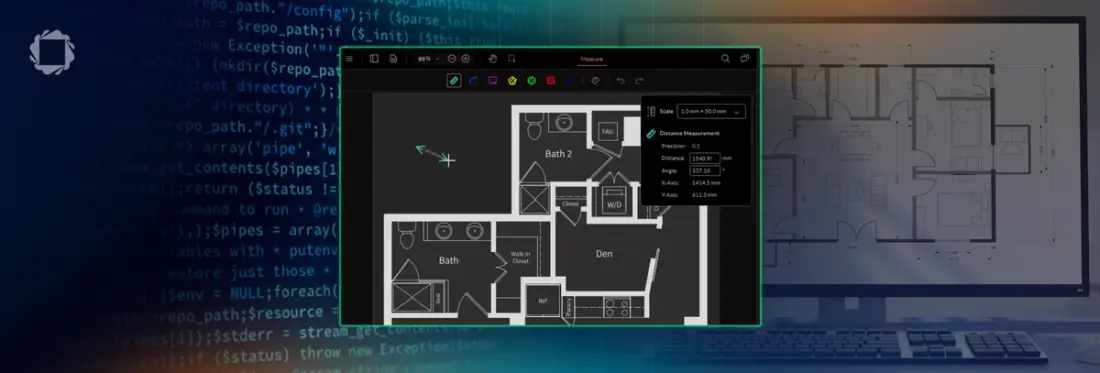
Summary: For architecture, engineering and construction software, it's important to have capabilities that support not only PDF documents like permits and forms, but also technical drawings. Learn what makes a document SDK right for using, reviewing and sharing CAD documents and PDF drawings, and how to choose the right vendor.
CAD drawings are frequently converted to PDF for sharing, review, and archiving purposes, especially because seats in expensive CAD software are at a premium. However, to support comprehensive review capabilities for users viewing drawings in PDF format, accurate measurement is an important tool.
CAD drawings are frequently converted to PDF for sharing, review, and archiving purposes, especially because seats in expensive CAD software are at a premium. A measurement SDK supports comprehensive review capabilities for users viewing drawings in PDF format.
Accurate measurement is an important tool for software platforms such as an Engineering Document Management System or Asset Lifecycle Information Management. Developers working on any application that needs to support viewing capabilities without CAD licenses want accurate, robust CAD PDF capabilities, especially in architecture, engineering, construction, and insurance.
What Measurement Tools Actually Do
PDF measurement tools add support for measurements like distance, area, perimeter, and angles to PDF technical drawings. With Apryse, measurements can be added to documents as annotations, supporting communication and collaboration.
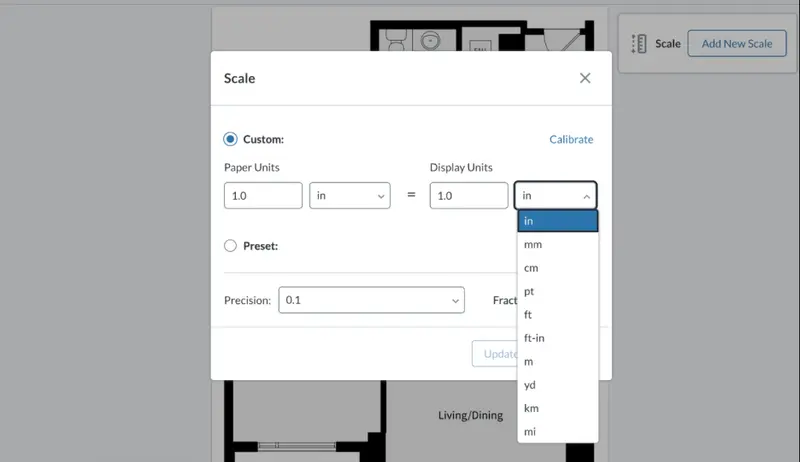
The key to PDF measurement is the scale. Based on the scale of the drawing, (eg. 1 inch = 1 foot) a scale is defined in the annotation tool allowing users to determine the actual size of things in an architectural diagram. Apryse SDK has built-in tools allowing you to create these annotations and provides a UI to modify common properties. There is also a more advanced programmatic API for fine-grained control.
What is the Apryse CAD Module?
The best support for AEC workflows includes not just measurement of PDF technical drawings, but also support for original CAD file types. By building both in your application, developers ensure that CAD workflows can be fully supported without external tools.
With the Apryse CAD Module:
- View CAD files: Users can view complex CAD files, plus 20+ other file types quickly and flawlessly, even at high zoom, on all platforms and devices. Easily show or hide layers in a drawing.
- Convert CAD files: Easily add high-fidelity direct conversion from CAD files, on any web, mobile, server or desktop software. Convert to PDF, PDF/A, PDF/E-2, image file types, and more.
- Preview CAD files: Quickly generate compact page-one previews and thumbnails of CAD drawings, designs, or blueprints, and display them in any client.
When selecting a vendor for your document processing SDK, it’s important to consider if CAD file formats are supported, or only PDF.
Measurement SDK Comparison
Capability | Apryse | Nutrient | ComPDFKit | PDF.js Express by Apryse |
|---|---|---|---|---|
Primary Positioning | Enterprise document SDK including CAD | PDF SDK with measurement + collaboration | PDF SDK | Lightweight open-source web PDF viewer SDK |
Platforms | Web, iOS, Android, Windows, macOS, Linux, Server | Web, iOS, Android, Windows, macOS, Server | Web, iOS, Android, Windows, macOS, Linux, server | Web only |
Native CAD Viewing Support | Yes — DWG, DXF, DGN, DWF, and RVT viewing | Partial — DWG and DXF viewing only | No CAD support | No CAD support |
CAD-to-PDF Workflows | Yes | Some support | Not prominently positioned | No |
Measurement Tools | Distance, perimeter, area, arc, angle, count, radius, center angle | Distance, area, perimeter | Distance, area, perimeter | Distance, area, perimeter |
Scale Calibration UX | Built-in scale calibration UI, precision adjustment, snap-to-object support | Built-in scale calibration UI, precision adjustment | Built-in scale calibration UI, precision adjustment | Minimal |
Measurement Annotations Saved as PDF Standard Annotations | Yes — ISO 32000 compliant | Standard PDF annotations supported | Standard PDF annotations supported | Yes |
Snap-to Geometry/Precision Tooling | Yes | Not prominently documented | Not prominently documented | No |
Typical Pricing Model | Commercial SDK licensing | Commercial SDK licensing | Commercial SDK licensing | Lower-cost SaaS/developer licensing |
CAD + PDF together – the Apryse differentiator
Most buyers in AEC hit the wall when they realize PDF measurement doesn't handle DWG files or other CAD formats. The Apryse CAD Module supports many CAD formats, including Autodesk AutoCAD® DWG™, DXF™, RVT™, DWF™, and Bentley MicroStation® DGN™, without you or your users needing any CAD software or CAD licenses.
Combined with measurement and other document tools like overlay comparison, watermarks, and conversion, Apryse provides an end-to-end technical drawing workflow for everything that is needed after drafting.
Setting up Measurement in WebViewer
When creating a new instance of WebViewer, the enableMeasurement property needs to be set to true to display the measurement annotation tools in the UI:
WebViewer({
  ... // other options
  enableMeasurement: true
}, viewerElement);
Besides passing in a constructor option, measurement can be toggled using the WebViewer API with the enableFeatures and disableFeatures functions:
WebViewer({
  ... // other options
}, viewerElement)
  .then(instance => {
    instance.UI.enableFeatures([instance.Feature.Measurement]);
  });
Creating Measurement Annotations With the UI
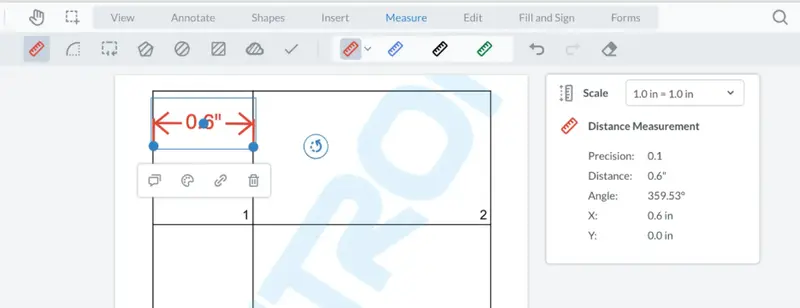
To create measurement annotations in WebViewer, click the Measure button in the top header, then select one of the measurement tools. Next use the selected tool to create a measurement annotation on the document. An overlay with scale and measurement information will show up when you are creating or selecting a measurement annotation.
Getting scale and precision programmatically
The following example shows how you can determine if an annotation is a measurement annotation, and logs the scale and precision of it after it's added:
Start Your Trial
When you’re ready to try WebViewer in your AEC platform, start your free trial to embed full functionality in your application and try all the features free for 30 days. Then, contact sales to explore licensing and other questions.
FAQ
Q: Can I measure on mobile?
A: Yes, because WebViewer runs client-side in the browser, WebViewer features are supported on mobile device browsers.
Q: What units are supported?
A: The Apryse measurement tool supports a variety of units for both the paper and display. Paper units include inches, centimeters, millimeters and points. Display units include in, ft, cm, mm, pt, m, yd, ft-in, km, and mi.
Q: Can measurements be stored and re-read later?
A: Yes, annotations containing measurements can be stored as part of PDF files, and retrieved programmatically.