Roger Dunham
Published November 06, 2026
Updated November 06, 2026

15 min


PDF to Word Converter Comparison: Apryse vs Nutrient vs ComPDF vs Foxit
Roger Dunham

Find out which PDF-to-Word converter actually produces a document you can edit, not just one that looks right. Using a real 11-page tagged employment contract, you’ll see how Apryse, Nutrient, comPDF, and Foxit handle six everyday edits in Word: changing a date, fixing a name across every footer, deleting a clause, adding a numbered section, inserting a new exhibit page, and adding a table column. Along the way, you’ll learn why real headers, footers, numbered lists, page numbers, and tables matter more than visual fidelity, and which tools preserve them. You’ll also see how to run the same tests on your own PDFs before committing to a tool.
Introduction
A common problem is the need to create an editable document from a PDF. There are many tools that can convert PDF into Word. In this article, we will look at several of these and see how they compare with the Apryse SDK.
A successful PDF-to-Word conversion isn't just one that looks right though. It needs to behave like a Word document when you edit it.
There’s a lot of data in this article, so let's start with the summary. We’ll see how we got this information in a moment.
Function | Xodo.com (Apryse) | Nutrient | comPDF | Foxit |
|---|---|---|---|---|
Text is recovered | Yes | Yes | Yes | Yes |
Simple text editing possible | Yes | Yes | Yes | Yes |
Sections are recovered as numbered lists | Yes | No | Yes | Yes |
Subsections are recovered as numbered lists | Yes | No | Yes (but with quirks) | No |
Deleting a subsection results in correct renumbering of following sections | Yes | No | Yes | No |
Headers recovered | Yes | No | Yes | Yes |
Footers recovered | Yes | No | Yes | No |
Page numbers update correctly when a is page added | Yes | No | No | No |
Tables recovered as Tables | Yes | No | No | No |
What We Are Trying to Achieve
The scenario we will use is typical of the type of problem that many businesses face.
We have a PDF of a draft employment contract (something that everyone is familiar with) between a fictitious employee “Jordan Barker” and a fictitious company “Oxna Consulting.”
Copilot created the outline of the document (and then I added headers and footers). It was then exported as a Tagged PDF by Adobe PDFMaker in Word.
It could, however, have been created using Apryse Doc Gen (Document Generation), or many other tools.
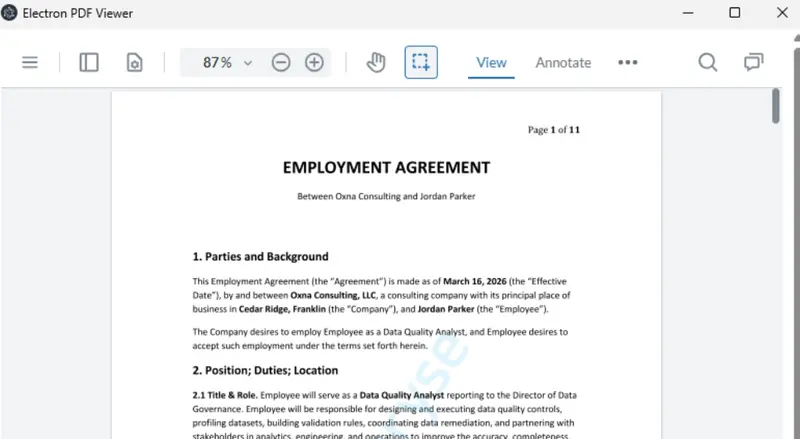
Figure 1: The top of the fictitious employment contract, shown in an Electron app that hosts Apryse WebViewer.
It’s quite a complex but plausible contract at 11 pages long, including a table of “Compensation and Benefits.” It was not designed to test unlikely-to-occur “edge cases.”
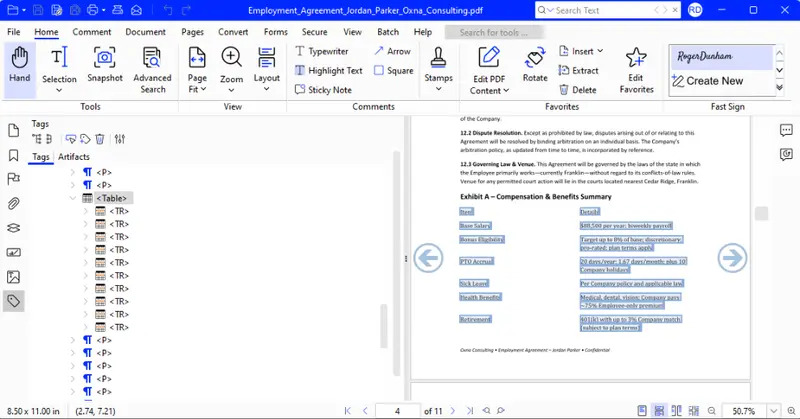
Figure 2: The table of Compensation and Benefits. As part of the test, we will add an extra column. Note that the table is correctly tagged.
Let’s imagine that we need to make some changes.
1. The employee wants to change the start date.
2. Embarrassingly we spelt the employee’s name wrong. It should be Jordan Barker, not Jordan Parker. Worse still that error is not just on the first page. Their name also appears on every page within the footer and might be elsewhere too.
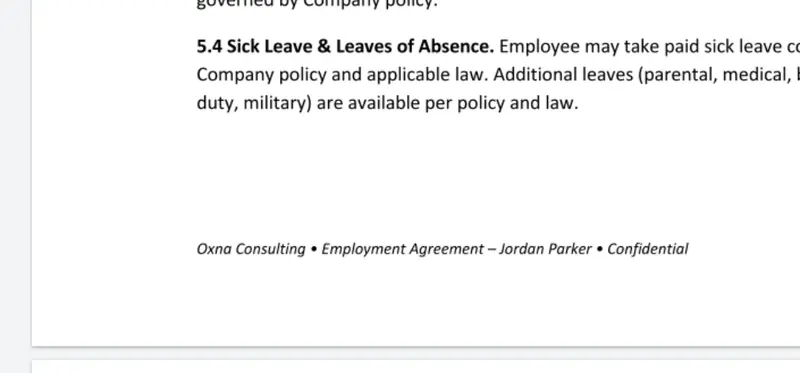
Figure 3: We need to fix the name in the footer which is on every page.
3. We need to remove a sub-section about “At will termination.”
4. We need to add a new section about “Safety Equipment.”
5. We want to add a new Exhibit about “Working from home policy.”
6. We want to add a new column into the table “Compensation and Benefits” summary to show when various items are available from, since not all of them are available from the start date.
Phew, that’s quite a list!
We could edit the PDF directly. Apryse WebViewer, for example, supports PDF content editing. However, that might be slow for some of the more complex changes (11 pages might be OK, but what if it was 200 pages?).
Working with a DOCX file would make editing much easier. So, we’ll convert the PDF back into a DOCX file using a range of tools and then make the changes.
Ultimately, the intention is to end up with a PDF file that has the same look and feel as our original document.
Tools That We Will Use
We are going to use tools from four vendors.
- Apryse using the Apryse SDK 12.2.1 (although we could use Xodo.com or Xodo PDF Studio to get the same results)
- Nutrient (using their GdPictureDocumentConvert library - v 14.4.11.1)
- comPDF with the online pdf-to-word converter, converted on 4th November 2026.
- Foxit.com with their online pdf-to-word converter, converted on 4th November 2026.
Test Methodology
We converted the same 11-page tagged PDF using each tool's default settings and a trial (or no) license. No OCR was required because the source PDF contained embedded text. We then opened each generated DOCX in Microsoft Word and performed the same six editing tasks. Unless otherwise noted, the results below refer to conversions performed on 4 November 2026. Earlier March 2026 results are shown only to illustrate how the converters have changed since the original testing.
Converting the PDF to DOCX and First Impressions
Apryse
Xodo.com has a huge range of tools such as the PDF to Word tool. You can use the tools a few times a day for free.
For this article, though, we used the Apryse Server SDK, which is the library that powers xodo.com.
It’s available in many programming languages, such as Node.js, Java, C#, and Python. For the conversion used in this article, we used Python and the add-on Structured Output module.
Full sample code is provided for converting PDF to Office, but the essential parts are:
If we run that code, then a DOCX file is created.
The initial appearance is great. Page breaks are where you would expect, the text uses the same font as in the PDF, and there are headers and footers that look (and behave) like headers and footers.
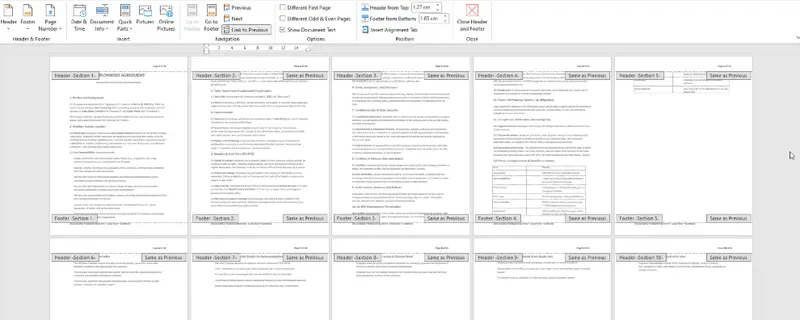
Figure 4: First look at the DOCX file reconstructed by Apryse. The page layout looks excellent and there are headers and footers.
Nutrient
The conversion was done using the GDPictureDocumentConverter class and based on the documentation that you can find here.
The resulting DOCX file looks good, but there are no headers and footers. There is text where the headers and footers were in the PDF, but that has been interpreted as body text not part of a header or footer. We'll see what that matters shortly.

Figure 5: The DOCX file created by Nutrient contains text rather than real headers or footers, and the text gradually slides down the page, resulting in a 12-page document.
comPDF
Conversion was easy and done using their Web interface at https://www.compdf.com/pdf-tools/pdf-to-word.
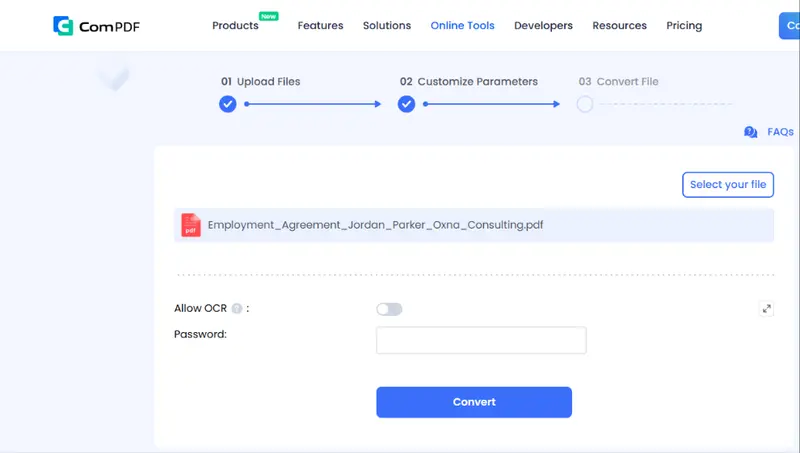
Figure 6: The UI for uploading a PDF and getting the DOCX file is intuitive.
The first look at the DOCX file in November 2026 suggests a huge improvement over the result from March 2026 when something is not right. Back then, not only were there no headers and footers, but the number of pages was wrong as the PDF has 11 pages, but the DOCX file has only 6.
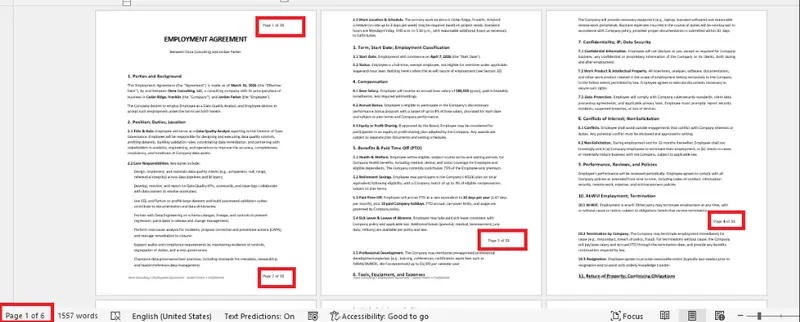
Figure 7: The DOCX file created by comPDF in March 2026 had the wrong number of pages. There was a header, but it was empty, and a footer which contained the footer text. The page number text which should be in the header was all over the place, and the page count was wrong.
In November 2026, the output is considerably improved, with headers and footers correctly detected.
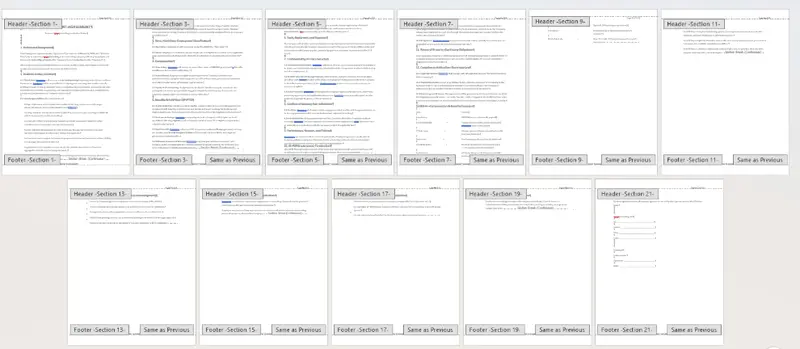
Figure 8: The DOCX file created by comPDF in November 2026. The page number is now correct, and headers and footers are detected.
Foxit
The conversion was done using the Web Interface at https://www.foxit.com/pdf-to-word/.
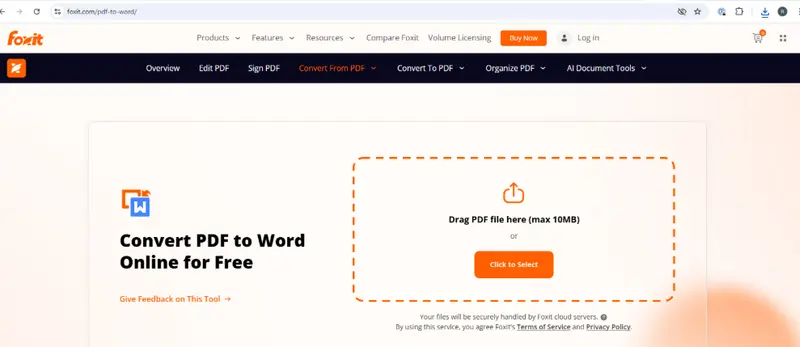
Figure 9: The UI for converting the PDF to DOCX.
While there is a header and footer on every page, each page is in its own section. We will see why that matters shortly.
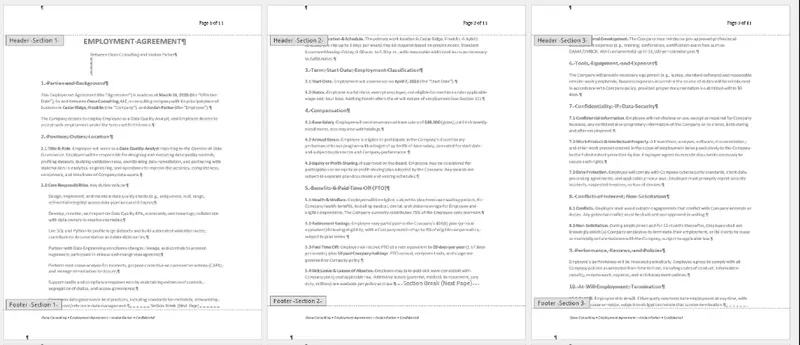
Figure 10: Initial view of the DOCX file created by Foxit in November 2026. There is a different header and footer for every page.
This is a change in behavior since March 2026 when the generated DOCX file had a header that contained the page number information, but the footer was empty, and the footer text has been interpreted as part of the page text.
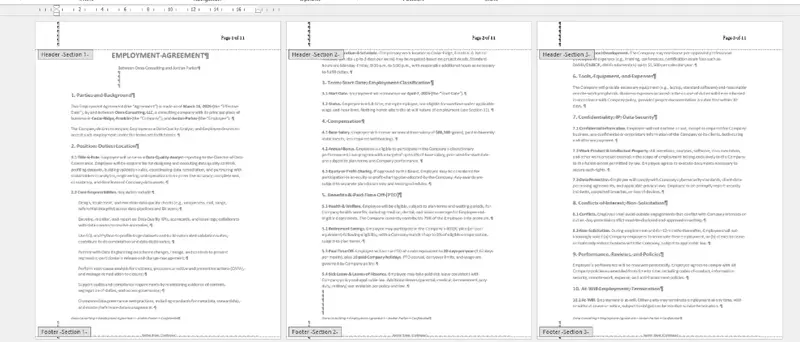
Figure 11: Initial view of the DOCX file created by Foxit in March 2026. The header is present, but the footer text is considered to just be part of the body text.
We now have four documents, one created by each technology. Let’s see how they handle the challenges of being updated.
Challenge 1: Changing the Start Date
In each case, for all four of the conversion tools, it is easy to change the start date. Originally that had been set as April 7, but we were able to update that to be March 28.
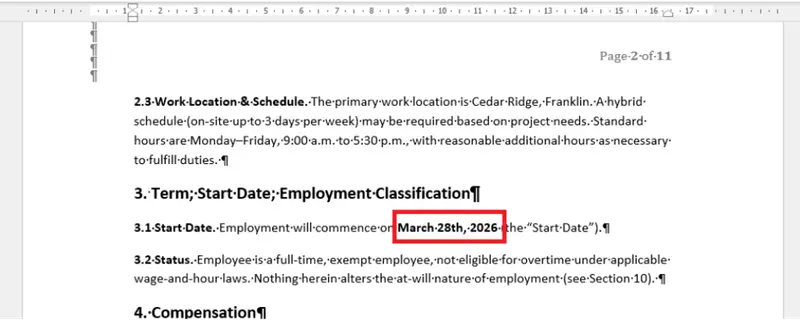
Figure 12: The DOCX file created by Foxit (shown here), and those from the other three vendors all made it easy to update the start date.
Challenge 2: Updating the Employee Name
Now let’s update the employee’s name. We could find it manually and replace it, but since we are using Word, we can use the built-in "search and replace" functionality to update the employee’s name.
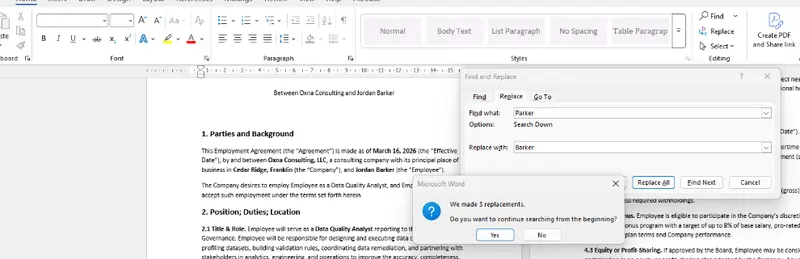
Figure 13: Word makes it a cinch to update the employee name.
Documents Created by Apryse and comPDF
Using Search and Replace works beautifully.
If we had wanted to just update the footers, then Apryse and comPDF make that easy. There is just one footer, which is repeated on the other pages, so we just need to fix one, and the change will propagate to all of the other footers.

Figure 14: Even though the footer on page 1 was edited the change has propagated to all of the other footers in the document created by Apryse.
Document Created by Foxit
Although there is a real footer present, since each page is considered to have an independent footer, changing the text on one does not solve the problem elsewhere.

Figure 15: Since Foxit creates a different footer on each page, changing one does not result in all the others being updated automatically.
Document Created by Nutrient
Nutrient did not produce a DOCX file with real footers, so text that should have been in the footer was actually body text and could be updated using Word’s “Search and Replace” functionality.
Is that a good thing? That depends entirely on whether you think footers add value, and many people do.
Worse, however, with Nutrient, the "footer text" overflows onto the following page, and first becomes a header, then gradually moves further down the page.
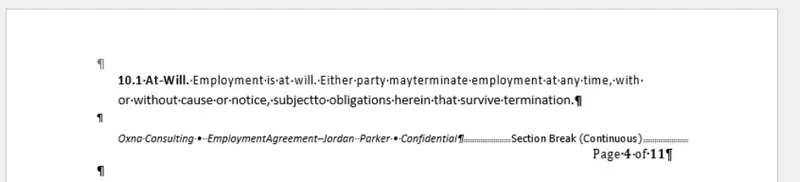
Figure 16: The footer text is shown at the top of the page in the document created by Nutrient.
Challenge 3: Removing a Clause
Section 10 of the contract has an “At Will” clause.
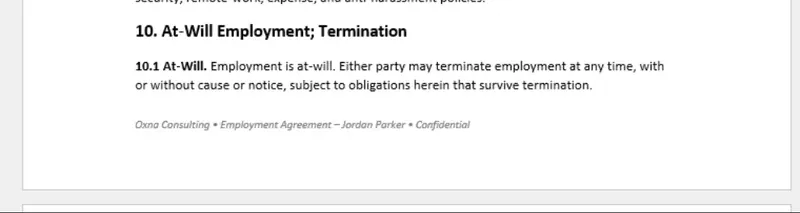
Figure 17: The At will clause in the original PDF contract.
Let’s remove that.
Documents Created by Apryse and comPDF
For the Apryse and comPDF-generated file, that is a cinch. We can just highlight the section within Office and delete it. We do need to delete a page break as well, but then the following clause appears, and has automatically been renumbered as 10.1.
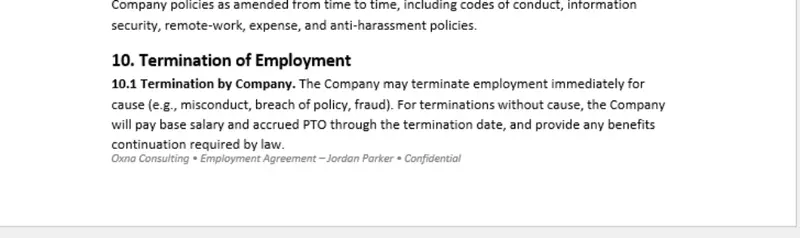
Figure 18: With Apryse, the text in list items correctly moves up the page and renumbers, exactly as you would expect.
What’s more. the footer has stayed at the bottom of the page, exactly as it should.
Document Created by Nutrient
The document created by Nutrient was harder to work with.
Deleting section 10.1 resulted in the (apparent) footer moving up, along with the page number from the following page. That’s a reflection of headers and footers not being properly detected.
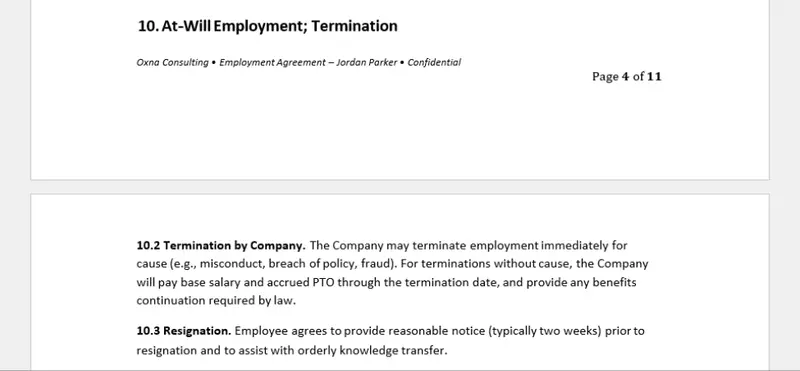
Figure 19: If we delete clause 10.1 then the following section does not renumber.
Furthermore, the following subsections didn’t renumber. Now there is section 10.2, but no 10.1. That’s because unlike Apryse, Nutrient has failed to recognize those subsections as being part of a numbered list.
It is, of course, possible, to fix that manually, but it is quite complex: delete the footer and page number, renumber the following sections, then paste the footer back in where it should be.
Document Created by Foxit
The DOCX file created by Foxit also fares badly. The following subsections don’t renumber, but the text does move up, even if that means that it is split over a page break, and the footer behaves as expected.
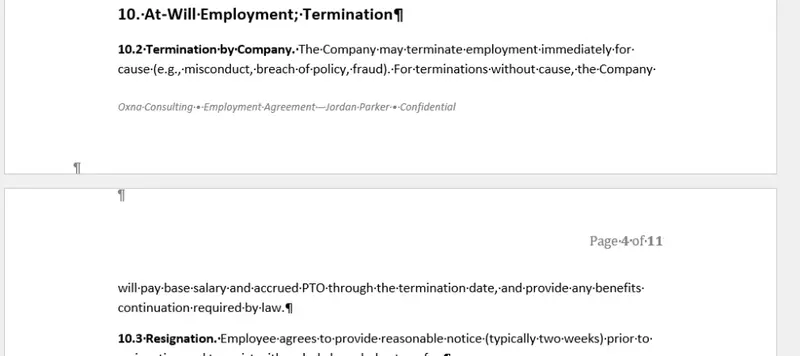
Figure 20: Deleting a section from the DOCX file created by Foxit does not result in the following sections getting renumbered.
Challenge 4: Adding a New Section
Let’s add a new section between the Return of Property and Compliance clauses.

Figure 21: Part of the original PDF. We will insert a new clause between these sections.
We will add the text “Safety equipment” and “During any site visits the employee will wear a hard hat.”
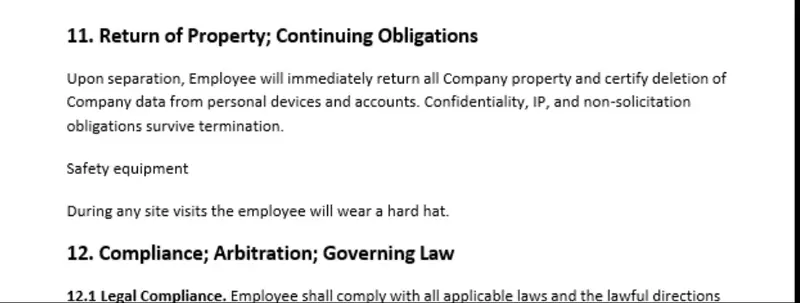
Figure 22: New text added to the document. In a moment we will format it.
That is easy in all documents we created.
The real challenge is to set the formatting so that it looks like the surrounding sections.
Word’s Format Painter should make that easy. Just select text with the format that we want and paste that format onto our new text. Office is great at that, and having that kind of functionality is the entire point of converting the PDF to DOCX to make editing easy.
Document Created by Apryse
The DOCX file created by Apryse is easy to set the style for. Apryse detected that both the section and subsections were numbered lists, so when the styles are copied onto our new text, they get automatically numbered.
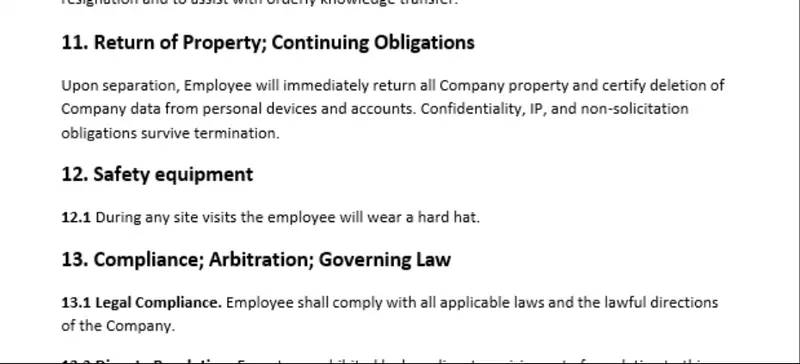
Figure 23: When we copy the formatting, the section numbers automatically adjust in the DOCX file created by Apryse.
The following sections also renumber. Great result!
Document Created by comPDF
The document created by comPDF allowed us to set the style for both the section and subsection in the same way as was possible with the document that Apryse had generated.
However, when copying the subsection number, it was correctly updated to 12.1, but the existing subsections in Section 13, incorrectly updated to 12.2, 12.3, and so on.
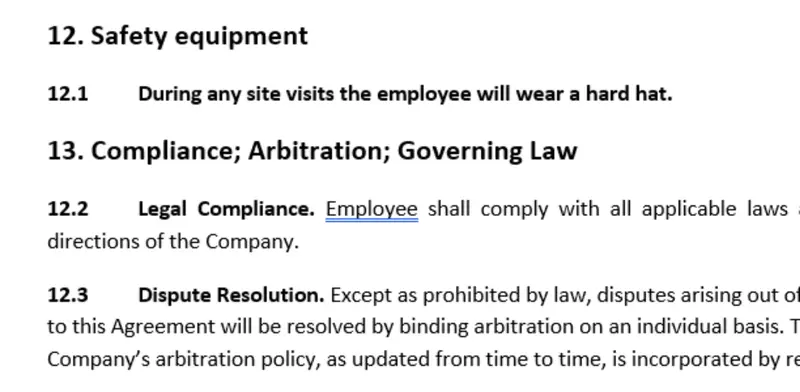
Figure 24: comPDF created a DOC file that behaved strangely if a new subsection was added.
Document Created by Nutrient
The document created by Nutrient failed to detect that the sections were part of a numbered list, so copying the style just results in the font size and boldness being set.
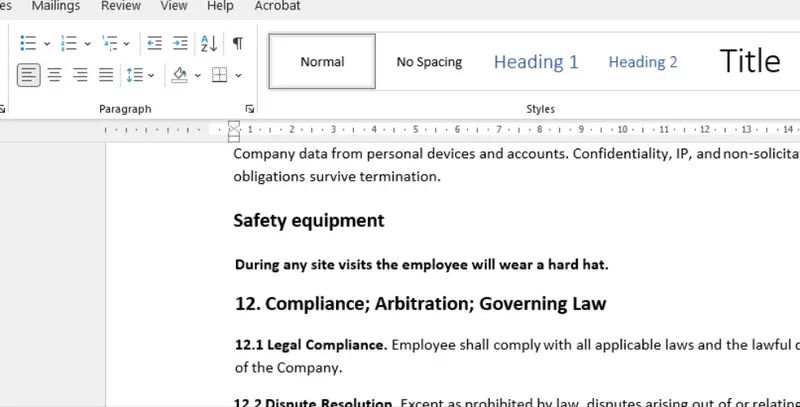
Figure 25: Nutrient did not detect that the sections were part of a numbered list.
If you want the numbering to be correct, then you will need to edit the numbers manually.
Document Created by Foxit
Foxit detected that the sections were part of a numbered list, but not the subsections. That means that some of the numbers update automatically, whereas others don’t.
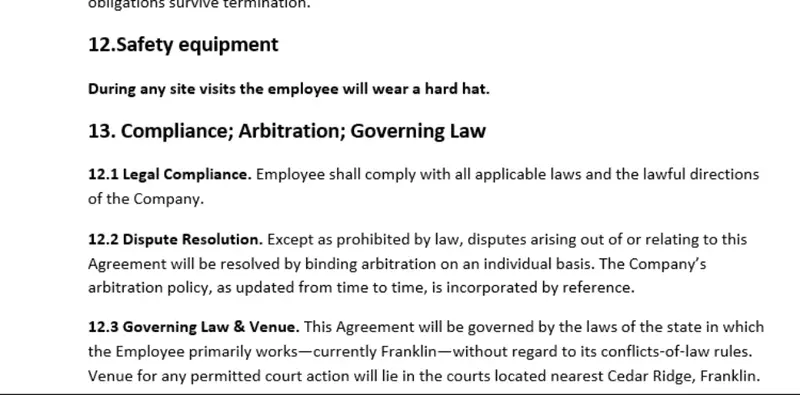
Figure 26: Foxit detected that the sections were part of a numbered list and automatically updated the numbers when you added a new section. Unfortunately, it didn't do so for the subsections.
It’s probably easier to make these edits than in the files created by comPDF and Nutrient, but it would be easy to miss one of those items.
Challenge 5: Adding a New “Exhibit”
Next, let’s add a new page relating to “Working from Home.”
We’ll put that between the existing Exhibits C and D.
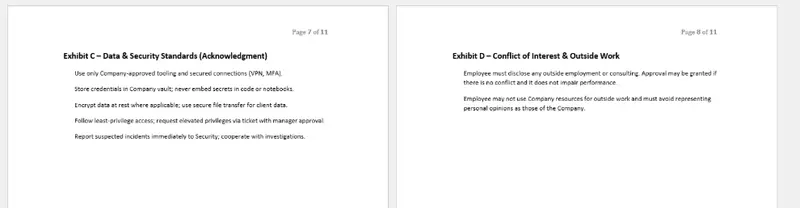
Figure 27: Part of the original PDF. We will insert a new page and exhibit here.
It doesn’t really matter what the text says for this example, but we do want it on a separate page from the other exhibits to match the style of the document.
Document Created by Apryse
The DOCX created by Apryse made it easy to add a new page and insert the new Exhibit text.
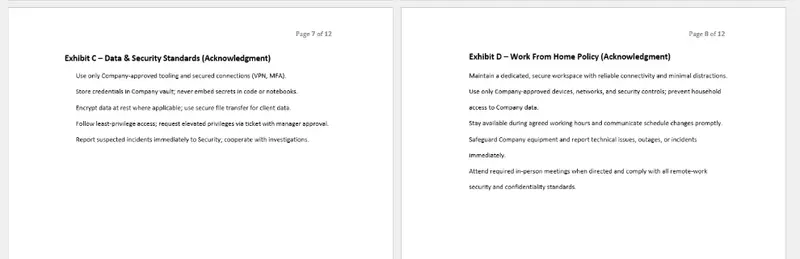
Figure 28: With Apryse, the new section just blends in with the rest of the document. A great result.
The page number at the top of the page updated, along with the page count, and the footer was included on the new page.
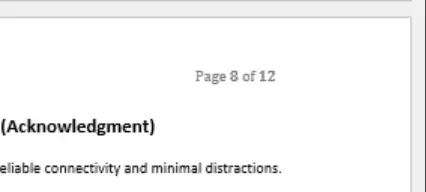
Figure 29: When we added a new page, the total page count increased. The document created by Apryse correctly shows this.
Finally, we come to something that the Apryse SDK didn’t do perfectly. The letters associated with the various “Exhibits” didn’t increase automatically (plot-spoiler: it doesn’t for any of the documents created by the other tools either).
Fixing those up, however, will only take a minute or so.
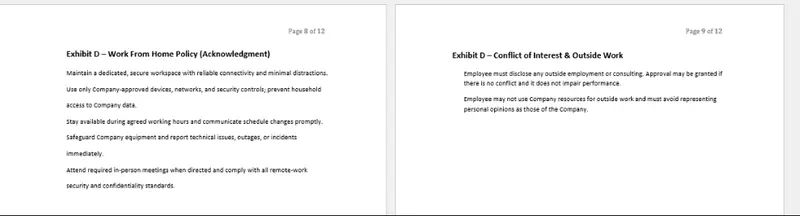
Figure 30: The Exhibit numbering doesn't update with Apryse (or any of the other tools).
Documents Created by Nutrient and Foxit
When we created a new page in the document created by Apryse, the header and footer were automatically copied in. But since Nutrient failed to detect them, the new page in those documents was just an entirely blank page.
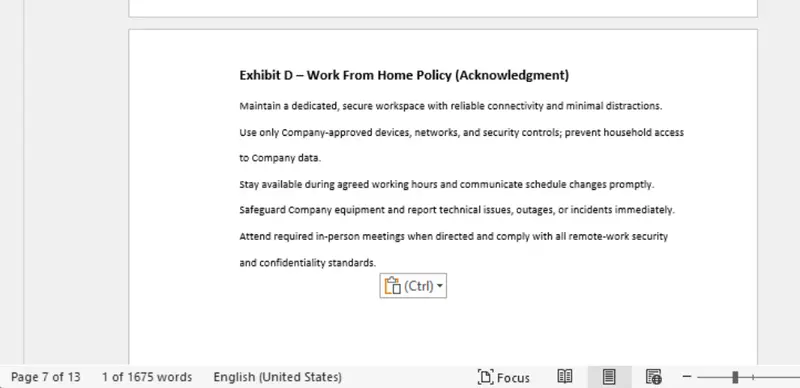
Figure 31: The new page in the DOCX file created by Nutrient doesn't show the Page number information.
What’s worse, if we scroll to the next page then there is a page number, but because it was recovered as text, rather than as a page number, it still says page 8 of 11, despite being page 9 of 13.
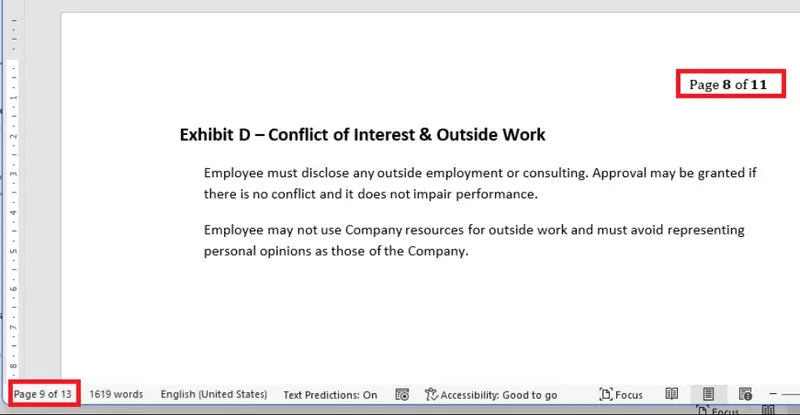
Figure 32: The file created by Nutrient doesn't update the page numbers since they are just static text.
You can edit that, of course. The obvious way to do so, if you are experienced with Office, is to add a header containing a real page number, and that is what Apryse did automatically.
Document Created by comPDF
The November version of the comPDF converter created a document where it was possible to add a new page. The "page information" was copied into the new page as it was stored in the header, BUT the page count was static text and therefore did not update to reflect the new number of pages.
Challenge 6: Insert a Column Into the Table
The original PDF has a table of Compensation and Benefits.
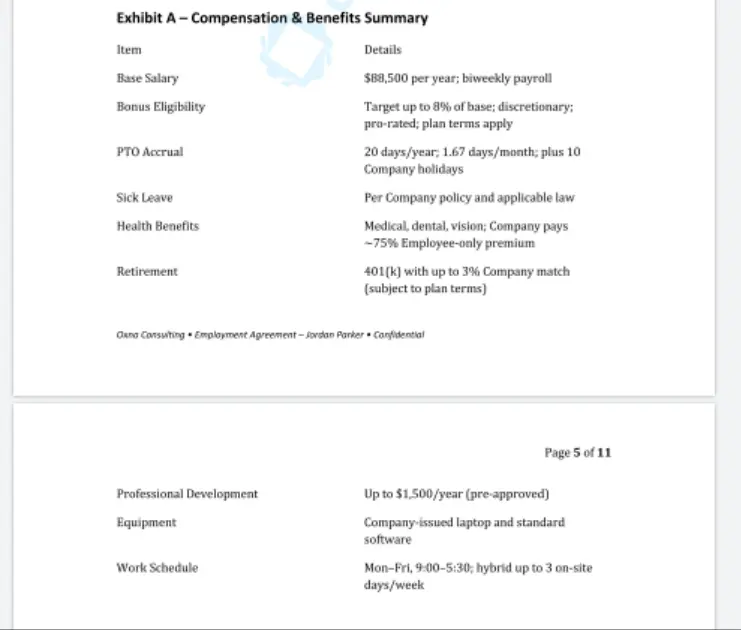
Figure 33: The table in the original PDF.
As a challenge, we will add an extra column into the middle of this table which shows when the benefit is available from.
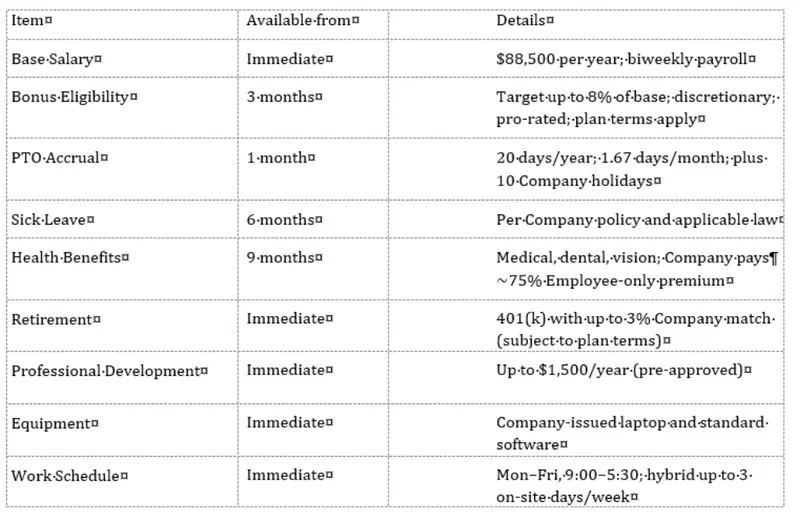
Figure 34: We want to update the Benefits table to have an extra column.
Document Created by Apryse
The Apryse SDK supports table extraction, so the Word document that was created contains an actual table.
Admittedly, the table is broken into two, because it crosses a page boundary, but that is easy to resolve if you need to since Word lets you stitch them back together using its Merge Table functionality.
Since there is a real table, we can just use Word functionality for adding the new column and entering the appropriate text.
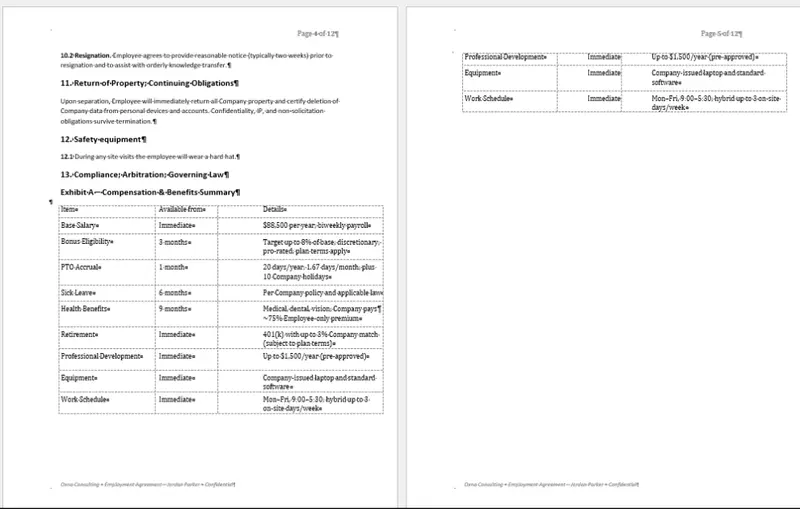
Figure 35: Apryse created a DOCX file that makes it easy to work with the table.
In just a few minutes, you will have the table updated as you want.
Document Created by Nutrient
Nutrient extracts that table as a multicolumn layout. It may look the same, but it is much harder to edit.
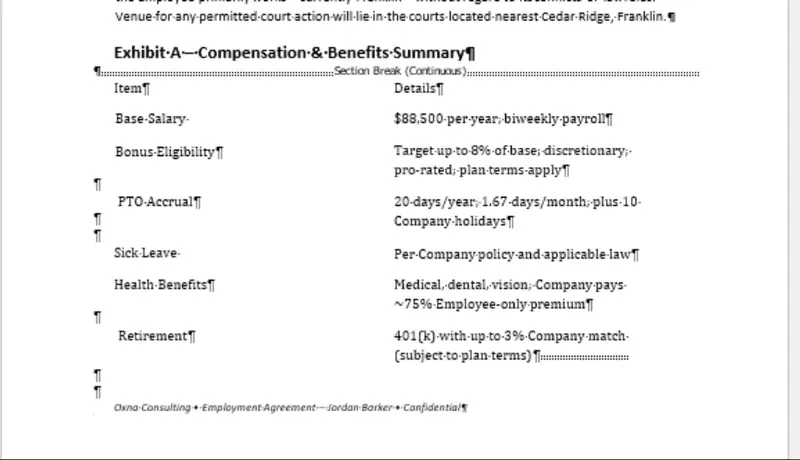
Figure 36: Nutrient failed to detect the table as a table.
You could try selecting the text and converting it to a table, but you soon realize that the data is a mess.
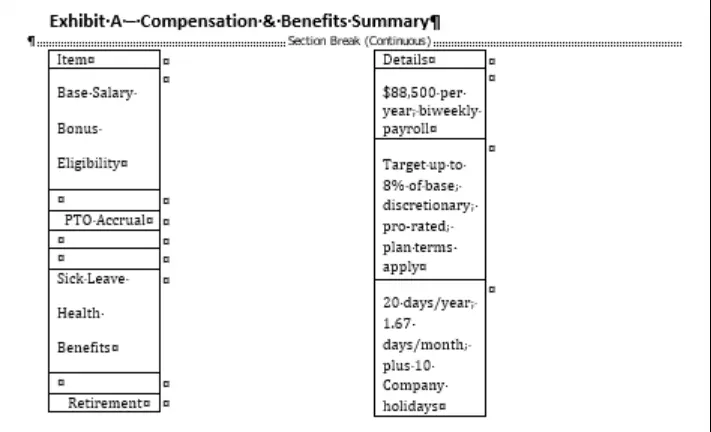
Figure 37: Trying to recreate a table from the text that Nutrient extracted is going to be tedious.
You will almost certainly end up having to recreate the table from scratch, copying in the text, and trying not to make mistakes.
Document Created by Foxit
Foxit converted the table in the PDF into a multi-column layout, in a similar way to Nutrient. Once again, it looks good but is essentially uneditable.
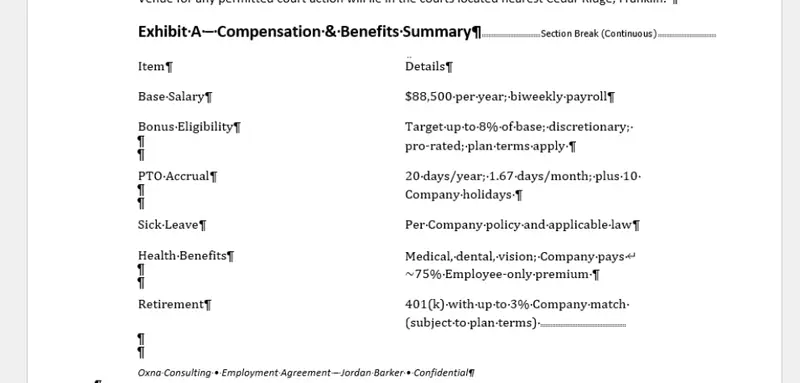
Figure 38: Foxit did not do a good job of extracting the table.
Just as with Nutrient you are going to have to recreate the table from scratch.
Document Created by comPDF
ComPDF recreated the table as tab separated text.
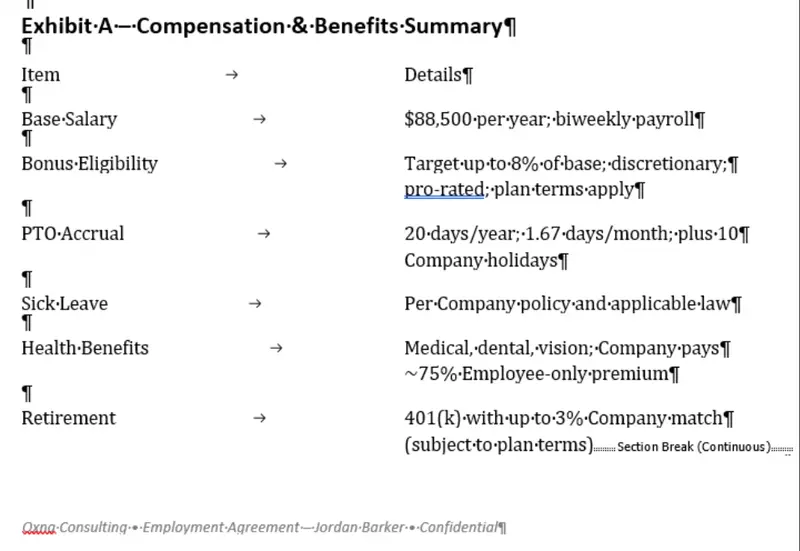
Figure 39: comPDF used tabs to create the table appearance.
By adjusting tab locations, and entering the new data as text, it would be possible to update the table. This would, however, be much more complicated than using Apryse.
Conclusion
Lots of vendors claim to have tools that can convert a PDF to DOCX. We tested four, and while they all created a DOCX file, the ability to edit the file varied enormously.
All these tools create a document which can be used as a starting point, and offer considerable time savings compared with creating the entire document from scratch.
Apryse created a file that was easy to edit, to add or remove sections, or edit text, or add columns to tables. It wasn’t perfect, but any fixups would take just a few minutes.
The other tools, Nutrient, Foxit, and comPDF, created DOCX files that did not contain real tables, and had only partial header and footer support. As a result, the amount of time taken to create the final professional document would be substantially longer than was the case for Apryse.
Wrapping Up
For the document and editing tasks used in this test, Apryse produced the most editable DOCX by a substantial margin, with header and footer, table, and numbered list detection.
The sample PDF used is simple (but typical). There are no odd fonts. It wasn’t scanned and the document was “tagged” so there was semantic information about the document structure available. There was nothing very 'difficult' about it.
And yet, some of the tested tools did not do well even when it was as easy as it could be.
This article was written based on a single sample PDF. It’s possible that results might differ with other PDFs, for example tables might be detected if they are surrounded by a grid.
It’s also possible that there are options that may be available that allow the various libraries to give better results.
What is clear from the research for this article is that Apryse didn’t need the user to do anything other than use default settings. It really couldn’t be simpler.
Apryse offers not just a great PDF to Word conversion, the Apryse family also includes a DOCX editor making editing functionality available directly within the browser so you can convert the file then open it without leaving the Apryse ecosystem.
This article was about editing a PDF based contract. Once you have made all of the necessary changes, Apryse also offers a mechanism to convert the DOCX file back to PDF and then digitally sign the PDF, offering “enterprise grade” solutions.
When you are ready to get started, see the documentation for the SDK. You can also reach out to us on Support channel if you have any questions.
If you have any questions about this article, then contact us at blog-feedback@apryse.com