Garry Klooesterman
Senior Technical Content Creator
Published April 02, 2026
Updated May 18, 2026

5 min


How to Generate PDFs in Blazor: Server-Side, WASM, and Template-Based Approaches
Garry Klooesterman
Senior Technical Content Creator
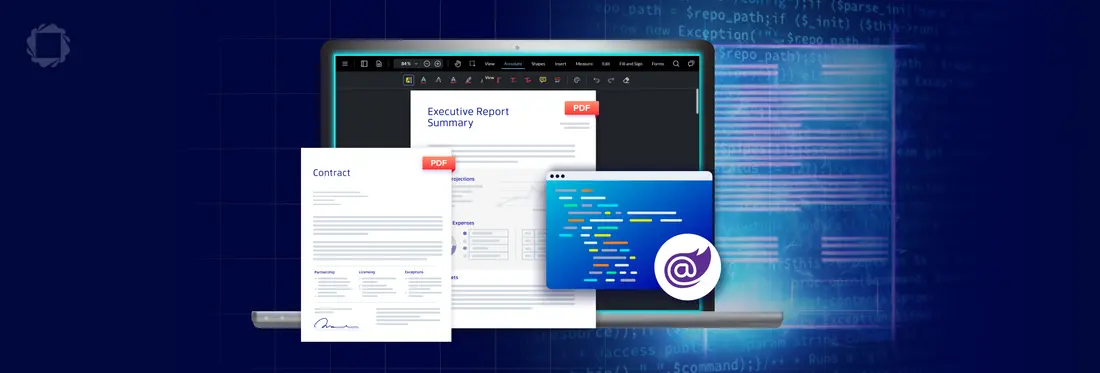
Summary: In this blog, we’ll look at the three main paths for generating PDFs using Blazor and the Apryse SDK: Server-side processing with the .NET SDK (best for power), Client-side WASM with WebViewer (best for privacy and cost), and the DocGen template approach that saves you from writing endless layout code. We’ll also look at an example of how to do this with Blazor Server and the Apryse Server SDK.
Introduction
If you’ve spent any time in Blazor, you know that the where matters just as much as the what. Because Blazor can live on a server, in a browser (WASM), or in a hybrid MAUI container, generating a PDF isn't a one-size-fits-all task.
The biggest hurdle for most of us is figuring out if we should do the heavy lifting on the backend or try to keep everything in the client’s browser to save on server costs.
In this blog, we’ll look at the different approaches and run through an example using Blazor Server and the Apryse Server SDK.
The Server-Side Approach (Blazor Server)
If you’re running Blazor Server (or the newer Interactive Server mode in .NET 8/9/10), you have direct access to your databases and the full .NET ecosystem.
For this, the Apryse .NET SDK is the standard tool. You initialize it once in your Program.cs file and then call it from your services. A common use case is taking an Office doc and flipping it to a PDF:
The Template Path (DocGen)
Drawing your PDFs with coordinates is a nightmare to maintain. Instead, use a Word document (.docx) as your template. You put tags like {{InvoiceNumber}} or {{Total}} in the document, and the SDK merges a JSON object directly into it.
It’s way more human-friendly. If your branding team wants to change a font or a logo, they just edit the Word file without you having to redeploy your C# code.
The Client-Side Path (Blazor WASM)
If you’re on WebAssembly, you don't have a backend to talk to. In the past, this meant you were stuck, but now you can run the entire Apryse engine in the browser using WASM.
Because this is a JavaScript-heavy operation, you’ll use JS Interop to bridge the gap between your C# logic and the WebViewer UI. It keeps the data on the user's machine, which is a huge win for privacy-sensitive apps.
The Download Problem
One thing that catches everyone off guard in Blazor is that you can’t just send a file to the user from a C# method. You have to hand the byte array back to the browser and let JavaScript handle the actual download.
Quick Summary
The best way to handle PDFs in Blazor depends entirely on your hosting model. If you have the server resources, the .NET SDK is incredibly fast and reliable. If you're building a massive consumer-facing app and want to save on cloud costs, offloading that work to WebViewer via WASM is a smart move. Either way, try to stick to a template-based workflow, and your future self will thank you when the layout needs to change.
How to Generate PDFs in Blazor Server
Now we’ll run through an example for generating PDFs in Blazor Server using the Apryse Server SDK. I’ll be using C# for the example, but the code is available in other languages as well, including C++, JavaScript, Python, and more. Let’s get started.
First, we need to get started with the Apryse Server SDK:
- Install Visual Studio 2022 to write, build, test, and deploy your application.
- Install .NET 10 SDK (or .NET 8 or 9) to build your application.
- Install the PDFTron.NET.x64 NuGet package into your project.
- Get your Apryse trial key.
Here’s a quick video on getting started if you prefer a visual walkthrough.
Now that we’re set up, let’s look at how to generate PDFs in Blazor Server.
Generating a PDF
This service uses the Apryse Server SDK for .NET to create a document in memory. Add this code to the PdfService.cs file.
Note: Don’t forget to set replace YOUR_APRYSE_LICENSE_KEY with your trial key.
Saving the File
Add this to the Pages/_Host.cshtml file inside a <script> tag. Blazor cannot push files to a hard drive without a bridge.
Note: If you don't have a _Host.cshtml file, place this script tag inside the <head> or <body> of your App.razor file instead.
Registering the Service
Add this line to the Program.cs file, so Blazor knows how to provide the PdfService to the components.
builder.Services.AddScoped<PdfService>();The Blazor Server Component
In your .razor page, use the following code to trigger the service and use the JS Interhop helper to prompt the user to download the file.
Having run the code, we should have created a new PDF file from scratch and prompted the user to download the file. The PDF will contain the text “Hello from Blazor Server!”
FAQ
Is Blazor Server slower for PDFs?
The generation itself is fast but remember that every byte of that PDF has to travel over a SignalR connection if you aren't careful. For huge files, a separate Web API is often a better architecture.
Can I do HTML-to-PDF in Blazor?
Yes. The .NET SDK has a dedicated HTML2PDF module. It’s perfect for taking a dynamic dashboard view and turning it into a static report.
What about Interactive Auto Render mode?
Your code might start on the server and move to the client. The best practice here is to put your PDF logic behind an interface, so your UI doesn't care if it's calling a local WASM engine or a remote Server API.
Do I need a license for the trial?
The trial is fully functional, but you'll need to initialize the SDK with a key. You can grab one from the Apryse portal to get started.
Conclusion
Choosing the right PDF strategy for your Blazor application ultimately comes down to balancing server resources with the user experience.
Whether you opt for the raw power of the Server-Side .NET SDK, the cost-efficiency and privacy of Client-Side WASM, or the maintenance-friendly DocGen template approach, Apryse provides a unified engine that handles the heavy lifting.
By leveraging the examples we’ve walked through, you can focus on building features that matter to your users.
Contact us for any questions and support.
Suggested Reads