Roger Dunham
Published October 20, 2026
Updated October 20, 2026

9 min


Why Use Five Libraries When One Will Do?
Roger Dunham
See how to swap PDF.js for Apryse WebViewer in a real Angular app and get persistent page rotation, deletion, reordering, and insertion without a backend library. You’ll follow a step-by-step walkthrough of customizing the modular UI into a thumbnails-only page editor, then see how the new flow compares to the existing one and what else could be replaced.
Introduction
It’s a common problem. When you started to develop your app, you used open-source libraries. Increasingly, you now have to spend time updating and resolving conflicts between them.
Wouldn’t it be great if you could use a third-party tool now that you have a budget? That way you can let their developers deal with security issues, etc.
In this article, we will look at what’s involved in replacing PDF.js with Apryse Web SDK (WebViewer) in Paperless-ngx which is a real (and excellent) open source tool.
What is Paperless-ngx?
Paperless-ngx is (to use its own words) “a community-supported open-source document management system that transforms your physical documents into a searchable online archive so you can keep, well, less paper”.
What’s more, it is very popular: to date there have been more than 100 million downloads of its docker container. The source code is also available, and the UI is written in Angular.
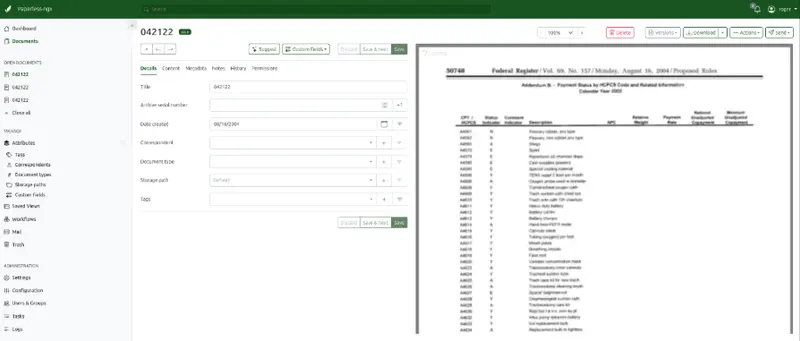
Figure 1: A screenshot of Paperless-ngx, showing the general UI, and a single page from a PDF.
Even if you are not familiar with Paperless-ngx, it is likely a useful analogy for the bespoke application you have spent years developing.
What is WebViewer?
Apryse WebViewer is a client-side JavaScript document SDK that lets developers embed high-fidelity viewing, annotation, editing, redaction, and document-processing capabilities for PDFs, Office documents, CAD files, and images directly in a web application, without requiring browser plugins or a server dependency.
A Note About Versions
This article was written using Paperless-ngx v3.0.5 running on an Ubuntu 24 machine. (Paperless requires Linux, for the backend, although it can run in a docker container on Windows).
The front-end code was tested with Node 24 and uses pdfjs-dist 6.0.22.
Apryse WebViewer v12.0.1 was used as an alternative viewer.
How Paperless-ngx Works with PDFs
The front-end of Paperless allows you to view and manipulate pages within PDFs. That’s done using the open-source PDF.js.
PDF.js powers Firefox's built-in PDF viewer and is used by major platforms such as Slack, Nextcloud, and LinkedIn Learning, making it one of the most widely deployed PDF viewing technologies on the web. For viewing documents, it is great, but it has limitations.
One limitation is the ability to rotate pages within a PDF. While PDF.js can visually alter page rotation, those changes are not persisted. That’s a real problem if the original document was scanned, and the resulting PDF is upside down, or if there are landscape tables rotated to fit into a portrait document. PDF.js, on its own, therefore requires you to rotate those pages every time you open the document.
The clever team at Paperless-ngx resolved this by creating a modal dialog that contains multiple PDF.js instances, one for each page of the PDF with associated external buttons to rotate or delete a specific page.
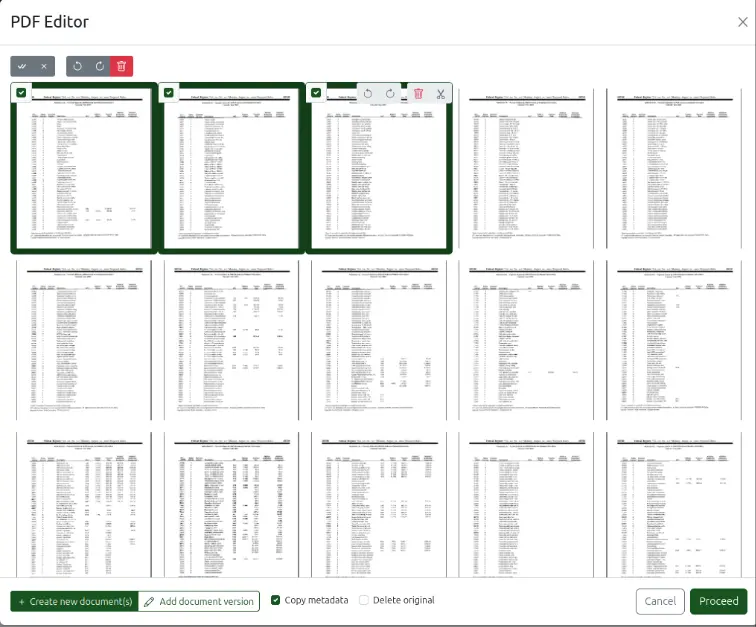
Figure 2: Paperless-ngx uses multiple instances of PDF.js, one for each page in the PDF so that you can rotate, delete or insert new pages between existing ones.
That’s an imaginative solution and must have taken many hours to develop and maintain. Ultimately, when you save the document, the UI sends a list of rotations, insertions and deletions, and this is persisted by creating a new file using a second open-source library, pikepdf, which itself wraps a third one, qpdf.
You could rebuild exactly that workflow with Apryse WebViewer.
But you probably shouldn’t. At the end of the day, what you want is a way to add, remove or rotate pages in the PDF, and WebViewer has all that functionality available right now. That means that we can create something much better than PDF.js offers.
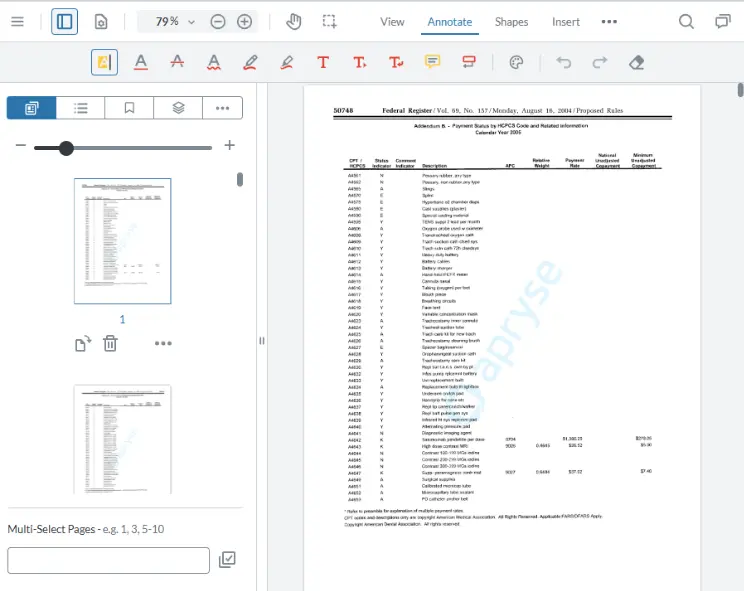
Figure 3: WebViewer does much more than just displaying the PDF. It also lets you interact with the thumbnails for the pages.
Straight out of the box, the UI looks quite different from the one used by Paperless-ngx. We will see how we can easily customize it using its modular UI and just show thumbnails. That’s great because the thumbnails pane allows us to rotate the pages, or change the order of them, or even insert, replace, extract, or delete pages, which is what we need. We also get the benefit of being able to zoom into a specific page and see what it contains.
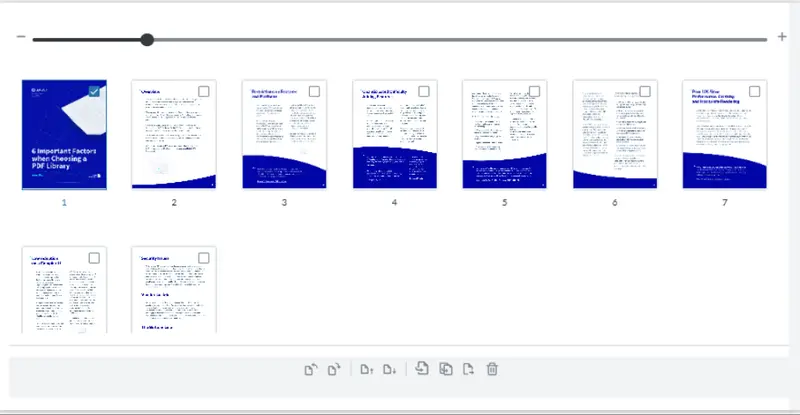
Figure 4: This is still Apryse WebViewer, but we have modified the UI to just see the thumbnails, and we could zoom in if we required.
It’s not an exact replacement of the original UI (we could make further changes and get rid of the zoom slider, or move the buttons for manipulating outside of the WebViewer component) but for now, this is what we are aiming for.
Let’s see how we can update WebViewer to look like that.
Customizing WebViewer to Replace PDF.js
Step 0: Get Started with WebViewer
It’s easy to get started with WebViewer whether you are using Angular, React, vanilla JavaScript or something else. The essential parts are:
- Create a div where WebViewer will be mounted
- Initialize WebViewer, specifying the path to the static assets that include the Apryse Web SDK, a license key and a reference to the div where it should be mounted.
Typical code (in this case React) is:
I won’t go into details here, but you may want to check out this Getting started with WebViewer video. I recommend that you set up a working sample before you try to follow these instructions.
Step 1: Using the Modular UI
The Modular UI can be modified one element at a time, or by using a config file. One of the easiest ways to try things out is with the Apryse Showcase. You can download an existing configuration then edit it and reimport it. If you make any errors, then you can see those in the browser’s console window, and it will guide you to a solution.
For now, we just want a very simple UI, so we will remove virtually everything and just leave a minimal configuration.
We can then import that into WebViewer.
If we run just that code, then the UI no longer has any headers, which is a good start.

Figure 5: We updated the Modular UI to remove all of the modular headers. But even though it is there, we can't open the thumbnail panel.
Having removed the headers, we have created a problem. There is no longer a button to make the thumbnail panel visible. Let’s fix that.
Step 2: Making the Thumbnail Panel Visible
WebViewer allows us to programmatically make specific parts of the UI visible.
In this case we want to make our custom Panel visible, and we can do that using openElements.
UI.openElements(['customLeftPanel']);Now we get the custom panel, which contains just the Thumbnail panel.

Figure 6: We can programmatically show the panel containing the thumbnails.
Step 3: Making the Thumbnail Panel Fill the Workspace
We are making progress, but we really only want to see the thumbnail panel as the main PDF viewer isn’t needed.
We can’t easily hide the main PDF viewer, but we can hide it by specifying the width of the Thumbnails panel. In this case, we will set it to 1100, which works in this instance since the app is that size. If you adjust the app width, then you will also need to adjust the panel width.
instance.UI.setPanelWidth('customLeftPanel', 1100);Now the panel fills the entire width of the UI, and the “main window” is hidden.
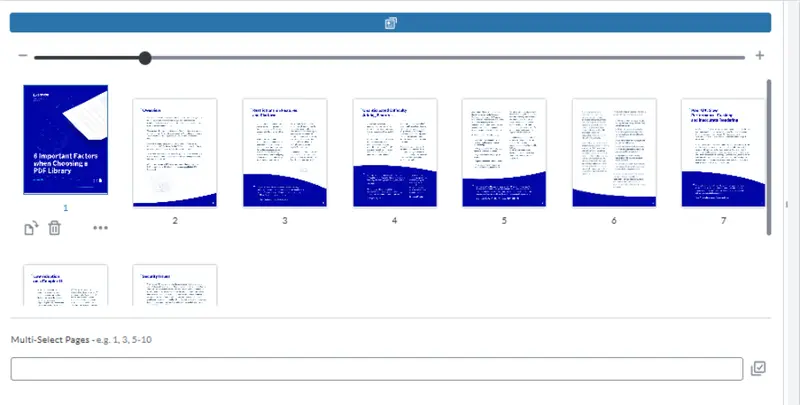
Figure 7: We can programmatically set the width of the panel that shows the thumbnails. In this case, it fills the entire width of the UI.
Step 4: Use CSS to Hide Any Elements That We Don’t Want
If you are using WebViewer as a WebComponent then it has its own shadow DOM. That can make it a little obscure regarding how to style it using CSS.
To do so, you just need to link to the CSS file from the css property in the WebViewer construction options.
For now, we will hide the blue bar at the top of the page (which is the button that would allow us to select the thumbnails tab if there were multiple tabs in the panel). We will also hide the control (and the associated label “Multi-select pages”) that allow us to select pages to be edited via the keyboard (in reality you may wish to leave this as it helps to make the UI accessible).
That gives a great result.
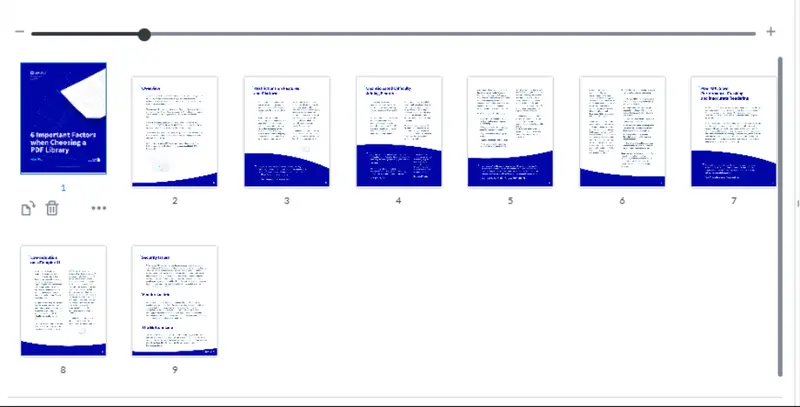
Figure 8: We have used CSS to hide unnecessary controls.
We have a UI that allows us to rotate, delete (or do some other things to) a single page at a time, or if you hold down the Shift key, then you can choose multiple pages to manipulate together.
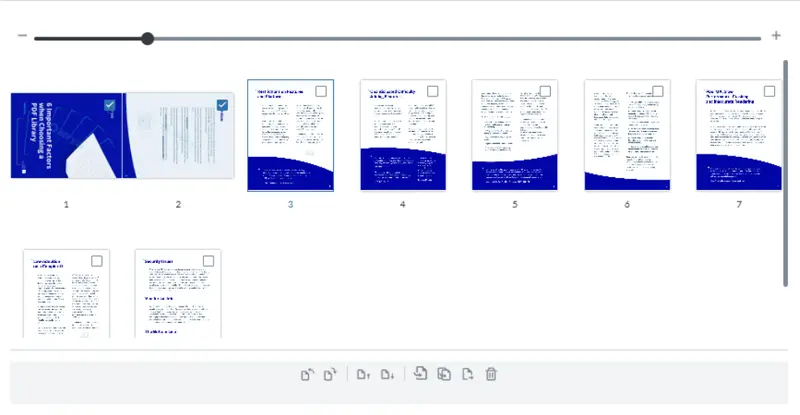
Figure 9: If you hold down Shift then you can choose multiple pages to manipulate at the same time. When multiple documents are selected, a different tool bar appears, compared to the one that is visible for a single page.
Step 5: Make the Pages Always Multi-select
Already the user can select multiple pages using Shift, but that is not necessarily intuitive.
Let’s make that more obvious by having it always enabled. We can do that using instance.UI.ThumbnailsPanel.enableMultiSelect();
So far, our code looks something like this.
The obvious place to put the new code is immediately after UI.setPanelWidth.
But there is an issue with that. The thumbnails can only be made multi-selectable when a document has been loaded. We therefore should only call it after the documentLoaded event fires.
Now when we run the code, the thumbnails all show, and it’s clear that multiple pages can be selected.
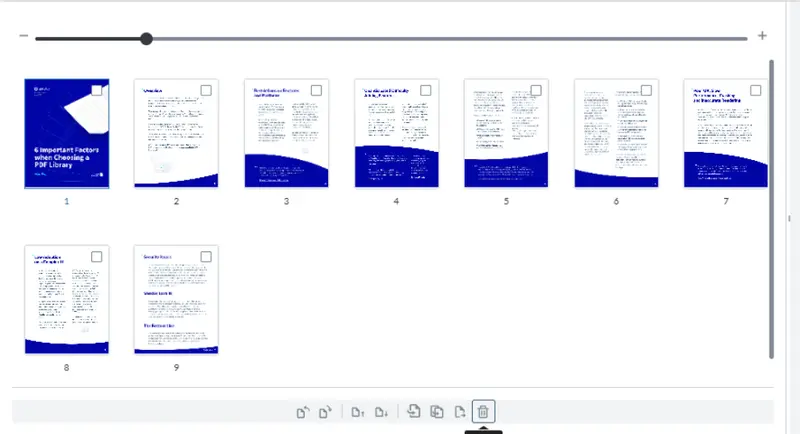
Figure 10: With multiSelect enabled, when the PDF loads, the user can see that they can select one or many pages, and the tools are always visible. The only issue is that the tooltips are hidden.
The only remaining problem is that the tool tips for the page controls are hidden.
Step 6: Making the Tooltips Visible
The final step (for now) is to add some padding at the bottom of the tool bar (by extending our CSS file) so that the tooltips aren’t obscured when they appear.
.PageControlContainer {
    padding-bottom: 25px;
} 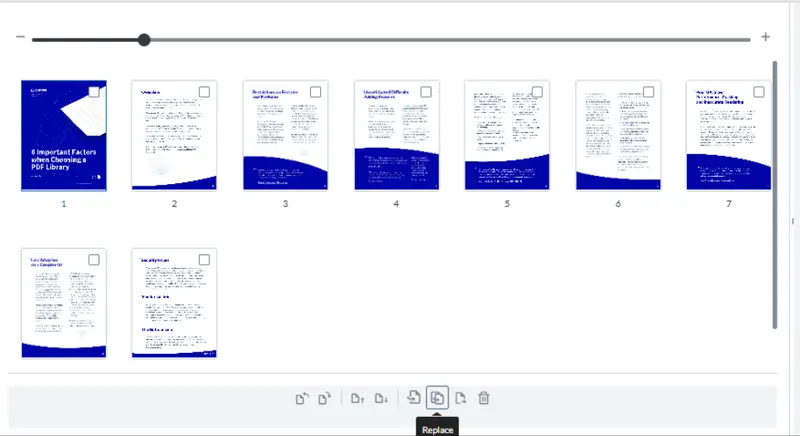
Figure 11: The final result. You can perform a range of functionality on pages in the PDF.
What Next?
We now have a component that is visually similar to the one used in Paperless-ngx.
It’s not a simple drop-in though. Our component modifies the PDF directly, rather than having to pass a set of instructions to the back end for further processing by pikepdf, so you will need to update what the back-end expects.
That’s not trivial but doing so will remove the dependency on pikepdf (and therefore qpdf).
Existing Paperless Flow | WebViewer Flow |
|---|---|
PDF.js rotates visually | WebViewer edits PDF |
Instructions sent to backend | Modified PDF available immediately |
pikepdf required | No pikepdf required |
qpdf dependency | No qpdf dependency |
What About Other Open-source Libraries?
Paperless-ngx uses at least two more open-source libraries for working with PDFs. These are pdf2image and ocrmypdf. The Apryse SDK, which powers WebViewer, offers functionality that can replace both of those libraries. Replacing those packages is non-trivial, but the end result is likely to be faster, simpler, and more robust, with added technical support and reduced supply chain risk.
Open-source components can be excellent starting points, but they introduce external dependencies that may be abandoned, archived, relicensed. Apryse offers a solution to that problem, and having integrated WebViewer, you can use the same component to add support for PDF editing, or working with DOCX files, spreadsheets, CAD drawing, or many other document types when that becomes necessary.
If you have any questions, you can reach out to us on our Support channel.
If you have any questions about this blog, or there are other blogs that you would like us to write, then please contact us at blog-feedback@apryse.com.