Garry Klooesterman
Senior Technical Content Creator
Published April 23, 2026
Updated May 18, 2026

6 min


How to Convert PDFs to Images Using a Server-Side SDK
Garry Klooesterman
Senior Technical Content Creator
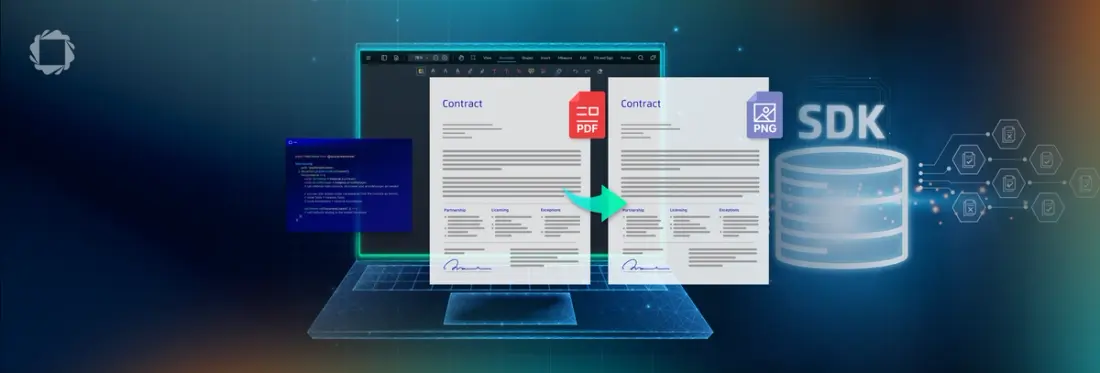
Summary: Managing high-resolution documents across different devices can be a technical headache, often leading to slow load times and inconsistent rendering. Converting PDFs to images on the server is the most reliable way to ensure every user, whether on a mobile app or a desktop browser, sees a sharp, fast-loading, and accurate preview. This blog looks at the benefits of using a self-hosted SDK, like the Apryse Server SDK, over cloud APIs for better privacy and lower latency. We’ll also cover some how-to examples such as batch processing entire directories, handling specific page ranges, and annotation visibility.
Introduction
If you’ve ever tried to open a 50MB blueprint on a smartphone, even with a decent connection, you’ve seen why PDF-to-image conversion is so vital. Browsers and mobile apps are notoriously inconsistent at rendering complex PDFs. By converting a page into a standard PNG or JPEG on the server, you’re making the document easier to access for the user. They get a sharp, fast-loading preview, and you get total control over how that document looks.
In this blog, we’ll look at converting PDFs to images and how to do it with a server-side SDK, like the Apryse Server SDK. We’ll also cover some commonly asked questions.
Where It Matters Most
We see PDF to image conversion most often in high-stakes environments where a broken preview isn't an option. Let’s look at some examples:
Quick Browsing: Generating instant thumbnails for a document library so users can browse a list of files without downloading each one.
Mobile Users: Rendering a document as an image so it can be viewed inside a chat bubble or a push notification.
Long-term Archiving: Converting legal documents to TIFF because it’s a format that won't change in 50 years.
Clean OCR: Rasterizing a messy PDF to flatten it before sending it through a text-recognition engine.
Security and DRM: Using images for DRM makes it easy to safeguard your PDFs. If the PDF hasn't been uploaded, then it can't be downloaded from the browser. At best, the user can print one page at a time.
Comparing Methods: Cloud APIs vs Self-Hosted
When you’re starting out, a Cloud API, like CloudConvert, may be enticing as it’s a simple REST call. But in scaling your workflows, you could experience these three walls:
Privacy: Do you really want your sensitive legal documents leaving your server to be processed by a third party?
Latency: Waiting for a document to travel to the cloud and back adds a delay, increasing your processing time.
Cost: At 10,000+ pages a day, those per-page fees turn into a massive monthly bill.
A self-hosted SDK, like the Apryse Server SDK, lives on your hardware. There are no per-page fees, the data never leaves your system, and the conversion happens in milliseconds because there’s no network trip.
Quality Considerations: DPI, Color, and Compression
Developers are always juggling quality versus speed. There’s always a tradeoff, so you have to decide what’s going to give the best quality without sacrificing speed and vice versa. For example, you might decide that your images will be 72 DPI for tiny thumbnails, 150 DPI for web, and 300 DPI for print.
Now, we’ll take a look at some other factors to consider:
Format:
- PNG: Choose this for text-heavy docs (keeps lines sharp).
- JPEG: Choose this for photos (to save space).
Color Space & Compression: You can use encoder hints to tune the output. For example, forcing a CMYK color space for print-ready images or adjusting the JPEG Quality (0–100) to shrink file sizes.
Annotations: You can choose to embed sticky notes and highlights directly into the file or keep the output clean.
Scaling to Keep Up with Demands
Scaling your workflows to process thousands of pages requires more than just basic conversion. Let’s look at a few items to consider to help tackle growing demands on your system.
Parallelism: Using every available CPU core helps distribute the workload. Native SDKs are built for multi-threading, so take advantage of it.
Serverless (AWS Lambda): No Chromium dependency means cold starts are incredibly fast. You can burst to 1,000 concurrent conversions and then scale back to zero cost.
Tile-Based Rendering: For massive CAD exports or blueprints, like 48-inch sheets, don't load the whole page into memory. Instead, render it in tiles to keep your memory footprint low and prevent crashes.
One SDK for the Whole Process
Image conversion is rarely the end goal. Usually, it's just one link in the chain. Maybe you’re rendering a preview before someone applies a redaction, or you’re converting a PDF to an image so you can OCR it back into a searchable document. Using one SDK for the whole process means you aren't wasting CPU cycles converting data types between different libraries.
How to Convert PDFs to Images in Python
The best thing about using a native SDK instead of something like a headless Chromium browser is the memory footprint. Headless browsers are memory hogs whereas a native engine uses minimal memory.
In these examples, we’ll use Python, but the code is available in JavaScript, C#, Java, and other languages. The following code is based off our full sample for converting PDFs to images, which covers other options available such as output format, resolution, and more.
To get started, we’ll need to do the following first:
- Follow the guides to set up the Apryse Server SDK for Python.
- Get your Apryse trial key.
Convert All Pages in a PDF to PNG Images
In the first example, we can use the following code to process all the pages in a PDF, converting each one to a PNG image. It uses a PageIterator to go over every page and process it.
Convert a Range of Pages in a PDF to PNG Images
Now if we just want to process a range of pages instead of all the pages, instead of using an iterator, we can use a page range and GetPage to process particular pages from a document. Just replace this code:
With this code:
Remember to set the variables for the start and end of the page range you want to convert.
Convert All Pages for All PDFs in a Directory to PNG Images
We can also batch process all PDFs in a directory and again convert the pages to PNG images. To do this, we’ll modify the code from the above example, adding a loop to process all PDFs in the directory.
We’ll also add code to set the visibility of annotations by setting draw.SetDrawAnnotations() to True or False. We’ll set the value to True so that all annotations in the PDFs will be visible and become part of the final images.
FAQ
Does an image lose its text?
Yes. Once you turn a page into an image, it’s just pixels. If you need it to be searchable, you’ll need an OCR pass or a way to map the original text layer back onto the image.
Why not just use a headless browser?
Headless browsers are designed to render HTML and CSS and use a lot of memory. Native SDKs are built specifically for PDF geometry, making them faster and more stable for server-side workloads.
Does this support TIFF for archiving?
Yes. If you’re building for a bank or a government agency, they’ll likely ask for TIFF because it’s a stable format that hasn't changed in decades.
What about the fonts in the PDFs?
A benefit of server-side conversion of PDFs to images is that the image will be the same regardless of what fonts are installed on the user's device.
Conclusion
At the end of the day, server-side rendering is about knowing exactly what the user is going to see because you created the pixels yourself. It’s faster, more secure, and, once you’ve scaled, way cheaper than the cloud.
The Apryse Server SDK makes it easy to handle bulk PDF to image conversion, as well as many other document processing tasks. So, why not check it out for yourself with a free trial.
Contact our sales team for any questions and support.