Isaac Maw
Technical Content Creator
Published March 04, 2026
Updated September 16, 2026

7 min


Server-Side OCR: How to Process Documents at Scale Without Third-Party APIs
Isaac Maw
Technical Content Creator
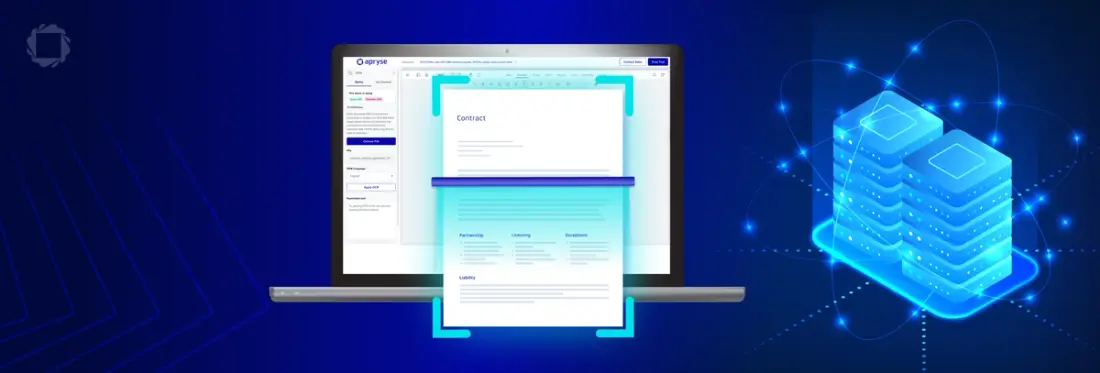
Processing documents such as forms and files at scale requires fast and accurate optical character recognition (OCR). For server-side applications, the right OCR solution meets the needs of developers, such as cost, data security compliance and batch processing, and end users, such as performance and accuracy.
Let’s take a look at key considerations for server-side OCR, including tools, features and formats, and see a sample using Node.js.
Server-side OCR processes documents at scale without third-party APIs by running an OCR engine directly on your own servers, using an SDK rather than calling out to an external cloud service. Instead of sending scanned files to Google Cloud Vision, Amazon Textract, or Microsoft Azure OCR, an SDK like Apryse embeds OCR capability inside your application, so recognition happens in-process on infrastructure you control.
This approach solves two main pain points of API-based OCR at scale. First, data never leaves your servers, simplifying compliance with regulations like HIPAA and GDPR since you're not relying on a third party's security practices. Second, costs become predictable through licensing rather than per-document pricing that can escalate at high volumes. Processing also avoids the variable latency of multi-tenant cloud architectures, since requests don't traverse external load balancers, queues, or job managers. Built-in pre-processing and flexible output formats round out the workflow.
Server-Side OCR Use Cases
OCR is commonly used in server-side applications in a number of industries, for applications such as:
Insurance
- Claims automation | extracting data from claims forms, health records and police reports
- Vehicle processing | reading VINs, license plates, and IDs
- Invoices and payments | processing incoming invoices, vendor documentation and other back-office documents
Legal and Courts
- Digitizing documents | Converting court records, contracts, case law and historical files to searchable text
- Discovery automation | searching and indexing scanned evidence and PDFs
- Digital Workflows | extracting structured text from signed agreements
Healthcare
- Claims and billing automation | processing CMS forms, insurance documents, and paper claims
- Medical records digitization | scanning clinical notes, lab results, referrals for entry into electronic health records (EHR)
Cloud OCR APIs vs. Apryse SDK
Developers consider well-known OCR API services, such as those provided by Google, Amazon and Microsoft, as well as OCR SDKs. Each approach has benefits and tradeoffs. Cost and data control are key differences between SDKs and API services.
Apryse OCR offers a unique combination of high-speed performance, multilingual support, and high accuracy specifically designed for large enterprises and technology providers.For the deployment specifics, see self-hosted OCR.
Data Control
Sensitive data must be shared in compliance with regulations such as HIPAA and GDPR, depending on jurisdiction and industry-specific regulations.
API Services
Because data is leaving your environment and being processed by a third party, data security and privacy aredependent on third-party compliance with relevant standards.
Apryse SDK
With no external dependencies, your data never leaves your servers, making privacy and data security compliance simple.
Cost
SDKs like Apryse are licensed, while API services are typically pay-per-use. For example, Google Cloud Vision uses tiered pricing per thousand units. When it comes to cost, the optimal solution depends on scale. In addition, don’t forget to consider network data costs in your calculations.
API Services
While API services and their pay-as-you-go model are cheap at low volume, costs can quickly snowball out of control when OCR is needed at high volume. Because APIs like Google Cloud Vision scale linearly, sporadic and low-volume OCR may be cost effective with the API.
Apryse SDK
Apryse offers flexible licensing, there may be a license that works for your use case that allows your application to gain the benefits of Apryse without compromising on cost. making your costs more predictable. Depending on your license, an OCR SDK becomes more cost-effective than API services when:
- OCR volume is high (hundreds of thousands to millions of documents)
- Workloads are constant or growing
- You need unlimited usage
To learn more about Apryse SDK pricing and licensing, please contact sales. Our team can help find the best approach for your needs.
Architecture patterns for server-side OCR pipelines
Image pre-processing
Scanned documents aren’t always clean and aligned. For best performance and accuracy, pre-processing such as deskew and despeckle help prepare documents to get the best results.
With Apryse SDK, these pre-processing features are built into the engine, improving recognition accuracy.
In comparison, Google Cloud Vision, Amazon Textract and Microsoft Azure OCR don’t specifically mention deskewing or despeckling in any of their OCR documentation. Instead, these services suggest you send images after performing pre-processing separately. This workaround can get complicated, however, if you’re using batch processing or queue-based processing, and could also add latency.
Output formats
The Apryse OCR module supports output in structured JSON, XML and searchable PDF.
API services such as Google Cloud, Amazon Textract and Microsoft Azure OCR support JSON output, and rely on other tools of these platforms for other outputs, such as CSV or searchable PDF.
Architecture Considerations
Cloud OCR services are delivered as multi-tenant, microservice-based systems. Because requests traverse load balancers, authentication services, storage layers, async job managers, and other microservices, latency per document is variable. Community posts on some of these services reveal developers experiencing latency that varies widely, from hundreds of milliseconds to over 5 seconds per document. This variability is unpredictable, and can cause workflow bottlenecks.
In comparison, because Apryse SDK runs on your own services, the OCR engine performs in-process without this added, variable latency.
When it comes to getting OCR jobs done, the comparison is a lot like the difference between waiting for an uber or owning your own car.
With Apryse SDK, you choose batch processing or queued processing based on your needs, not based on compromise.
How to set up Apryse OCR on your server
To find out more on how to set up the Apryse Server SDK with the OCR module, visit our documentation.
Server SDK Setup
To get started with OCR, you’ll first need the Apryse Server SDK. The Server SDK supports a range of frameworks, runtimes and languages in all major platforms (MacOS, Windows, Linux), so you can deliver applications from a single codebase.
Frameworks and runtimes include:
- .NET
- .NET framework (C#, VB)
- Node.js
Supported languages:
- C++
- Java
- Go
- Python
- PHP
- Ruby
- Objective-C
- C interface binding
- Javascript
If you don’t see the language you require, contact sales for more information.
For this article, we’ll use Node.js. You can follow this tutorial video on How to Use Apryse SDK in Node.js on Windows.
Prerequisites
Before you start:
- Install Visual Studio Code (or your preferred application) to write, edit, and debug source code.
- Install Node.js and npm to use as your runtime environment and package manager. We recommend using the latest Active LTS version of Node.js.
- Download Apryse’s Node.js PDF Library for Windows. See our Windows developer download section for the file you need.
- Get your Apryse trial key.
Step 1. Run a PDFNet sample project
Once you have the SDK installed, you can follow the instructions on our Node.js Getting Started documentation page to download and install a sample package that demonstrates our PDF conversion capability to test your setup. You’ll also follow the instructions to enter your license key into the module.
Step 2. Create a new PDF Node.js project
With these steps, you can learn how to set up your environment, import the required libraries, and run a script that produces a valid PDF file, all without manual intervention. This example provides a practical foundation for more advanced document‑generation workflows.
- Navigate to the Documents folder and create a New Folder.
- Enter the folder name, NewApryseProject.
- Right-click on the NewApryseProject folder and select Open in Terminal.
- From the project directory, on the command line, enter the following and press Enter to initialize a new Node.js project and create a package.json file with default values.
npm init -yThis creates a new package.json file:
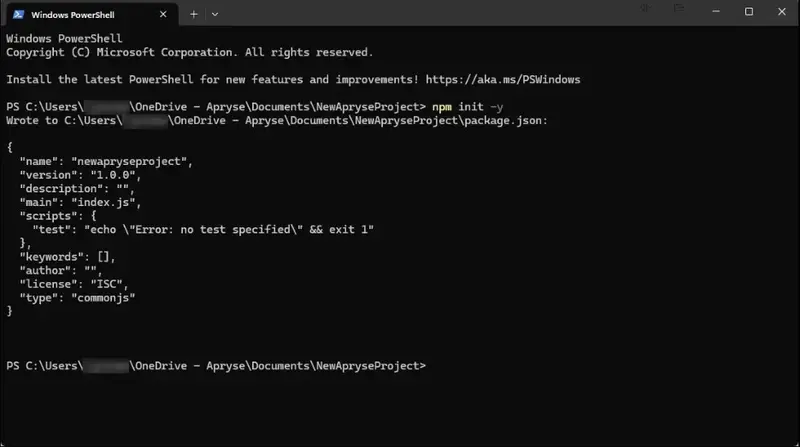
A new project is created.
At the command prompt, type exit, press Enter, and close the window.
Step 3. Initialize and integrate the Apryse Server SDK into your application
Open Visual Studio Code, select File >Open Folder. Navigate to Document > NewApryseProject and click on Select folder.
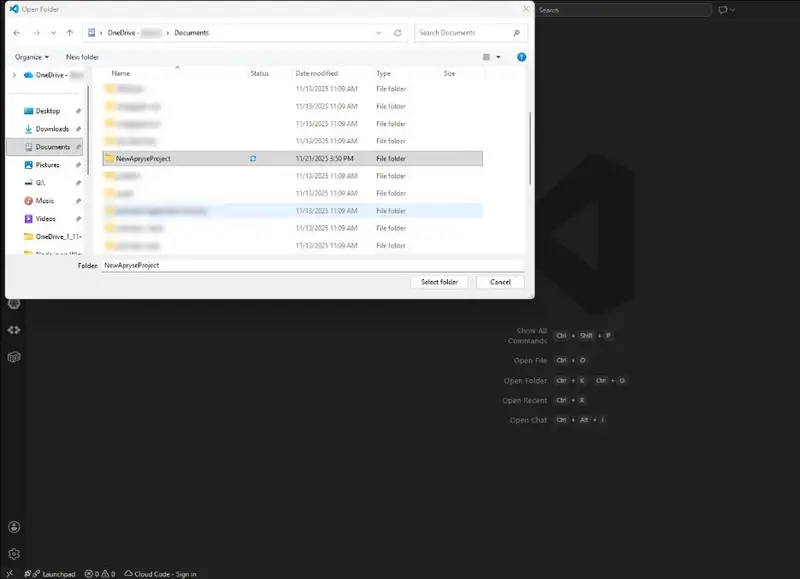
Open the NewApryseProject folder.
Next, from the File menu, select NewTextFile... and name it index.js. Then copy the following code and paste into the index.js file to create a blank PDF page.
Keep in mind the following about the code above:
- The system logs a startup message.
- The program imports the Node.js SDK.
- The script defines an async main function that builds the PDF.
- The PDFNet engine runs with cleanup and license initialization.
- The program logs any errors.
- The script releases PDFNet resources and shuts down the engine.
Next, add your license key. Scroll down to the line containing PDFNet.runWithCleanup(main, APRYSE_LICENSE_KEY) and replace the placeholder with your trial license key.
Keep your license key confidential
License keys are uniquely generated and strictly confidential. Don't publish or store them in any public location, including public GitHub repositories.
You can get a trial license key for testing purposes, but you will need a commercial license in a production environment.
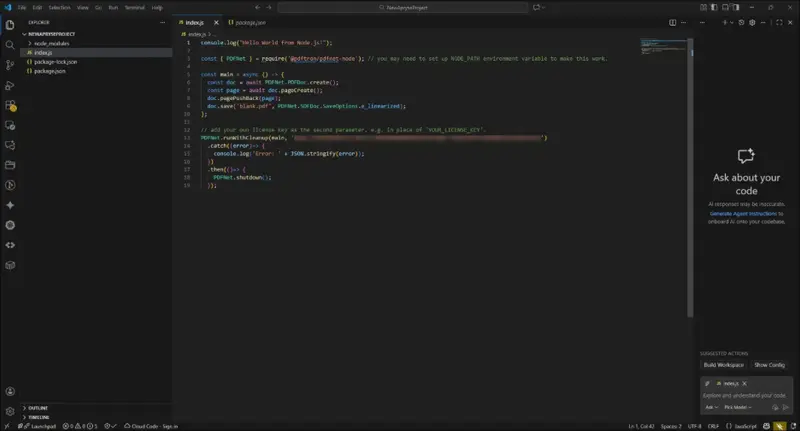
What your index.js should look like now.
After you save your changes and close the file, you have successfully added the Apryse Server SDK to your Node.js project. Now you’re ready to get started with the OCR module!
To Run your project
To run your project, navigate to the Documents folder. Select the NewApryseProject folder, right-click and select Open in Terminal.
From the project directory, on the command line, enter the following, then press Enter:
node index.js The sample code executes, creates a blank PDF page, and displays the message, “Hello World!”
Now, exit out of the command line and navigate to the Documents > NewApryseProject folder. Open the blank.pdf which you created by integrating the Apryse Server SDK!
Server-Side OCR module integration
To get started with the OCR module, first download the module for Windows on our add-on modules documentation page.
Unzip the file and install the package.
OCR Workflow
In v12, three OCR Modules exist
- Default OCR
- Alternative OCR (which was the default OCR in v11 and earlier)
- IRIS OCR
If only one module is present then Apryse SDK will use that module. If multiple modules are present, you can select the module you wish to use with the OCR options object:
OCROptions.setEngine("iris")
Make a searchable PDF by adding invisible text to an image using OCR.
Process a scanned document
To make a searchable PDF by adding invisible text to an image based PDF such as a scanned document using OCR.
For more workflow examples, sample code and instructions, check out the OCR Workflow documentation page.
FAQ
A software development kit (SDK) puts a complete set of tools including libraries, documentation, and utilities. In comparison, an application programming interface (API) refers to a set of rules that allow your software to communicate with an external software. Check out our article, Local SDKs vs. Cloud APIs: What Developers Need to Know Before Building the Next Application to learn more.
A: Not always. While OCR is great for turning human-readable text (images, PDF, scans) into machine-readable text, it doesn’t always capture document structure or other context data. Check out Smart Data Extraction for an AI-powered solution that gets more data out of your docs.
A: Yes, Apryse SDK supports a number of languages for the OCR SDK, including Python. Check out How to Build Optical Character Recognition (OCR) in Python for instructions.